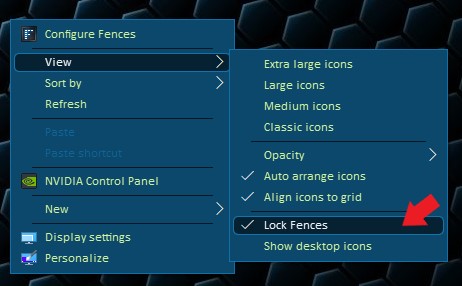
Me too -- unable to create a new fence on my desktop. Right-Clicking on the desktop in an open area shows the pop-up menu with the Configure Fences option at the top. Clicking this option shows the Stardock Fences 3 (version 3.0.9.11) app window, but the only thing there is text saying to create a new Fence by drawing a rectangle on my desktop, which doesn't work for me. On that same screen, down at the bottom, In the Basic options area Fences, is an Enable/Disable checkbox (checked) and Create Fences drop-down list with left mouse only option set, but I've tried all three options -- none work. In the desktop pop-up menu, under the view option the lock fences option is unchecked.
Using the mouse button, set above, I can drag-draw a rectangle around some desktop icons, but that only highlights/select those icons. If I drag-draw a rectangle in an open space on the desktop, nothing happens.
I'm using Windows 10 version home 2004 (OS Build 19041.746).
By the way, in the Stardock Fences app, please consider making the Create a fence clickable and open a new page that shows more details on how this works. In the new page also have box into which you can drag icons from the desktop and populate a new fence, if desired, and a button that actually creates a new fence with the dragged icons or empty, if no icons were dragged. This option to create a new fence would be especially helpful for people with no more space on their desktop. I have space, but this new feature would still be helpful when the normal drag-draw method stops working.
Also, consider adding email support to the Configure Fences app's About page.
Thanks,
Ron Brown

 Stardock Forums