DeskScapes 2026 Release Feedback Thread
Thank you for your interest and any time you put into making DeskScapes 2026 a better product.
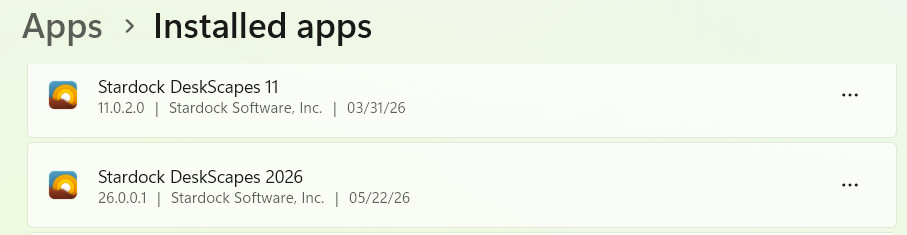
I performed a complete purge of DeskScapes 11, followed by a restart, and then installed DeskScapes 2026 followed by a restart.
Now both "Programs and Features," as well as, Win Settings "Installed Apps" show both versions as installed?
![]()

Windows 11 Pro 26200.8457; DeskScapes 2026 - 26.0.0.1
Dear Basj,
could you kindly spread a list of Placeholders for adjusting the info pane details?
1. E. g. >Desktop Effects >Info Pane: there is a small help window below the time format window but no complete list of what %Y, %y, %A etc .does and what it can be used for. I tried a few things but this is far from complete.
2. E. g. >Desktop Effects >Info Pane: What are the names of the time zones Deskscapes is using? The example given in the help window "Pacific Standard Time" does not work,. i. e. same time is displayed as without that info.
3. There is an option to change the font. At the moment I have to enter the font name manually. A drop-down list would be great!
4. There is an option to add a pre- and a post string. Unfortnately I cannot add a leading or trailing space. These are ignored. Possible to fix in future version?
Thanks, Steffen
Dear Basj,
could you kindly spread a list of Placeholders for adjusting the info pane details?
Hello Steffen,
Sorry, I don’t have that information at the moment. Just to share, the Support and Development teams do follow these threads, so your question is visible to them. Hopefully they’ll be able to provide more details when they can.
Thank you,
Basj,
Stardock Community Assistant.
FYI - The Info Pane doesn’t survive a restart of Explorer. However, if I right-click the desktop and select “Show more options,” it then appears.
I’m using the “12 hour Clock and date with CPU/Men” setting at Bottom right; small size; with Arial Nova Condensed font; color white; and Add outline to text selected
Windows 11 Pro 26200.8457; DeskScapes 2026 - 26.0.0.1
FYI - The Info Pane doesn’t survive a restart of Explorer. However, if I right-click the desktop and select “Show more options,” it then appears.
I’m using the “12 hour Clock and date with CPU/Men” setting at Bottom right; small size; with Arial Nova Condensed font; color white; and Add outline to text selected
Windows 11 Pro 26200.8457; DeskScapes 2026 - 26.0.0.1
I tested this one and I can't reproduce your issue. Refer to my short video below.

Thank you,
Basj,
Stardock Community Assistant
FYI - The Info Pane doesn’t survive a restart of Explorer. However, if I right-click the desktop and select “Show more options,” it then appears.
I’m using the “12 hour Clock and date with CPU/Men” setting at Bottom right; small size; with Arial Nova Condensed font; color white; and Add outline to text selected
Windows 11 Pro 26200.8457; DeskScapes 2026 - 26.0.0.1
If thats happening then Deskscapes isn't starting up at login.
Check the Stardock Deskscapes service is set to run
FYI - The Info Pane doesn’t survive a restart of Explorer. However, if I right-click the desktop and select “Show more options,” it then appears.
I’m using the “12 hour Clock and date with CPU/Men” setting at Bottom right; small size; with Arial Nova Condensed font; color white; and Add outline to text selected
Windows 11 Pro 26200.8457; DeskScapes 2026 - 26.0.0.1
I tested this one and I can't reproduce your issue. Refer to my short video below.
Thank you,
Basj,
Stardock Community Assistant
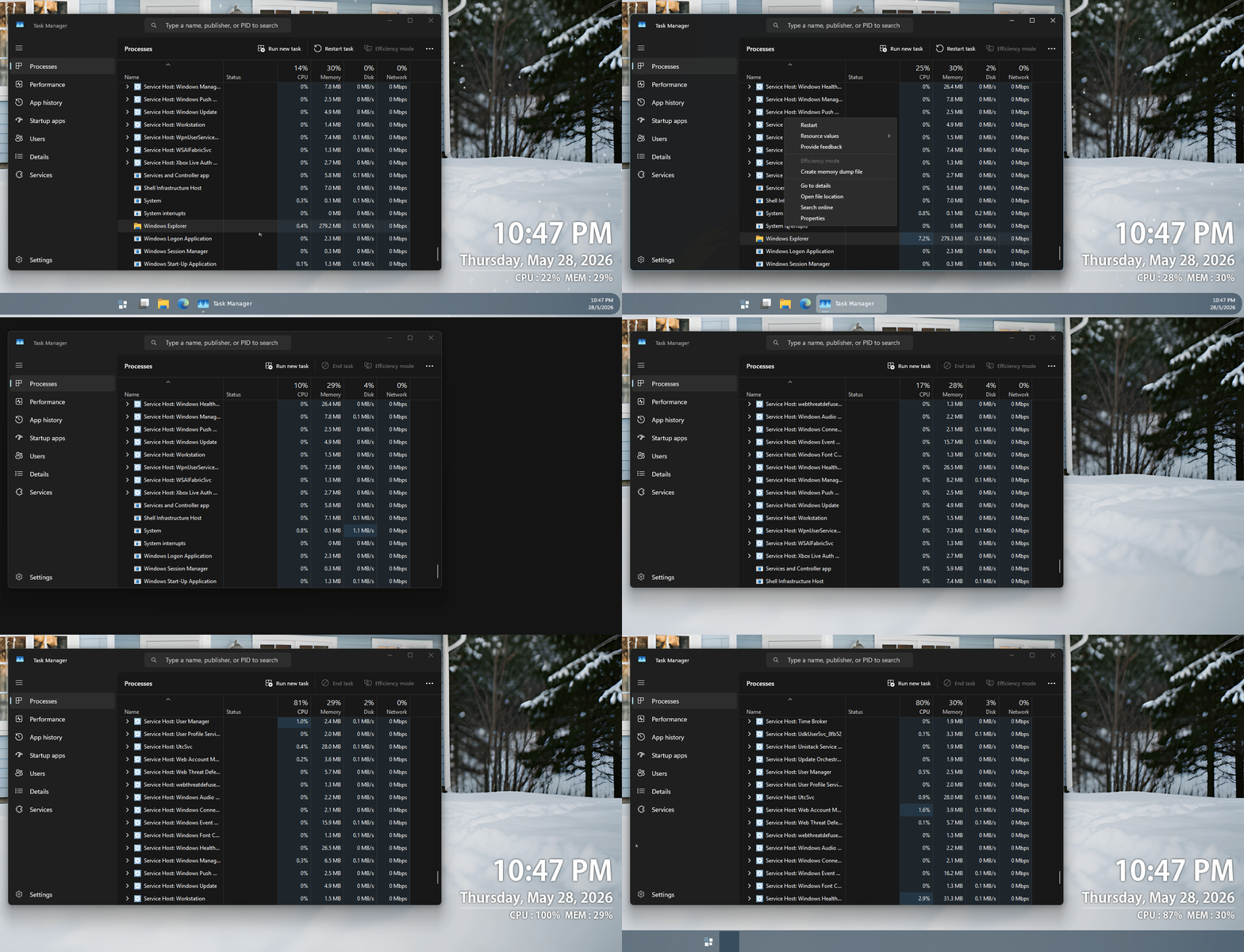
I was using a promt to restart Explorer, but I tried using Task Manager and that didn’t work either. I also tried restarting the Stardock DeskScapes 11 service, and no luck. However, if I right-click the desktop and select “Show more options,” it then appears and the DeskScapes icon appears in the System tray.
FYI - The Info Pane doesn’t survive a restart of Explorer. However, if I right-click the desktop and select “Show more options,” it then appears.
I’m using the “12 hour Clock and date with CPU/Men” setting at Bottom right; small size; with Arial Nova Condensed font; color white; and Add outline to text selected
Windows 11 Pro 26200.8457; DeskScapes 2026 - 26.0.0.1
If thats happening then Deskscapes isn't starting up at login.
Check the Stardock Deskscapes service is set to run
So, I restarted Explorer (no info pane), and then checked the processes and service. All were running as they should be.
Something is blocking the Info Pane from restarting. Accessing the Desktop context menu “Show more options” causes the screen to go black and then back on with the Info Pane showing on the desktop.
FYI - The Info Pane doesn’t survive a restart of Explorer. However, if I right-click the desktop and select “Show more options,” it then appears.
I’m using the “12 hour Clock and date with CPU/Men” setting at Bottom right; small size; with Arial Nova Condensed font; color white; and Add outline to text selected
Windows 11 Pro 26200.8457; DeskScapes 2026 - 26.0.0.1
If thats happening then Deskscapes isn't starting up at login.
Check the Stardock Deskscapes service is set to run
So, I restarted Explorer (no info pane), and then checked the processes and service. All were running as they should be.
Something is blocking the Info Pane from restarting. Accessing the Desktop context menu “Show more options” causes the screen to go black and then back on with the Info Pane showing on the desktop.
Thats Deskscapes starting. If you used an animated dream or any special effects you will have noticed they were not working either until you used that menu.
Something is stopping it starting up. Deskscapes64.exe is what should start it. Is that running too?
FYI - The Info Pane doesn’t survive a restart of Explorer. However, if I right-click the desktop and select “Show more options,” it then appears.
I’m using the “12 hour Clock and date with CPU/Men” setting at Bottom right; small size; with Arial Nova Condensed font; color white; and Add outline to text selected
Windows 11 Pro 26200.8457; DeskScapes 2026 - 26.0.0.1
If thats happening then Deskscapes isn't starting up at login.
Check the Stardock Deskscapes service is set to run
So, I restarted Explorer (no info pane), and then checked the processes and service. All were running as they should be.
Something is blocking the Info Pane from restarting. Accessing the Desktop context menu “Show more options” causes the screen to go black and then back on with the Info Pane showing on the desktop.
Thats Deskscapes starting. If you used an animated dream or any special effects you will have noticed they were not working either until you used that menu.
Something is stopping it starting up. Deskscapes64.exe is what should start it. Is that running too?
I stopped the DeskScapes64 service and restarted it. Now restarting Explorer loads the Info Pane correctly. I’ll have to see if it still does after a Restart of the computer. The priority is set to normal. Would changing that value to a higher level change anything with the order it loads?
Dear Basj,
how did you manage to get a space between ":" and the memory value?
Thanks,
Steffen
Dear Basj,
how did you manage to get a space between ":" and the memory value?
Thanks,
Steffen
If you talking about the pane info from my screenshot above, that is what I get why I applied, the "12 hour clock and date with CPU/Mem" I am not really sure how it was done. I have tried the edit function, but, I can't figure it out too.
Thank you,
Basj,
Stardock Community Assistant
Dear Basj,
exactly right. So the spaces are built-in the template. Unfortunately I can also not figure out, hw these templates can be customized. Maybe when all the"first-release" headaches are eliminated by Adam an all your gifted developers.
BR Steffen
Dear Basj,
exactly right. So the spaces are built-in the template. Unfortunately I can also not figure out, hw these templates can be customized. Maybe when all the"first-release" headaches are eliminated by Adam an all your gifted developers.
BR Steffen
Yes, hopefully something will come down from Support soon.
Thank you,
Basj,
Stardock Community Assistant
Welcome Guest! Please take the time to register with us.