sdRohan sdRohan

Start11 1.2 Release Feedback Thread

Start11 1.2 Release Feedback Thread

With the Start 1.2 release, we are creating this thread so that users can report any observed issues.  

Obtaining Start11 1.2

Object Desktop members can get the release from within Object Desktop Manager 

Individual purchases (as well as Object Desktop Members) can also be obtained from your account page: https://store.stardock.com/myaccount/products

For guest check-out purchase (no account), from this link: http://www.stardock.com/support/productkeyretrieval

Reporting an issue

Please include the following for anything found:

  • Exact Windows version \ build (winver.exe)
  • Detailed steps to recreate the issue seen
  • Screenshots and videos are very helpful.  Videos can be uploaded to a cloud drive services (GoogleDrive, DropBox, OneDrive, YouTube) and links included in your post.  Images can be directly added.
  • If there are specific apps that the app does not work (well) with, please note what apps and their exact versions.  If any app is not common, a link to a trial version would be appreciated.

Thank you for your interest and any time you put into making Start11 a better product.

Sean Drohan
Stardock Support Manager

285,815 views 197 replies
Reply #176 Top

I ask the developers, is it possible to introduce in the next update the possibility of inserting folder links in the start bar as it was done on Windows 10.


And also the option of icons not combined, but with a central start button.

that would be great.


possible ?

Reply #177 Top

Update 1.2 broke Windows 11 style icon resizing. 

Before:


After:

Reply #178 Top

Quoting IPings, reply 177

Update 1.2 broke Windows 11 style icon resizing. 
End of IPings's quote

As Neil has said in a previous post

It is possible to revert back to the old way by adding a REG_SZ registry key called UsePre1.2Win11TileMode with a value of 1 here : HKEY_CURRENT_USER\SOFTWARE\Stardock\Start8\Start8.ini\Start8

Reply #179 Top

Quoting PhoenixRising1, reply 178


Quoting IPings,

Update 1.2 broke Windows 11 style icon resizing. 


As Neil has said in a previous post

It is possible to revert back to the old way by adding a REG_SZ registry key called UsePre1.2Win11TileMode with a value of 1 here : HKEY_CURRENT_USER\SOFTWARE\Stardock\Start8\Start8.ini\Start8

End of PhoenixRising1's quote

Worth noting the change is not a bug, the previous behaviour was as it did not work correctly causing overlapping of text and icons.  Now custom images are sized the same as the icons in the Windows 11 menu.

But yes the registry key lets you opt back into the buggy behaviour.

Reply #180 Top

Then why even have a resizing feature? I get that there was an overlapping issue before, but the resizing feature should still work. 

Reply #181 Top

After automatic checking on updates i got 11 1.2 installed.

After this update no start11 functionality anymore.  It seems that the windows startbutton is on top of the start 11 button.

Switching to beta1.22 had no effect. Even tried start10 again but the same issue. Did MS change anything in windows? (Win 11 21H2)


Edit (30 mins later) did an ather try with a clean install of 11 1.2 and it seems to work again as used to. Unfortunately all my customizations gone now.

Reply #182 Top

Quoting IPings, reply 180

Then why even have a resizing feature? I get that there was an overlapping issue before, but the resizing feature should still work. 
End of IPings's quote

The resizing feature does work?

Nothing should have changed in that regard.

Reply #183 Top

Quoting IPings, reply 180

Then why even have a resizing feature? I get that there was an overlapping issue before, but the resizing feature should still work. 
End of IPings's quote

Try resizing by right clicking on the group name and selecting "group icon size"

I myself have better luck resizing using that method

Reply #184 Top

Anyone else having an issue with slow search speeds in the start menu all of a sudden? I posted a thread here with more info. I didn't have this issue in the beta, but I didn't try 1.0 or 1.1, so I'm not sure if this is new. Experiencing this across multiple computers.

Reply #185 Top
Quoting Earl319,
I just installed Start11 1.2 with the Modern Style menu selected.  I am unable to find an option to allow re-ordering of (non-Metro) items in the All Programs list - the list is always presented alphabetically.  For example, I like to have a folder named Office listed before a folder called Communications.  And within the Office folder, I like to have the Word shortcut listed first, followed by Excel, etc.  I can click/hold on a folder or shortcut and it appears I will be able to move it, but am unable to place anything in a new order.  I am able to do this with Open-Shell, and of course in Windows 7.

Additionally, I stumbled on a HideMetroApps registry value to hide showing the Metro Apps folder in the All Programs (left) list, but am confused why this option is not presented in Start11's configuration UI (or did I just miss it)?

Not being able to re-order the All Programs list is a huge drawback for me.


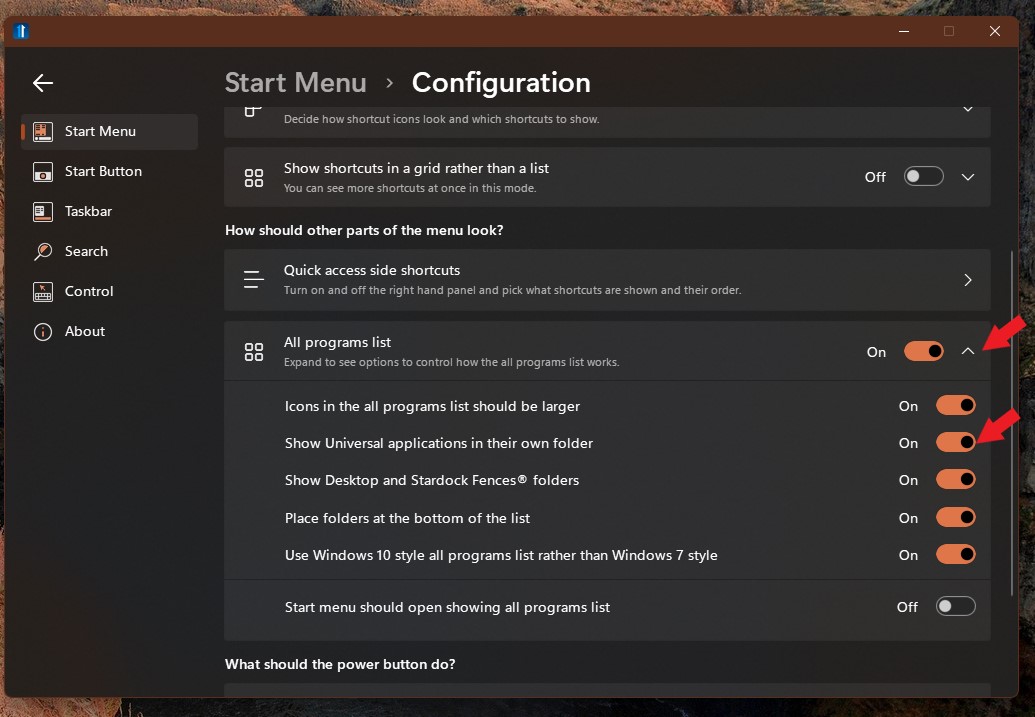
From what I know the All Programs list always only sort by alphabet. As for Universal Application there is no hide but you can set it to all inside one Folder : Refer to screenshot below.


Reduced 65%
Original 1035 x 717


Thank you,

Basj,
Stardock Community Assistant

__________


Thanks Basj!  Just for awareness, here's a screen shot of Open-Shell on Windows 10 (10.0.19044) showing that the All Programs list (folder or shortcuts) does not need to always be alphabetized.  Also, the Universal Applications folder can be hidden from Start11's All Programs list by adding this registry value/data (this should be exposed in the Start11 settings app):

[HKEY_CURRENT_USER\SOFTWARE\Stardock\Start8\Start8.ini\Start8]
"HideMetroApps"="1"

Non-alphabetized All Programs list

It's just Start11 that is not capable of custom sorting the All Programs list, which makes it un-useful for me.

Reply #186 Top

I'm running Start11 1.2 on Windows 11 21H2 22000.613, and basically nothing in the Taskbar > Taskbar Settings panel works (the page you get to when you click "More Start11 taskbar settings...". 

The multiple monitor setting "Show taskbar buttons on..." works, but everything else on that page has absolutely no effect. That being said, all of the aesthetic features in the Taskbar page function, such as transparency, textures, colours, blur, and Taskbar Size. Of course, I've tried toggling "Let Start11 enhance the taskbar" and restarted explorer, and even rebooted my PC.

Oh, another issue: When Taskbar Size is set to Small, the clock overlaps anything on the left side of the taskbar, instead of staying on the right where it should be.

Reply #187 Top

Quoting Elestriel, reply 186

I'm running Start11 1.2 on Windows 11 21H2 22000.613, and basically nothing in the Taskbar > Taskbar Settings panel works (the page you get to when you click "More Start11 taskbar settings...". 

The multiple monitor setting "Show taskbar buttons on..." works, but everything else on that page has absolutely no effect. That being said, all of the aesthetic features in the Taskbar page function, such as transparency, textures, colours, blur, and Taskbar Size. Of course, I've tried toggling "Let Start11 enhance the taskbar" and restarted explorer, and even rebooted my PC.

Oh, another issue: When Taskbar Size is set to Small, the clock overlaps anything on the left side of the taskbar, instead of staying on the right where it should be.
End of Elestriel's quote

Did you have an earlier version of Start11 installed?

If so uninstall Start11, Reboot (important) and then reinstall Start11 1.2 again as it may be some files were not updated correctly.

Reply #189 Top

Configuration:
Microsoft Surface Pro 7 8/256
ViewSonic 1080p (external) monitor
Microsoft Windows 11 Pro version 21H2 (OS Build 22000.613)

After installing update v1.2, rebooted, also tried switch off & on multiple times, start menu (mouse click or press Win key) not responding at all.

I've customized Start11 v1.1 menu for tablet use. I need a solution without erasing my setup. Will uninstall & reinstall v1.2 solve my problem?

Reply #190 Top

Just dropping my 2 cents... I really like that "drag and drop" was added. It works much better than "Windows 11 Drag & Drop to the Taskbar (Fix)" by HerMajestyDrMona... which works, but it's slow and kind-a sketchy. But, I am actually a fan of the centered Start menu. I'm not sure why enabling drag and drop forces the start menu to the left, but if you can find a way to re-enable that, I know I would appreciate it. I think I will just stick with "Taskbar (Fix)" until that's an option.

Reply #191 Top

Hi there 

I recently updated it and have a problem with it. I have a two-monitor setup and the taskbar on the second monitor is now empty unless I have an application opened and have the window of that application on my second monitor then it will show up on the taskbar otherwise the taskbar on my second monitor remains empty. How can I change it to show the complete taskbar on both displays?

Reply #192 Top

Why aren't applications started from a search listed as "most used applications"?

I have my most used applications pinned to the taskbar and my often-used applications pinned to the start menu. Lesser-used applications are started by searching for them.

This behavior seems to leave the "most used applications" list somewhat random or flat out "wrong." Since the applications I search/start aren't listed as "most used," that list contains mainly applications I have never used!

Reply #193 Top

Quoting AlllPHA, reply 191

Hi there 

I recently updated it and have a problem with it. I have a two-monitor setup and the taskbar on the second monitor is now empty unless I have an application opened and have the window of that application on my second monitor then it will show up on the taskbar otherwise the taskbar on my second monitor remains empty. How can I change it to show the complete taskbar on both displays?

Reduced 43%
Original 1920 x 648


End of AlllPHA's quote

It sounds like you have told Windows to only show windows on the main monitor and on the monitor the window is open on.

This can either be changed from Windows taskbar settings, or from Start11 by clicking on the taskbar page and then the more start11 taskbar settings button.

+1 Loading…
Reply #194 Top

Quoting GuruGurra, reply 192

Why aren't applications started from a search listed as "most used applications"?

I have my most used applications pinned to the taskbar and my often-used applications pinned to the start menu. Lesser-used applications are started by searching for them.

This behavior seems to leave the "most used applications" list somewhat random or flat out "wrong." Since the applications I search/start aren't listed as "most used," that list contains mainly applications I have never used!
End of GuruGurra's quote

Which menu style are you using?

Reply #197 Top

With the release of Start11 1.22, we are closing this thread.

Thanks to all that took the time to provide feedback.

Sean Drohan
Stardock Product Lifecycle Manager