Hard drive space?

The other day I had 220 gb free space now it says 180 gb free. It's supposed to be 320 gb hard drive when I ordered it. Anyway there's no way I have 100gb's of stuff on there. Does anyone know what I can do to check things? :) 
116,932 views 59 replies
Reply #1 Top
Difference in what you're told by the manufacturer. IE- 1,000 bytes or by system bytes at 1,024 bytes.
Reply #2 Top
Tune-up Utilities 2007 is my choice of diagnostics Richard, it works for me, although you can try something aggressive like Norton's Disk Doctor, but you'll have to purchase them.

Sounds like you've lost some sectors within some clusters and you want your space recovered.

Did you check your sectors, file allocation and boot sector integrity with scandisk? If you did, do you have lost sectors? That would be the first thing to check. Make sure you have everything running in the background on your system closed before scanning.

I also suggest you not to check “automatically fix file system errors” and “scan and attempt recovery of bad sectors” on the first pass. You want to see if you can get a clean scan on the first pass and checking these aggressive features will cause your initial verification to be lengthy.

Your last resort is to unconditionally format the drive providing you can't recover the space with utilities, meaning back-up everything you want to and can keep.

Drives go bad, quickly, unexpectedly and always painfully. They can come from the manufacturer with up to 9 bad clusters and is deemed acceptable for sale.

Guys like us have to always prepare for disaster.

Good luck my friend.

Cp
Reply #3 Top
I'm doing a defragmation on it right now I'll check for bad sectors next. It's still a butload of free space but I'd sure like to know what happened to rest..Thanks guys... :) 
Reply #5 Top
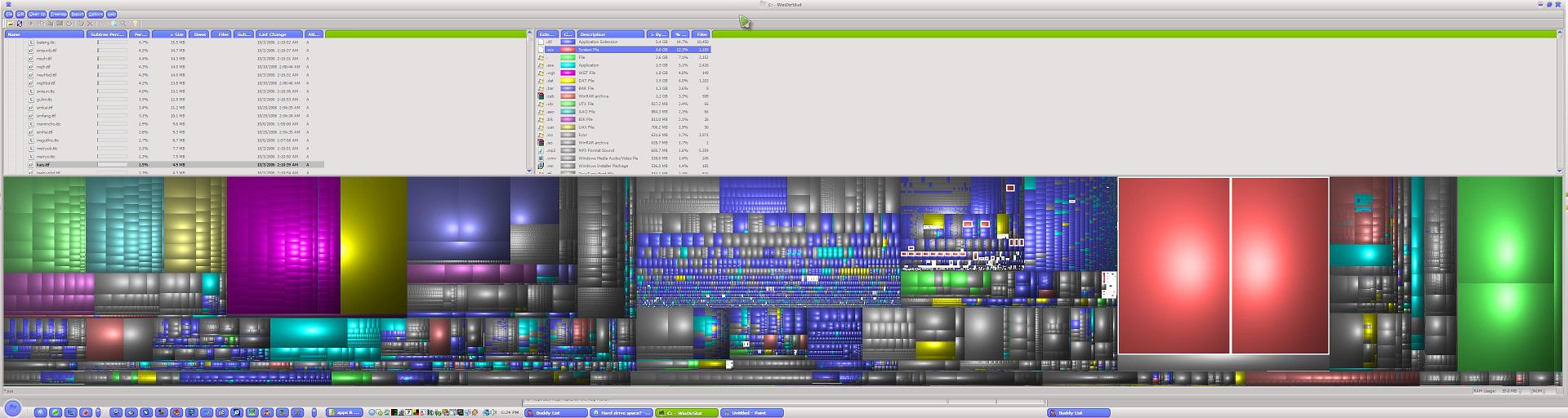
If you are trying to figure where your hard-drive space has gone, or if you want to visually see how much space a file, folder or directory is taking up. You can visually see how much space the system files take or all the jpeg's or icon files or any particular file.

A program called Windirstat is one of the best hard drive utilities you could ever use.
Windirstat

Here is a screenshot of my c:\drive and as you can see the section are broken down into directories and then files. You can see one the left side my page file is 2.3GB and is shown as one of the large red squares towards the right side of the map and my next largest file is my hiberfil.sys file which is another 2.0GB which shows next to the page file on the map. The 2 large green squares are system volume info files. So as you can see, it’s a great utility for locating and managing hard drive space.


Reply #6 Top
I forgot to add that you should be concerned, that's a lot of lost space.

Let us know how it goes.

Reply #7 Top
Is this a new drive or one that you have had for a while? Could for some reason a program for backing up files have had it setting changed? Just guessing and throwing out some stuff here. You would hate to think that all of a sudden a third of your HDD came up with bad sectors.
Reply #8 Top
Rich, Like CP I use TuneUp 2007 Utilities. If your defrag does not give you the answer try the free 30 day trials of TuneUp and PerfectDisk - they are both the full versions of the product - and between them they should sort you out.  :D 
Reply #9 Top
Hey Goo!

I'm trying Windirstat on for size right now. That's pretty hot, lots of info and it's free!

Thanks for sharing this.

Cp

 :CONGRAT: 
Reply #10 Top
how old is it?
did you buy it new or eBay?
do you have more then one partition?
Reply #11 Top
Philly0381-- very new I just got new computer a week ago or so. I don't think there are any other partitions at least I didn't make any..Been defragmenting about 2/12 hours, is that normal?
Thanks much everyone.. :) I'll try and keep you updated.. When I first got it I think it was around 230 or so gb's free. Since then I've added some programs--bryce, photoshop,vue, 3d max. windowblinds, iconpackager,cursorxp,desktopx and a few other things.But I don't think they add up to 50gb's. Somethings up I hope I find out what it is.. :) 
Reply #12 Top
Gremlins
Reply #13 Top
Could be...
Reply #14 Top
Richard right click on your c drive and choose properties. Click on Disk Cleanup and check all the boxes. When I got my computer I had about 25gb of junk on it.

or

If you went from XP to Vista there is a folder called Old files(?) when you click on the c drive. That holds about 90gb.
Reply #15 Top
Was 186 gb's an hour or so ago now it's at 180gb's...
Reply #16 Top
Hey Goo!

I'm trying Windirstat on for size right now. That's pretty hot, lots of info and it's free!

Thanks for sharing this.

Cp

  
End of quote


Yeah, forgot to mention that it's free...lol

also check your pagefile, if your page file is managed by windows, then it is possible high activity would cause it to grow in size. Loosing 100GB is to much to use up with general usage.

Suggestion...
1.) clean all temp files and recycle bin, basically run a clean disk utility.

2.) uninstall any software that is unknown and uneeded (make sure the software you uninstall is not system necessary)

3.) defrag the drive with a good defragger, windows defragger sucks, my suggestion is O&O Defrag Professional or Perfect Disk or Diskeeper. all of these are faster than the Windows defragger and they do a better job. (also auto defrag and other features)

Some harddrive clean ulities have a free space cleaner as well. It overwirites the unused portion of the harddrive to make sure that the files not logged on the MBR are indeed empty.

If all else fails you may want to try repairing the MBR (Master Boot Record), it could be reading an error which may cause your space to be lost. If nothing else worksas a last and final resort is to back up your important data and reinstall windows. This is a gaurantee fix for these issues assuming that that problem isnt hardware related.

Keep us informed... plenty of people here to help.
Reply #17 Top
Is this a Lenovo you're having the problem with?
Reply #18 Top
No it's from dell...Have had good luck with them in the past so I stuck with them..It's says 179gb now...
Reply #19 Top
Hey Richard, I did the web search thing, like I'm sure you did. What operation sys are you running? Did you run any Video programs that maybe didn't shut down properly? There's a whole lot of things that show up searching Missing HDD space.

One of the things that is suggested is to contact the manufactruer of the the drive. From what I read usually they have utilities that you can run to check your disk. Not sure what would be different from what you may have already run.
Reply #20 Top
Vista ..Don't use any video programs other than windows media player.I'll check it out, thanks...
Reply #21 Top
Assuming Vista has the same 'System Restore' feature as XP ...then I'd be blaming that for pinching space...;)
Reply #22 Top
Vista takes up a huge amount of space. I did the upgrade version of Vista Home Basic on my fathers computer and with just bare minimun of XP Home and then the upgrade of Vista Home basic, it took every bit of the 40Gb harddrive he has. I ended up getting the Vista off his computer. Vista is huge. But 100GB for system restore? I think is uses about 10% maybe 20 but thats pushing it.

But then again it all adds up... It won't take long for a few programs we think as minor to add up to a large amount of space
Reply #23 Top
The guy at dell says the hard drive is alright do a virus scan..Is that possible it's just a virus?
Reply #24 Top
Now it's down to 178gb's. I haven't done anything...
Reply #25 Top
Richard, you started out saying that you were down to 180gb, then 179gb, and now 178gb. Somethings has to be writing to the HDD, is there anyway to see what is accessing the drive and possible saving data? Could it be a virus? Maybe another search of the web is in order looking for such a virus. That really doesn't make alot of sense, you not a newbee here. I find it extremely hard you would have pickup a virus, unless it came with the computer. Does Dell preloaded alot of junk programs that could be the culpret?