Fences 6.58 Release Feedback


With the Fences 6.58 release, we are creating this thread so that users can report any observed issues.  

Obtaining the product

Object Desktop members can get the release from within Object Desktop Manager 

Individual purchases (as well as Object Desktop Members) can also be obtained from your account page: https://store.stardock.com/myaccount/products

For guest check-out purchase (no account), from this link: http://www.stardock.com/support/productkeyretrieval

Reporting an issue

Please include the following for anything found:

  • Exact Windows version \ build (winver.exe)

  • Detailed steps to recreate the issue seen

  • Screenshots and videos are very helpful.  Videos can be uploaded to a cloud drive service (GoogleDrive, DropBox, OneDrive, YouTube), with a shared link included in your post.  Images can be copied and pasted directly into a post.

  • If there are specific apps that the app does not work (well) with, please note what apps and their exact versions.  If any app is not common, a link to a trial version would be appreciated.

Thank you for your interest and any time you put into making Fences 6 a better product.


460 views 10 replies | Pinned
Reply #1 Top

Released

10/14/2026

Version

UI: 6.58
File Version: 6.5.8.1

Changes

  • Resolves issue where drag/dropping icon in rolled up group could fail.

  • New desktop spacing detection algorithm enabled by default for all icon sizes for upgraded installations. Should resolve issue of scrunched up icons for some installations with medium sized icons at 200%+ when changing DPIs & resolutions.

  • Improvements to scrollbar animations on rolled up groups.

  • Addresses installer issues resulting from ProgramData\Stardock folder settings.

  • Addresses occasional incorrect subscription expired error.

  • Latest translations added in localization update.


Reply #2 Top

Known issues

While we appreciate all feedback, please remember that we offer no official support for beta \ preview \ developer channel versions of Windows. If you report issues while in any of those early release channels, you should not expect them to be addressed unless it still exists in a retail version of Windows.

Reply #3 Top

***Reserved***

Reply #4 Top

Why do my icons have so much more spacing underneath them? How do I get back the smaller spacing?

EDIT: fixed in "HKEY_CURRENT_USER\Control Panel\Desktop\WindowMetrics"

Changed IconVerticalSpacing to "-1100"

Reply #5 Top
Quoting jrolson, reply 4148548

Why do my icons have so much more spacing underneath them? How do I get back the smaller spacing?

EDIT: fixed in "HKEY_CURRENT_USER\Control Panel\Desktop\WindowMetrics"

Changed IconVerticalSpacing to "-1100"

End of jrolson's quote

Great, glad to hear you have fixed it, but do know there is an option to help with that.

Thank you,
Basj,
Stardock Community Assistant

Reply #6 Top

Did try that first, didn't fix my problem though

Reply #7 Top
Quoting jrolson, reply 4148557

Did try that first, didn't fix my problem though

End of jrolson's quote

Interesting, did you reboot after doing that?

Thank you,

Basj,
Stardock Community Assistant

Reply #8 Top


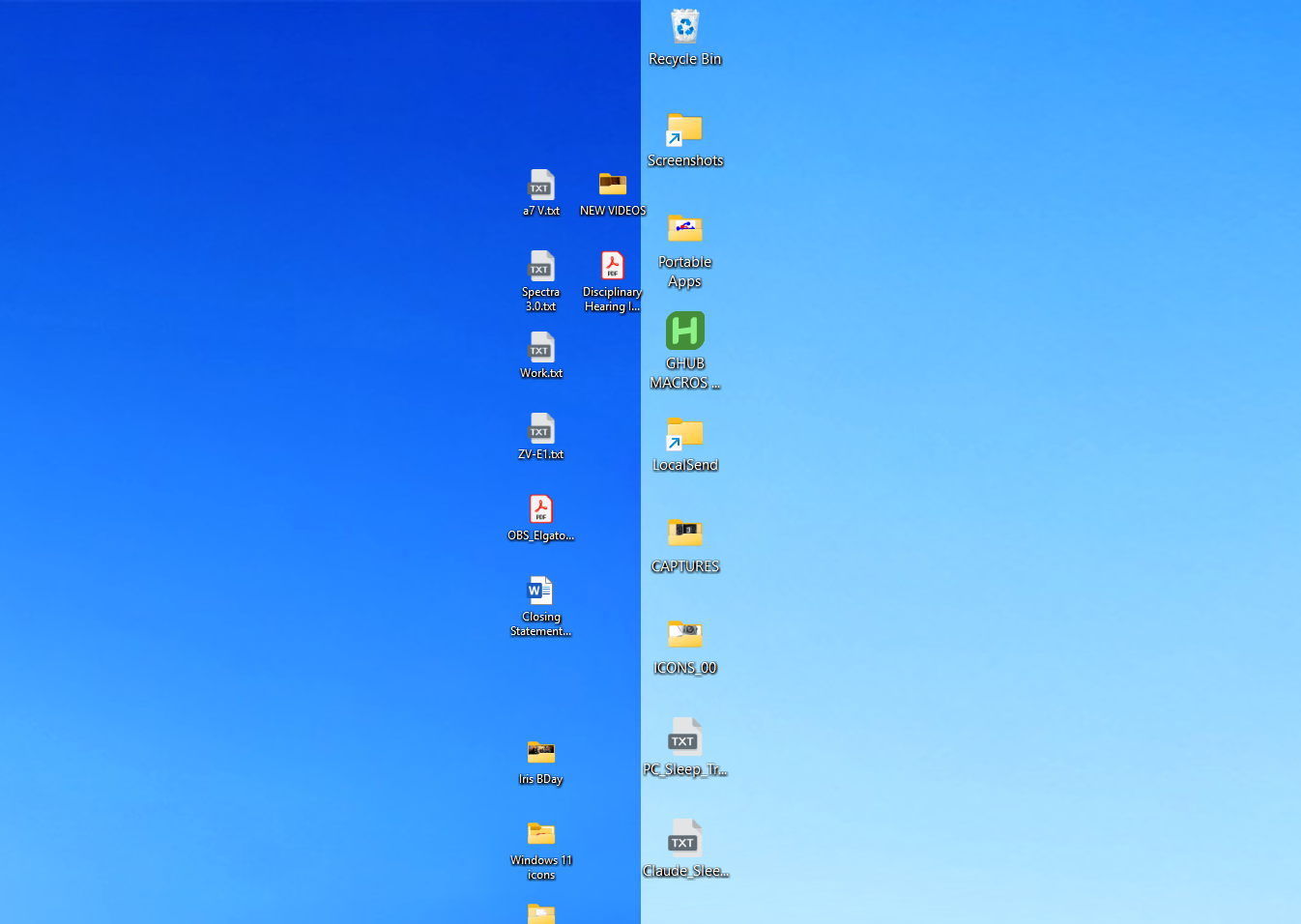
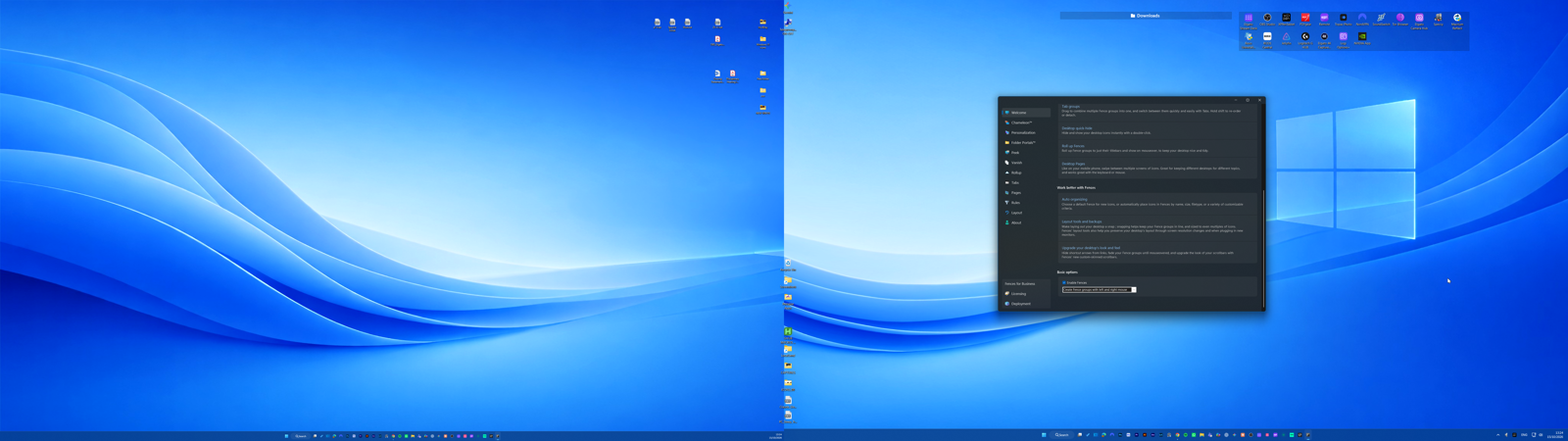
The desktop icons are positioned far too high, and the boundary between my two monitors is incorrectly aligned, causing some icons to be cut in half.

This issue started unexpectedly in the previous stable release and has persisted for several weeks, although I cannot recall exactly when it first appeared.

I installed the latest beta version hoping it would resolve the problem, but unfortunately, the issue remains unchanged.

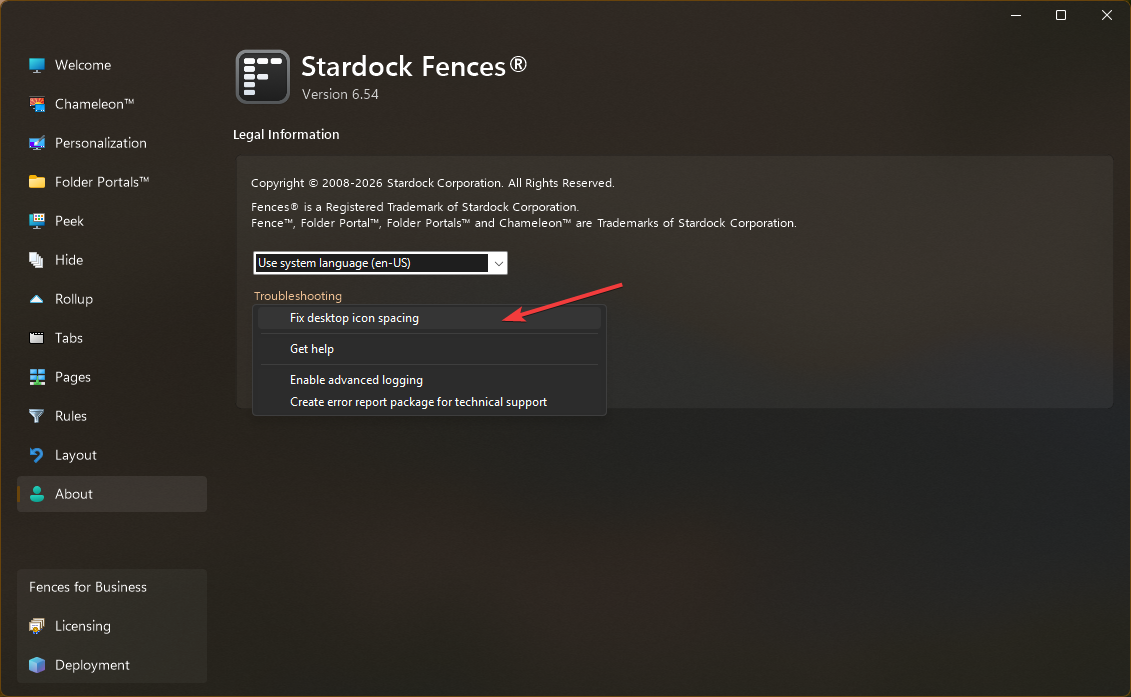
I have also tried using the Fix Desktop Icon Spacing feature, but it has had no effect.

Additionally, I submitted another FencesIssueReport today to help with the investigation.

THank you in advance.

Reply #9 Top

Hi Osmar. Thanks for the detailed info.

We're seeing a lot of "last second mis-match. Retrying after delay" in your log, which seems to indicate a brief flickering of a monitor. (Monitor disappearing then reappearing.) We'll take a closer look to see if we can observe what's going on. From the initial look, it looks like \\.\DISPLAY2 coming in and out rapidly (causing the leftmost monitor to become the primary, and then switch back to being left of the primary, as well as flickering between system DPIs of 100<>125). It should work in this situation, but, this sets the baseline for the scenario for us.


Question: I see Grid is enabled. Please take a backup-snapshot so you can restore it after, but, question: if you enable AutoArrange, does the monitor left-edge alignment issue resolve?

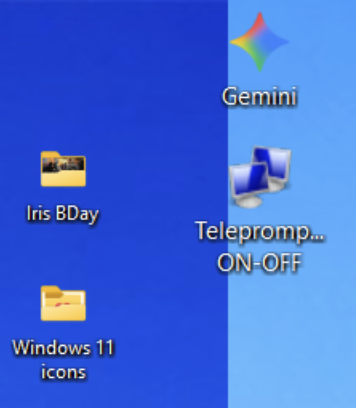
To verify as well: do you intend for "Gemini" to be the left monitor, or the right monitor? (I'm guessing left?)

Similar: can you clarify what you mean by "icons are positioned too high"? I'm not sure I see where they are too high. Similarly, if you move the icons lower, do they stay that way?

Lastly: does this happen always, or are there any times this doesn't happen? Such as at time of system startup, after you've re-positioned them correctly? (Assuming it even lets you.) Guessing always this way, and that it won't let you, but, just wondering if you can ever move the icons into the correct desired position.

My guess, based on the facts/queries above: you mean for the "Gemini" icon to fit in the space directly to the right of "Iris BDay", but the desktop's DPI handling is causing the icon to be larger sized due to effectively a ~single-pixel in coordinate overflow, causing the desktop to "make the icons 25% bigger" and thus overflow to the next screen. Likewise guessing, they're shifted over and cut off because that grid thinks it's wider, while still being assigned to the left screen. But, just a guess! We'll have to try to replicate your exact setting. Thanks for help clarifying these questions. We've made some fine tunes to DPI handling in recent months, which could foreseeably cause such a minute overflow if the conditions are *just right*, and yes 1-2 pixels can make a big difference, given a grid that is an exact fit!


[-3840|0|3840|2160|100|\\.\DISPLAY1|\\.\DISPLAY1\Monitor0|\\?\DISPLAY#DELA124#5&2750f60b&0&UID8451#{e6f07b5f-ee97-4a90-b076-33f57bf4eaa7}|\Registry\Machine\System\CurrentControlSet\Control\Class\{4d36e96e-e325-11ce-bfc1-08002be10318}\0007];[0|0|3840|2160|125|\\.\DISPLAY2|\\.\DISPLAY2\Monitor0|\\?\DISPLAY#UGD2716#5&2750f60b&0&UID8449#{e6f07b5f-ee97-4a90-b076-33f57bf4eaa7}|\Registry\Machine\System\CurrentControlSet\Control\Class\{4d36e96e-e325-11ce-bfc1-08002be10318}\0001];

[0|0|3840|2160|100|\\.\DISPLAY1|\\.\DISPLAY1\Monitor0|\\?\DISPLAY#DELA124#5&2750f60b&0&UID8451#{e6f07b5f-ee97-4a90-b076-33f57bf4eaa7}|\Registry\Machine\System\CurrentControlSet\Control\Class\{4d36e96e-e325-11ce-bfc1-08002be10318}\0007];

Reply #10 Top

Hello Dr. W,

Thank you for your detailed reply!

First, don't worry too much about the monitors switching on and off in the logs. I've been testing a Stream Deck button that enables and disables my Elgato Teleprompter, so that's probably what you're seeing.

Regarding the issue, the main problem is that desktop icons positioned near the boundary between my two monitors overlap onto the other screen, sometimes appearing partially cut off. This isn't exclusive to the right monitor; it can happen on either side of the boundary, affecting both monitors.

In the screenshot I shared in my first post, I intentionally moved the icons on the left monitor one position further to the left to make the problem less noticeable. However, if I position those icons closer to the right edge of the left monitor, they start overlapping onto the right monitor.

I've also tested AutoArrange. It does correct the alignment along the left edge of the right monitor, but it also forces the icons on the left monitor to remain aligned to its left side, which isn't practical for the desktop layout I prefer.

I can manually reposition the icons to make everything look correct, but unfortunately, the incorrect positioning returns after restarting Windows.

And to clarify your question, the "Gemini" icon belongs on the right monitor in my screenshot.

I also think your theory about DPI scaling might be spot on!

My left monitor is a 32-inch 4K display, while my right monitor is a 27-inch 4K display. Because of the difference in physical size, I use 125% Windows scaling on the 27-inch monitor to keep text and interface elements comfortably readable.

I just tested changing the scaling to 100%, and the icon alignment problem immediately disappeared!

Unfortunately, keeping that monitor at 100% isn't a practical solution for me, as everything becomes too small and uncomfortable to read.

Hopefully, this helps narrow down the cause. It certainly seems that the issue is related to how Fences handles icon positioning across monitors with different DPI scaling settings.

It's also worth mentioning that my right monitor is a 120Hz drawing tablet display, in case that detail is relevant to your investigation.

Actually, the vertical positioning of the desktop icons is correct, so there doesn't appear to be an issue with their height after all.

Thanks again for taking the time to investigate this! 

THanks again.