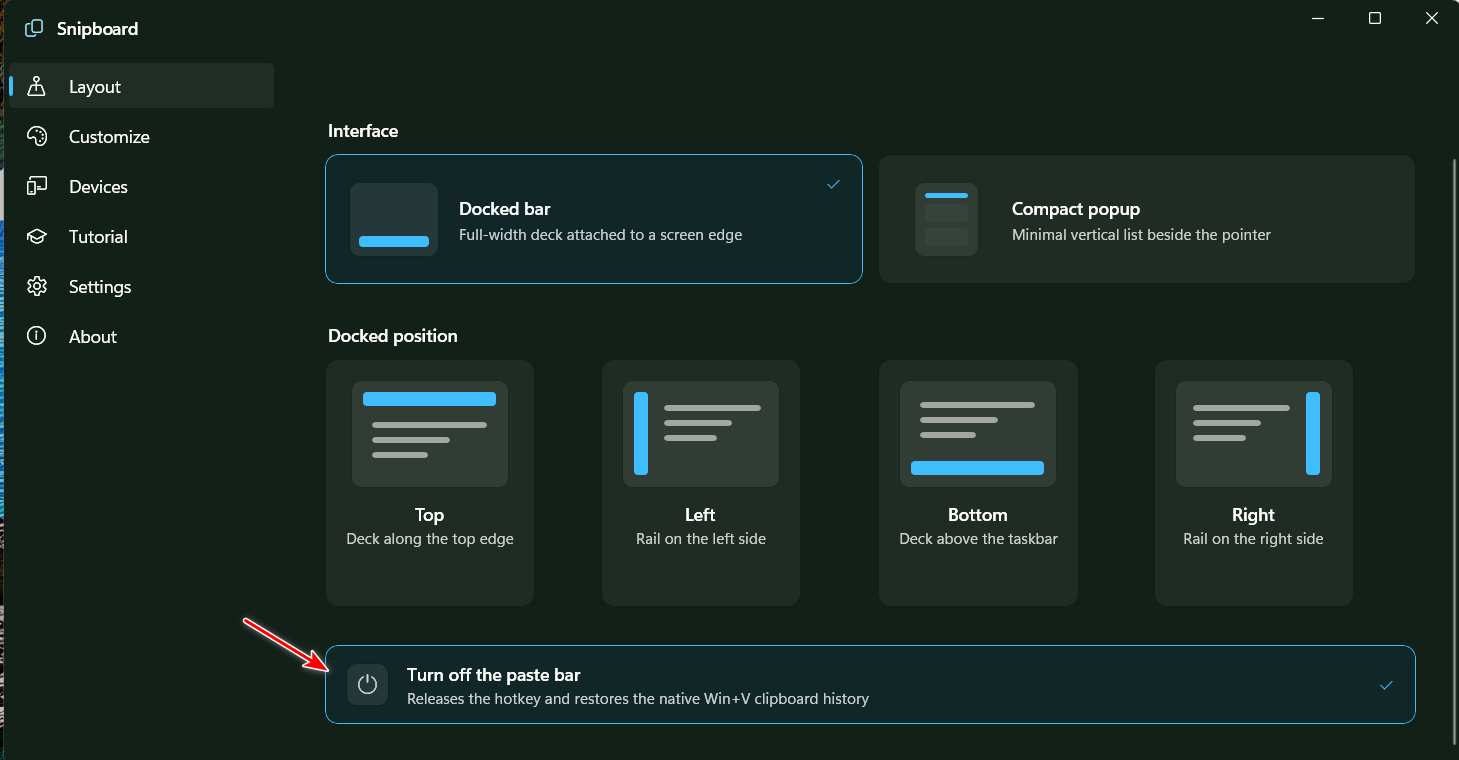
Snippit turned off - can't turn it back on.

Two issues with Snippit.

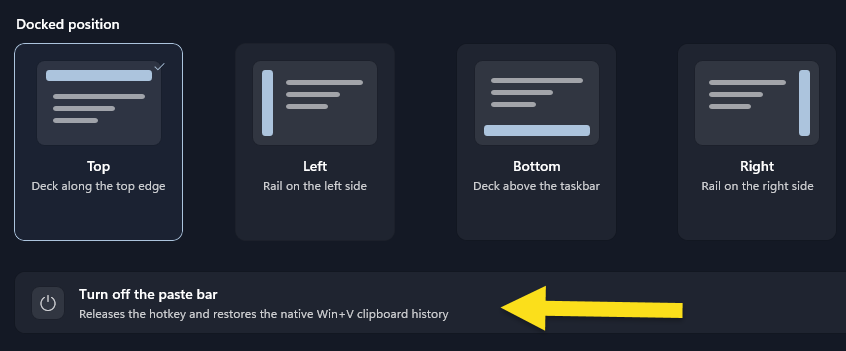
I clicked the "button" than turns off Snippit and re-assigns the hotkey to the standard windows history tool. It worked. Now I can't turn Snippit back on. I've closed it completely, restarted it. Clicking the same button does nothing.

How can I change the font size? It's very small, isn't following my Windows 11 defaults. 
460 views 8 replies
Reply #1 Top

Hello,
Sorry to hear you are having issues. Which "button" was you referring to? The "Launch at Startup" Button? If you turn it off on Startup.  Or you manually turn it off via the Snipboard's Taskbar tray icon. You should be able to run it back on via your Start panel. Once you run it, the Snipboard icon should reappear in your taskbar tray icon area.

Thank you,
Basj,
Stardock Community Assistant.

Reply #3 Top

Once you turn Snipboard off, there is no way to turn it back on. Clicking the button again does not turn it back on. There needs to be a switch to turn it off and on.

Reply #4 Top

Thank you for clarify it, I have forwarded your problem/question to Stardock Support Team for their assistance. Please keep an eye on this thread for any updates. We appreciate your feedback and patience. Thank you.

Basj,
Stardock Community Assistant

Reply #6 Top
Quoting pelaird, reply 4147725

There needs to be a switch to turn it off and on.

End of pelaird's quote

Perhaps if there were a systray icon with a right click menu choice?

Reply #7 Top

I just discovered that if you toggle the interface from whatever is selected to the other option (Docked Bar/Compact Popup), then the Paste bar is reactivated. This is a workaround and some sort of switch still needs to be added.

Reply #8 Top

Looks like this was a bug, I have it fixed for the next release.

+1 Loading…