Abisnabidam Abisnabidam

Snipboard Beta Feedback

▼

Snipboard Beta Feedback


With the Snipboard Beta today, we are creating this thread so that users can report any observed issues.

Obtaining the product

Object Desktop members can get the release from within Object Desktop Manager 

Individual purchases (as well as Object Desktop Members) can also be obtained from your account page: https://store.stardock.com/myaccount/products

For guest check-out purchase (no account), from this link: http://www.stardock.com/support/productkeyretrieval

Reporting an issue

Please include the following for anything found:

  • Exact Windows version \ build (winver.exe)

  • Detailed steps to recreate the issue seen

  • Screenshots and videos are very helpful.  Videos can be uploaded to a cloud drive service (GoogleDrive, DropBox, OneDrive, YouTube), with a shared link included in your post.  Images can be copied and pasted directly into a post.

  • If there are specific apps that the app does not work (well) with, please note what apps and their exact versions.  If any app is not common, a link to a trial version would be appreciated.


Thank you for your interest and any time you put into making Snipboard a better product.


1,254 views 46 replies | Pinned
Reply #26 Top

On the secondary device (not the device that you created the group on) where you hit Find Groups..your named group should show up there. The Find Groups is for the Mac app support that I need to remove if it detects its running on a PC.

If the secondary device is not seeing the group you created, on the secondary device, try hitting Reset Sync.

Reply #27 Top
Quoting bdsams, reply 4147559

If you can explain how you want temporary mode to be enabled/disabled, then i can look to implement a possible solution for you othewise, i'd be guessing on how you want this to work.

End of bdsams's quote

I had a problem with the forum quoting mechanism and couldn't figure out how to quote only the ChatGPT material.  Not a great GUI.

I'm not sure what shortcut keys or mouse actions might be available so I asked ChatGPT.  It suggested Control+Shift+C for a temporary copy/paste action applied to just the current item without sending it to Snipboard history.

It's full reply is quoted below.


Yes. I think there are several workable UI conventions, but one stands out as especially natural.

Because ordinary copying is Ctrl+C, I would suggest Ctrl+Shift+C = “Copy Temporarily”. In other words, Snipboard would let the item pass through the normal Windows clipboard so you can paste it with Ctrl+V, but Snipboard would not add it to its persistent history. This has several advantages: it is easy to remember, requires only one extra modifier, and operates on the individual copy operation rather than requiring the user to enter and later leave a mode.

Stardock says Snipboard already supports customizable keyboard shortcuts, including shortcuts for clipboard access and plain-text pasting, so adding another configurable shortcut seems consistent with its existing design. Stardock

There are a few reasonable possibilities:

  • Ctrl+Shift+C — Temporary Copy. My first choice. It means, essentially, “special copy.” The user doesn't have to remember whether Temporary Mode is currently on.
  • Ctrl+Alt+C — Temporary Copy. Also logical, and perhaps less likely to conflict with applications that already assign Ctrl+Shift+C. The disadvantage is that Ctrl+Alt combinations are somewhat less comfortable.
  • Hold Shift while selecting Copy from the context menu. For example, right-click normally, then Shift-click Copy to mean “copy without Snipboard history.” This would be an excellent mouse-oriented complement to the keyboard shortcut, although intercepting application context-menu commands may be technically more complicated.
  • A Snipboard-added context-menu item, “Copy Temporarily.” Very discoverable, but it would require Snipboard to integrate with application context menus and wouldn't necessarily work everywhere.
  • A modifier applied to Ctrl+C, such as holding Shift just before/during the copy. Functionally this becomes Ctrl+Shift+C anyway, so I'd make it an explicit shortcut rather than a hidden gesture.

I would not make the primary mechanism a shortcut that toggles Temporary Mode on and off. That's exactly the problem you identified with the tray switch: modes create state that the user has to remember. For a password, what you really want is an operation:

“Copy this one item temporarily.”

Then the next Ctrl+C automatically goes back to normal Snipboard behavior.

There is one complication worth mentioning to the developer: Ctrl+Shift+C is already assigned by some applications. For example, terminals and other programs sometimes use it for their own copy function. So I'd suggest that Snipboard provide a configurable default rather than hard-code it globally. Snipboard already advertises customizable shortcuts, which makes this fit nicely. Stardock

Also, Snipboard already lets users exclude particular applications from history, but that doesn't solve your use case: you might copy ordinary material and passwords from the same browser, password manager, document, etc. The per-copy distinction is therefore genuinely different from the existing exclusion feature. Stardock

If I were replying to the developer, I'd boil the suggestion down to: “Ctrl+Shift+C for ‘Copy Temporarily,’ configurable in Settings, plus perhaps a mouse-accessible ‘Copy Temporarily’ command where feasible. It should apply only to that one copy operation and should not toggle Snipboard into a persistent mode.” That seems cleaner than the mode-switch idea in your original post.


Reply #28 Top

Another suggestion.  Sorry if I missed it, but there ought to be a more accessible "Clear All" command option when viewing Snipboard contents.  It might be too complicated, but if there were a way to check off or select those items you want to delete and leave the rest, that would be nice, too.  Right now, without finding the Clear History setting (wherever it is), it seems deleting Snipboard items one by one is the only option.  Sorry if this feature request already exists, but I haven't discovered it yet.  If so, then this post is about user discoverability.

Reply #29 Top
Quoting BrokenLogin, reply 4147636


I had a problem with the forum quoting mechanism and couldn't figure out how to quote only the ChatGPT material.  Not a great GUI.

I'm not sure what shortcut keys or mouse actions might be available so I asked ChatGPT.  It suggested Control+Shift+C for a temporary copy/paste action applied to just the current item without sending it to Snipboard history.

End of BrokenLogin's quote

Ok got something implemented, couldnt use cntr shift c as a lot of browsers use that and would make a few people upset.

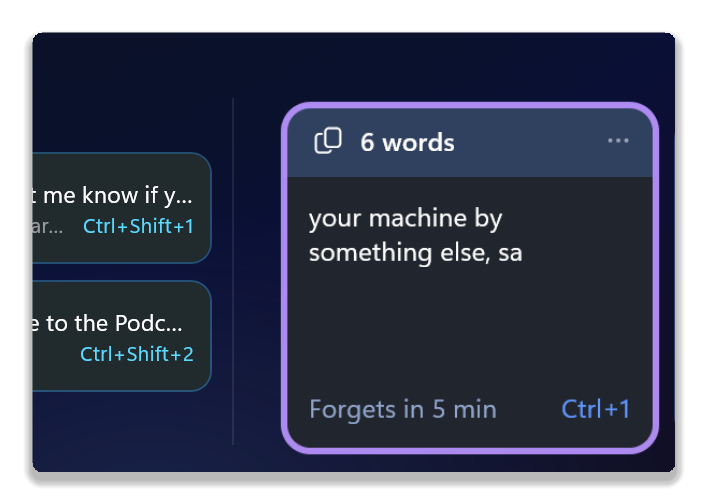
Win+Alt+C will enable the temporary copy, default is 5 minutes for retaining it.


Reply #30 Top
Quoting bdsams, reply 4147660

Ok got something implemented, couldnt use cntr shift c as a lot of browsers use that and would make a few people upset.

Win+Alt+C will enable the temporary copy, default is 5 minutes for retaining it.

End of bdsams's quote

When will the next Beta version with all the changes be available?

Reply #31 Top

Does not see group, same after pressing reset.

Reply #32 Top
Quoting pelaird, reply 4147661
Quoting bdsams, reply 4147660

Ok got something implemented, couldnt use cntr shift c as a lot of browsers use that and would make a few people upset.

Win+Alt+C will enable the temporary copy, default is 5 minutes for retaining it.

End of bdsams's quote

When will the next Beta version with all the changes be available?

End of pelaird's quote

Next week at the latest, I could probably post a build here if you want to try it a bit early.

Reply #33 Top
Quoting bdsams, reply 4147739

I could probably post a build here if you want to try it a bit early.

End of bdsams's quote

Anything to help. I'm always game for beta testing. :grin: 

Reply #34 Top
Quoting jimvaughan, reply 4147671

Does not see group, same after pressing reset.

End of jimvaughan's quote

I might need to add more diagnostic to this but do you have anything that could be blocking the app at a firewall or anything? If it's all on the same LAN and subnet, it should pick it up

Reply #35 Top

Pre-Beta 2 Build...if you want to try out the latest build, you can download and install it here (this an early pre-release build)
Download Pre-Beta 2 Snipboard.

  • New
    • Drag the bar to move it. Grab the handle on the bar's inner edge and drag. Dotted outlines mark every spot the bar can go: the four screen edges, plus Compact in the middle. A small bar follows your pointer and shows what shape the bar will take where you drop it. Release to move it there, or press Esc or release in empty space to cancel. The new spot is saved, and Settings Position updates to match.
    • Options menu. The settings cog is now a ⋯ menu with Pin bar and Settings.
    • Pin the bar. A pinned bar stays open when you click away or paste, and each paste goes into the app you last clicked into. Close it with ✕ or Esc. It stays pinned every time it opens until you untick Pin bar.
    • Choose the monitor. Settings Position "Show the docked bar on": the monitor with the pointer (default) or always the primary monitor. This applies to the docked bar only.
    • Open from the screen edge. Optional, off by default. Push the pointer against the middle of the bar's edge (the top edge for Compact) to open the bar. Choose a Short, Medium or Long delay. It's ignored while a mouse button is held, over full-screen apps, and on edges shared with another monitor.
    • Copy or paste from a card. Hover a card to get Copy and Paste buttons. Copy puts the clip on the clipboard without pasting it anywhere. That's handy when the app in front has nowhere to paste, or when the one you want is in the background.
    • Space copies, Enter pastes (Ctrl+C also copies). With the keyboard, the selected card shows the same buttons, and the tooltips name the keys.
    • Floating popup is the new name for Compact popup. It now has two styles, Standard and Minimal, chosen in Settings Layout. Minimal is one line per clip with Copy/Paste, a single scrolling line of pins, and a popup sized to five rows that scrolls for older clips.
    • Minimal keyboard: Copy is highlighted by default. moves to Paste, again opens every paste option, and ← goes back.
    • Temporary copy. Press Win+Alt+C to copy something Snipboard forgets on its own. It's never sent to your other devices, and it's also cleared from the clipboard if it's still there when time runs out. You choose how long it's kept in Settings: 1, 5 (the default), 15, 30 or 60 minutes. The paste bar shows a countdown on the card.

    Fixed

    • The Position page now updates straight away when the bar's placement changes from outside Settings.
    • A bar opened from the screen edge could appear behind the current app and didn't close when you clicked elsewhere.
    • Turning the paste bar off in Settings couldn't be undone. It now toggles, dims the page while it's off, and remembers your edge.


Reply #36 Top
Quoting bdsams, reply 4147793

Pre-Beta 2 Build...if you want to try out the latest build, you can download and install it here (this an early pre-release build)

End of bdsams's quote

A lot of really great improvements and fixes.

Correct me if I'm wrong, bit it doesn't look like you can paste anymore just by clicking or selecting the card. You must click "Paste" on the card.

I like the new "Temporary Copy" and the ability set "Forget" to a specific time limit (please add 30 seconds). This works for most items, except that Keeper password manager, which I use, has it's own copy button which doesn't allow for the "Forget" function in Snipboard. I still think a "Paste & Forget" option on the card would solve this issue.

Thanks for all the hard work on this app.

Reply #37 Top

One computer works fine other does not. All on same LAN.

Reply #38 Top
Quoting pelaird, reply 4147794
Quoting bdsams, reply 4147793

Pre-Beta 2 Build...if you want to try out the latest build, you can download and install it here (this an early pre-release build)

End of bdsams's quote

A lot of really great improvements and fixes.

Correct me if I'm wrong, bit it doesn't look like you can paste anymore just by clicking or selecting the card. You must click "Paste" on the card.

I like the new "Temporary Copy" and the ability set "Forget" to a specific time limit (please add 30 seconds). This works for most items, except that Keeper password manager, which I use, has it's own copy button which doesn't allow for the "Forget" function in Snipboard. I still think a "Paste & Forget" option on the card would solve this issue.

Thanks for all the hard work on this app.

End of pelaird's quote

You should still be able to click anywhere to get it to paste as long as your cursor is somewhere it can paste, otherwise it copies it.

Reply #39 Top

Following a Restart of the computer, Fences was no longer transparent and the personalize controls didn't really work the way they are supposed to. I uninstalled Fences, rebooted, downloaded a fresh installer and installed, followed by activation and a restart. Same issue persisted. I opened DeskScapes 26.0.1.1 to make sure there wasn't a setting in the Desktop Effects causing the issue and no settings were set for Fences. I uninstalled Snipboard and restarted the computer. Following the restart, Fences was working correctly again. Something in Snipboard seems to be interfering with Fences personalization settings. I believe this started when I updated from 0.70.0.0 to 0.75.0.0.

Windows 11 Pro - 26200.9550; Fences 6.5.4.1; Snipboard 0.75.0.0

Reply #40 Top
Quoting pelaird, reply 4147812

Fences was no longer transparent and the personalize controls didn't really work the way they are supposed to

End of pelaird's quote

Not quite sure I understand this, the Fence groups on your desktop stop being transparent when Snipboard was installed or just opened? And what controls specifically stopped working?

Reply #41 Top
Quoting bdsams, reply 4147849
Quoting pelaird, reply 4147812

Fences was no longer transparent and the personalize controls didn't really work the way they are supposed to

End of pelaird's quote

Not quite sure I understand this, the Fence groups on your desktop stop being transparent when Snipboard was installed or just opened? And what controls specifically stopped working?

End of bdsams's quote

So, I think it was just a coincidence that Fences was working again after uninstalling Snipboard. This morning I restarted the computer and fences was broken again. I opened DeskScapes, turned of all Desktop Effects, and applied a different background and Fences started working properly again. I think DeskScapes is causing the issue. I will reinstall Snipboard and see how it goes.

EDIT: So, after reinstalling Snipboard followed by a restart of the computer, Fences is working properly. I think this issue must have something to do with the Windows OS and DeskScapes, and how they handle Desktop backgrounds.

Reply #42 Top

I fixed by disabling the Microsoft Defender firewall on the computer trying to join the group. 

+1 Loading…
Reply #43 Top

A continuing issue with both 0.7 and 0.75 where if Explorer is restarted, the apps System Tray icon is not repopulated with no way to get it back other than a restart of the computer. A lot of changes and difficulties with certain apps require restarting Explorer and this makes it more difficult to navigate the Snipboard app. Although most of the options available from the System Tray are now available by other means, it still should be fixed.

Thanks for your consideration.

Reply #44 Top

Getting this at PC startup (just started today 10/4/26):

Snipboard could not read or write its data folder.
Check that %LOCALAPPDATA%\Clipboard Bridge is writable and not being used by another copy of Snipboard.
Details were written to:
C:\Users\xxxxxx\AppData\Local\ClipboardBridge\logs
(FileLoadException: Could not load file or assembly 'C:\Program Files\Stardock\Snipboard\ClipboardBridge.Platform.Windows.dir . An Application Control policy has blocked this file.
(0x800711C7))

Reply #45 Top
Quoting pelaird, reply 4147951

A continuing issue with both 0.7 and 0.75 where if Explorer is restarted, the apps System Tray icon is not repopulated with no way to get it back other than a restart of the computer. A lot of changes and difficulties with certain apps require restarting Explorer and this makes it more difficult to navigate the Snipboard app. Although most of the options available from the System Tray are now available by other means, it still should be fixed.

Thanks for your consideration.

End of pelaird's quote

I think i have this resolved in version .80 (beta 2) that should go out this week.

+1 Loading…
Reply #46 Top

Hello everyone,

We've now updated the beta of Snipboard to version 0.81.  

For details, please see:

https://forums.stardock.com/542516/snipboard-beta-feedback#4147416

Thank you again for helping make Snipboard a better product.

Best regards,

Adam McGuinness
Stardock Support Specialist