sdRohan sdRohan

Start11 1.4.11 Release Issue Report Thread

Start11 1.4.11 Release Issue Report Thread

With the Start11 1.4.11 release, we are creating this thread so that users can report any observed issues.  

Obtaining the product

Object Desktop members can get the release from within Object Desktop Manager 

Individual purchases (as well as Object Desktop Members) can also be obtained from your account page: https://store.stardock.com/myaccount/products

For guest check-out purchase (no account), from this link: http://www.stardock.com/support/productkeyretrieval

Reporting an issue

Please include the following for anything found:

  • Exact Windows version \ build (winver.exe)

  • Detailed steps to recreate the issue seen

  • Screenshots and videos are very helpful.  Videos can be uploaded to a cloud drive service (GoogleDrive, DropBox, OneDrive, YouTube), with a shared link included in your post.  Images can be copied and pasted directly into a post.

  • If there are specific apps that the app does not work (well) with, please note what apps and their exact versions.  If any app is not common, a link to a trial version would be appreciated.

Thank you for your interest and any time you put into making Start11 a better product.

242,904 views 135 replies
Reply #101 Top

Quoting nanosphere11, reply 100

After the 2023-03 Cumulative Update (Version 22H2 OS Build 22621. 1413), my taskbar icons seem very close together, I don't have another screenshot from before, but feels like there's no spacing.


End of nanosphere11's quote

Did you mean to be in small taskbar mode?  That will put the icons closer together than other sizes.

Reply #102 Top

Yeah! Sorry, forgot to mention.

I found a really bad screenshot (really sorry about that), but you can see that they used to be more spaced apart before

am I seeing things?

Reply #103 Top

I have stopped using Start11. It is just too unstable under Windows 11:

  • After logon, the icons in the taskbar are very often vertically offset and I have to stop the explorer first.
  • When right clicking on an item in the taskbar, it takes several seconds for the context menu to open.
  • When changing the desktop workspace, the taskbar crashes regularly.
  • And when clicking on time and date, the calendar and notifications window almost never opens.

It's not fun anymore and I don't feel like reporting anything anymore.

Reply #104 Top

@nanosphere11

before windows 11 upgrade you didn't need to enable enhanced taskbar and spacing was like original system also right click on taskbar showed original options, after upgrade enhanced taskbar needs to be enabled to use small taskbar and spacing is automatically set by start11 apps

Reply #105 Top

The Start11_1.4.2.0-j300-Setup.exe build from the link above fixed the slow taskbar startup (and explorer restarts) with Windows 11 Pro 22H2 22621.1413. I didn't seem to have the problem until:

2023-03 Cumulative Update for Windows 11 Version 22H2 for x64-based Systems (KB5023706)
2023-03 .NET 6.0.15 Update for x64 Client (KB5024670)

were installed on 3/15/2023. (That or I didn't notice.)

Reply #106 Top

All, we have released Start11 1.4.2 to beta today.

Before posting here, please look to that thread to see if any issue you may have has been addressed with it.

As always, thanks for your time, support, and feedback.

Sean Drohan
Stardock Product Lifecycle Manager

+3 Loading…
Reply #107 Top

Quoting sdRohan, reply 106

As always, thanks for your time, support, and feedback.
End of sdRohan's quote

Thanks for your hard work and effort! 👍

Reply #108 Top
Quoting DenalB, reply 107
Quoting sdRohan,

As always, thanks for your time, support, and feedback.

Thanks for your hard work and effort! 👍

End of DenalB's quote

You are most welcome.

Sean Drohan
Stardock Product Lifecycle Manager

Reply #109 Top

Quoting sdRohan, reply 106

All, we have released Start11 1.4.2 to beta today.

Before posting here, please look to that thread to see if any issue you may have has been addressed with it.

As always, thanks for your time, support, and feedback.

Sean Drohan
Stardock Product Lifecycle Manager
End of sdRohan's quote

Thanks for sharing :)  

Reply #110 Top

When I click on the box to open and the arrow rotates downward) the box drops down revealing the icons.  When I hover over the icon to open the words describing the icon fall over the icon and do not allow you to click on them the way I used to open the app.

Have update win11 to 23706 update and start show ver 1.41

R

Reply #111 Top

Greetings,

The latest Windows update really messed up the taskbar. Installed 1.42. All issues, except one, appear to be cleared up. The only thing I noticed is, on the right click menu, the top option is pre-selected. I  don't even know if that has always been normal behaviour. Thanks so much for taking care of this so quickly. 

I only have one question: I have a dual boot machine. For some reason, before 1.42, I had the custom Start button option turned on in one install, and off in the other. After 1.42, on the install with the custom Start button, I turned off the option and the Start button disappeared. In the install where the custom option was off, the Start button was still visible.

Not the end of the world 🙂 I went to WinCustomize, and downloaded a Start button that is similar (but better) than the original. This FYI.

Thanks again,

Graham


EDIT

Moderator: It just ocurred to me that maybe I should have put this in the 1.42 beta thread. If so, could you move it? Thanks.

Reply #112 Top

Ive been having issues with start11 since the latest windows taskbar update.

I used to have my taskbar icons set to small with start11 prior to the latest windows update, but once the latest windows update installed, my taskbar icons went back to default size.
I read that to resolve that issue i had to enable the enhanced taskbar option in start11, which i did, and now my icons are small again, although they are squashed together more than usual now, but i also read thats being fixed in the next start11 update.

I never had to use enhanced taskbar prior to the windows update and noticed a couple issues since using enhanced taskbar that i havent seen being mentioned here.

The main issue is as follows; When i enable the enhanced taskbar in start11, everything appears fine to begin with, but when i open firefox, or sticky notes, i notice that the taskbar notification panel with the date etc appears on the left side of the screen instead of its default position on the right.
Ive tested this and it only happens with the latest version of windows installed and with enhanced taskbar enabled in start11. The issue does not happen on older versions of windows nor does it happen on the latest version of windows with start11 enhanced taskbar disabled, so i can only assume the problem is caused by windows latest update to the taskbar.

The 2nd issue is as follows; With enhanced taskbar enabled, i notice my taskbar turns blue when loading randoms apps sometimes.

It seems the windows taskbar update broke a few features for start11 which seem to be getting fixed which is good, but i hadnt seen anyone mention the issue with the notification bar moving the to left side so thought id mention it myself.


Reply #113 Top

Quoting KinGloR, reply 112

Ive been having issues with start11 since the latest windows taskbar update.

I used to have my taskbar icons set to small with start11 prior to the latest windows update, but once the latest windows update installed, my taskbar icons went back to default size.
I read that to resolve that issue i had to enable the enhanced taskbar option in start11, which i did, and now my icons are small again, although they are squashed together more than usual now, but i also read thats being fixed in the next start11 update.

I never had to use enhanced taskbar prior to the windows update and noticed a couple issues since using enhanced taskbar that i havent seen being mentioned here.

The main issue is as follows; When i enable the enhanced taskbar in start11, everything appears fine to begin with, but when i open firefox, or sticky notes, i notice that the taskbar notification panel with the date etc appears on the left side of the screen instead of its default position on the right.
Ive tested this and it only happens with the latest version of windows installed and with enhanced taskbar enabled in start11. The issue does not happen on older versions of windows nor does it happen on the latest version of windows with start11 enhanced taskbar disabled, so i can only assume the problem is caused by windows latest update to the taskbar.

The 2nd issue is as follows; With enhanced taskbar enabled, i notice my taskbar turns blue when loading randoms apps sometimes.

It seems the windows taskbar update broke a few features for start11 which seem to be getting fixed which is good, but i hadnt seen anyone mention the issue with the notification bar moving the to left side so thought id mention it myself.

 
End of KinGloR's quote

I would be most surprised if Start11 were causing the notification area to move to the left in the latest release of Windows due to how the OS changed how those paint.  There is no code in Start11 to move those in that OS.

Are you sure that isn't happening without Start11 too?

Also what exact build of Windows are you using?

Reply #114 Top

Im on the 22621.1413 build.

Ive been testing this over the past week or so.

The notification panel definitly only moves to the left side when enhanced taskbar option is enabled in start11.

The problem with the notification panel being on the left side of the screen is also fixed by disabling the enhanced taskbar in start11.

Reply #115 Top

Quoting KinGloR, reply 114

Im on the 22621.1413 build.

Ive been testing this over the past week or so.

The notification panel definitly only moves to the left side when enhanced taskbar option is enabled in start11.

The problem with the notification panel being on the left side of the screen is also fixed by disabling the enhanced taskbar in start11.
End of KinGloR's quote

Can you post a screenshot of what you mean exactly?

Reply #117 Top

Quoting KinGloR, reply 116

I was looking for a way to upload a pic but couldnt find it.
End of KinGloR's quote
To upload a picture, just click the big "+" sign in the toolbar and choose your image:

Reply #118 Top

Ah thanks for that, i thought i had to link pic with a url, didnt realise i could upload.


Reply #120 Top

Quoting KinGloR, reply 118

Ah thanks for that, i thought i had to link pic with a url, didnt realise i could upload.


End of KinGloR's quote

Have you tried the 1.4.2 beta? https://forums.stardock.com/517565/start11-142-beta-feedback-thread

Paul Scroggins
Associate Technical Support Analyst

Reply #121 Top

I havent tried the beta yet.

Ill install it a little later and then see what its like over the next 24hrs. Ill give an update after that. Thanks for the link.

Reply #122 Top

Ive updated and still have the same issue.

I open and closed firefox, also opened closed vlc, then checked the notification and it had moved to the left side. But i cant get it to repeat so dont know the real cause. So im just going to assume its an issue with my pc and im gonna reinstall windows. Thanks for the help though.

Reply #123 Top

Quoting KinGloR, reply 122

Ive updated and still have the same issue.

I open and closed firefox, also opened closed vlc, then checked the notification and it had moved to the left side. But i cant get it to repeat so dont know the real cause. So im just going to assume its an issue with my pc and im gonna reinstall windows. Thanks for the help though.
End of KinGloR's quote

So fixed?

Sean Drohan
Stardock Product Lifecycle Manager

Reply #124 Top

No, Im going to reinstall windows 11 and hope that fixes the issue. Maybe a corrupt file or something. But ya it can be considered resolved in the sense that its probably my system and not the software if no one else is having the same issue as me.

Thanks again for the help though.

Reply #125 Top

Windows 11 Pro, 22H2, 22621.1413

Start11 1.4.11

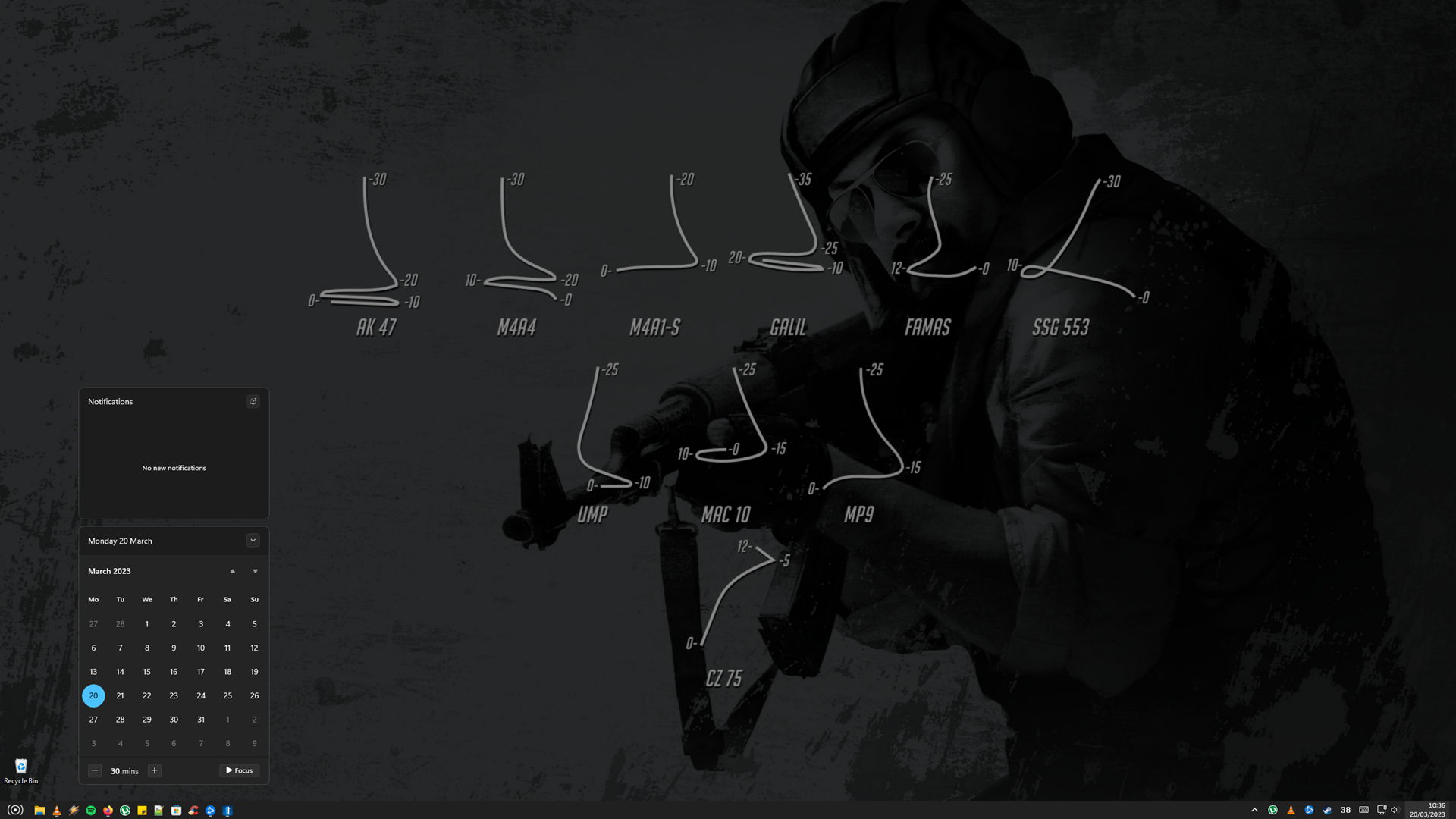
Taskbar items are misaligned, not showing up at all with the small taskbar enabled. I was only able to view the missing items fully with the taskbar size set to large.

Small:

Medium:

Large: