
Make Alt+Tab Your Own with AltTabby's Customizable Styles
Several styles, many different purposes
 Stardock Forums
Alt+Tab is one of the most frequently used shortcuts in Windows, but the experience hasn't changed much over the years. With AltTabby, we are giving you more control over how you switch between applications, including the ability to choose a style that works best for your workflow.
Whether you prefer the familiar Windows experience, a compact list of applications, or something with a little more visual flair, AltTabby includes five different styles that change how you interact with your open windows.
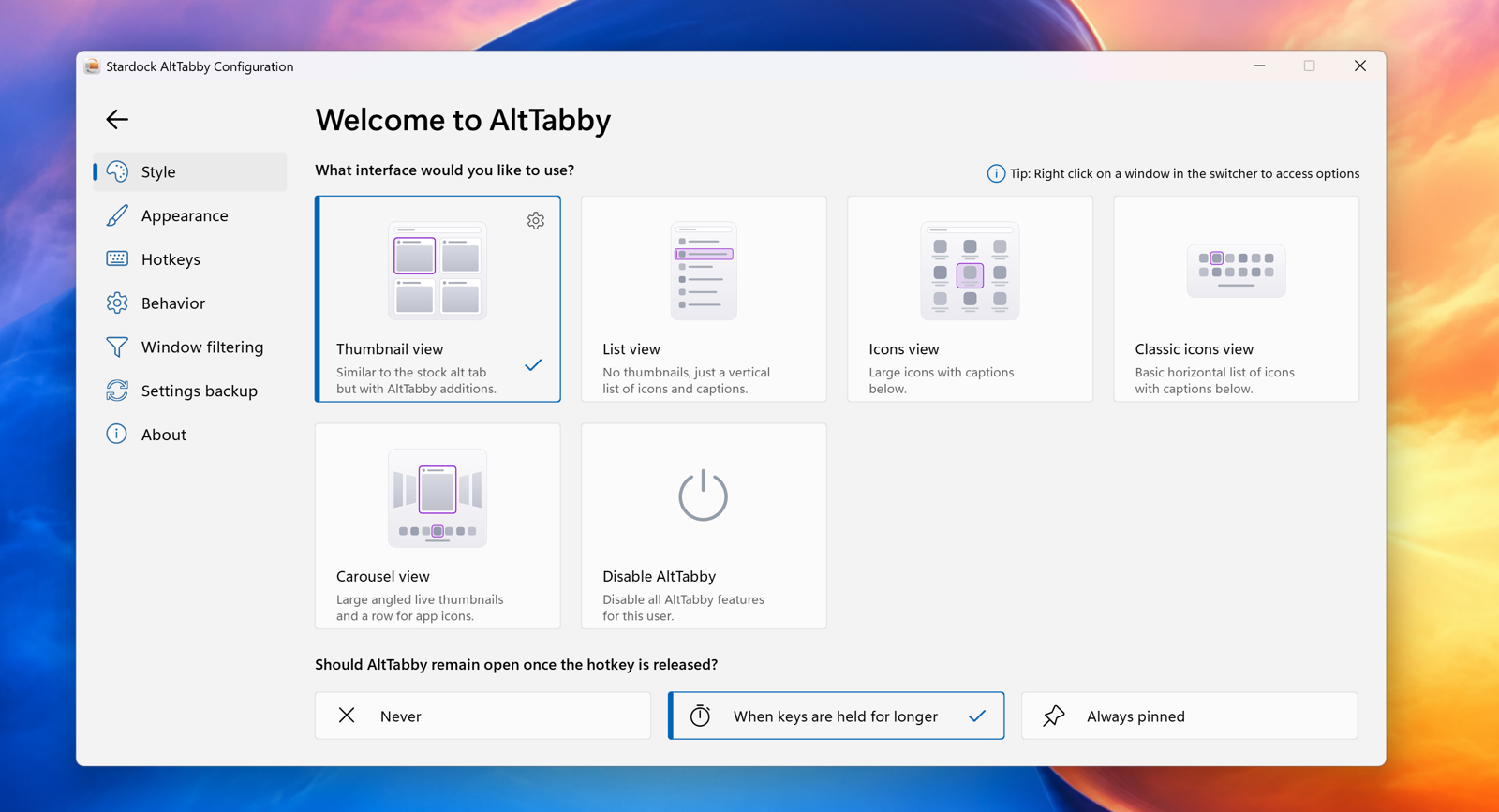
Each of the different view styles targets a slightly different experience, from high visual fidelity, to the minimal MVP style displays.
Thumbnail View
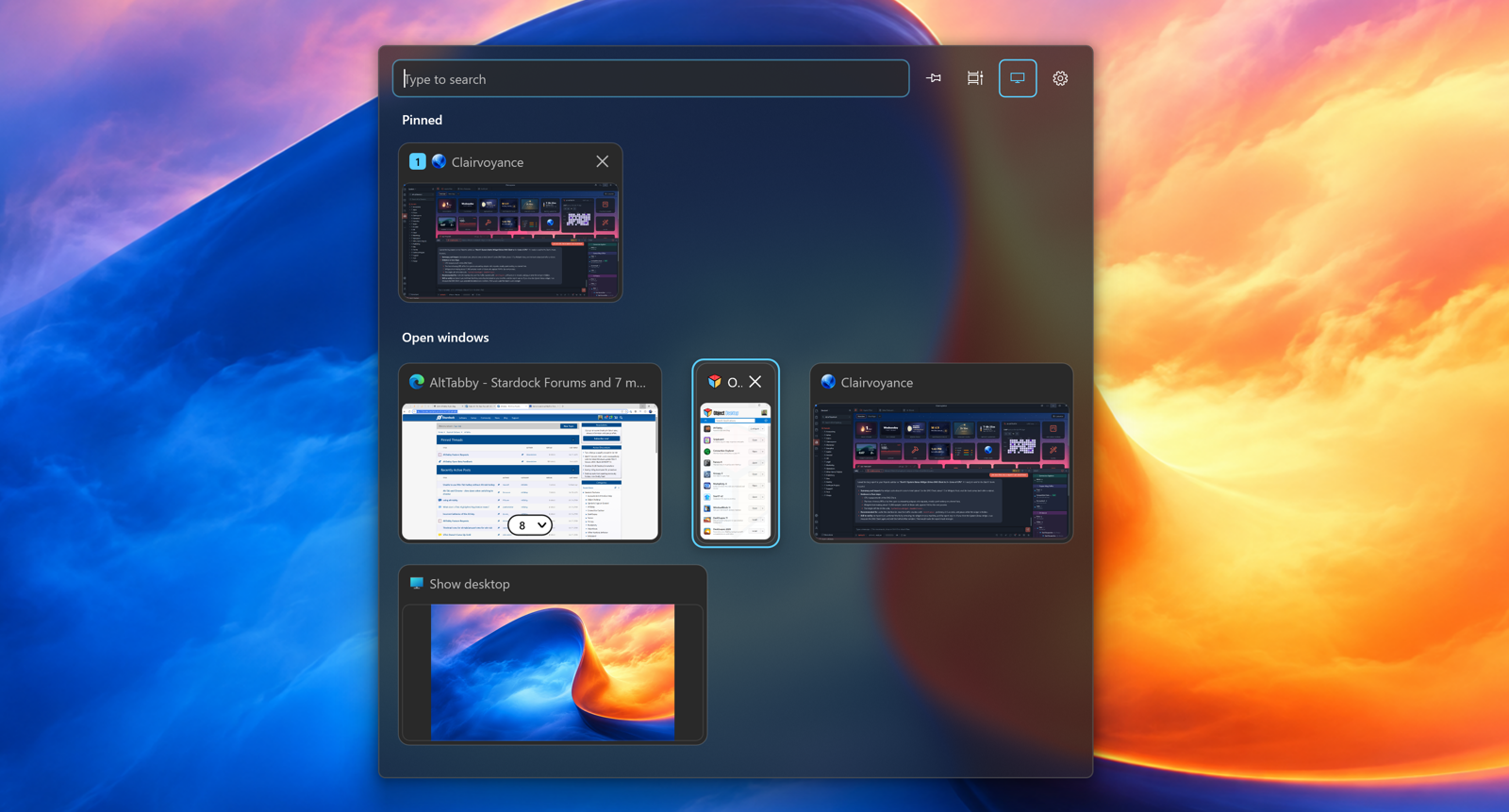
If you like the traditional Windows Alt+Tab experience, Thumbnail View is a great place to start. It uses live window previews in a familiar grid layout but adds AltTabby's additional customization options and functionality.
This style is ideal for anyone who wants to improve their existing Alt+Tab experience without dramatically changing how it looks or works.
List View
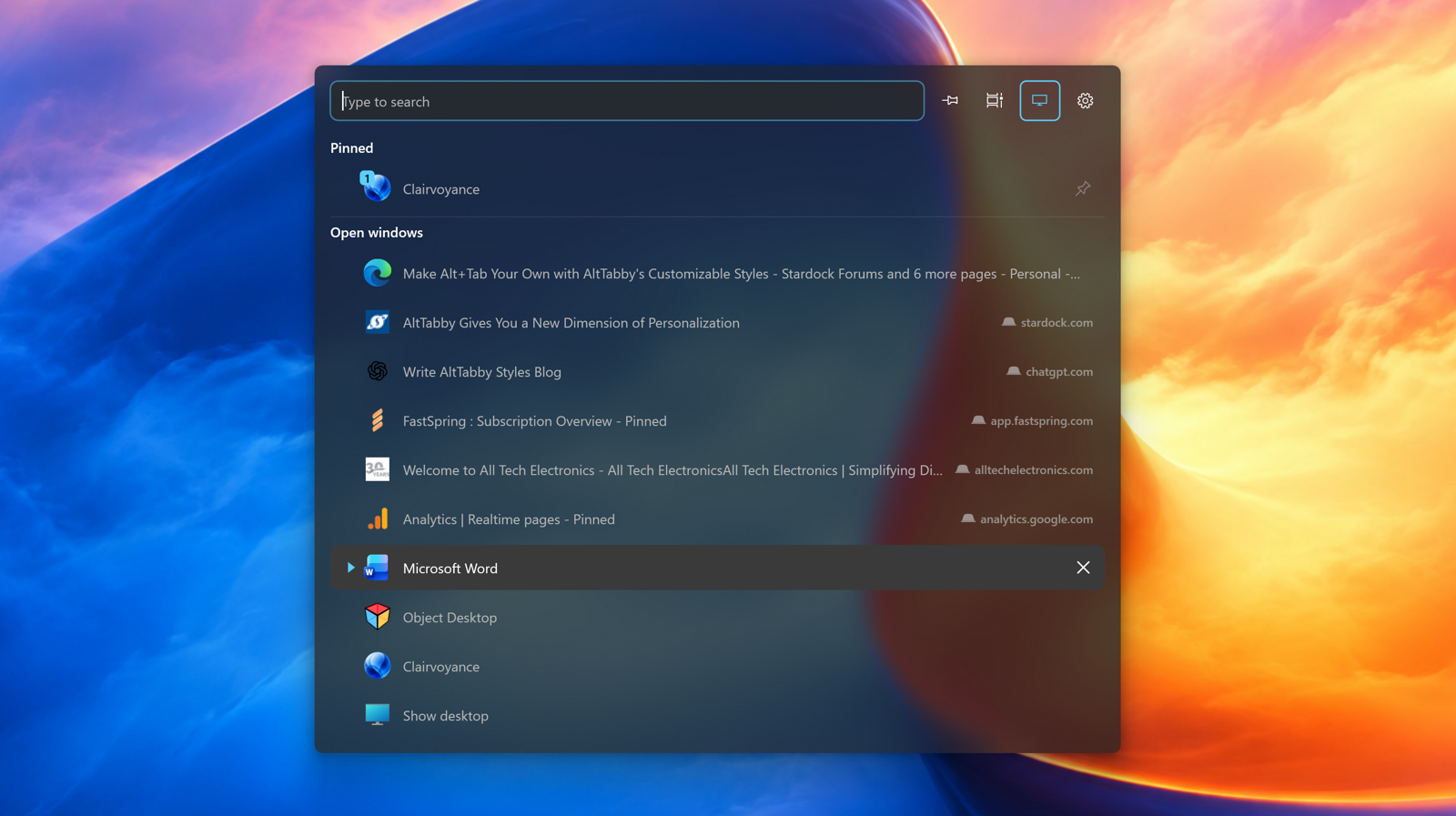
Sometimes you don't need a preview of every open window. List View takes a more compact approach by displaying your applications in a vertical list with icons and window titles.
It's a straightforward layout that makes it easy to quickly identify and switch between applications, especially if you typically have a large number of windows open.
Icons View
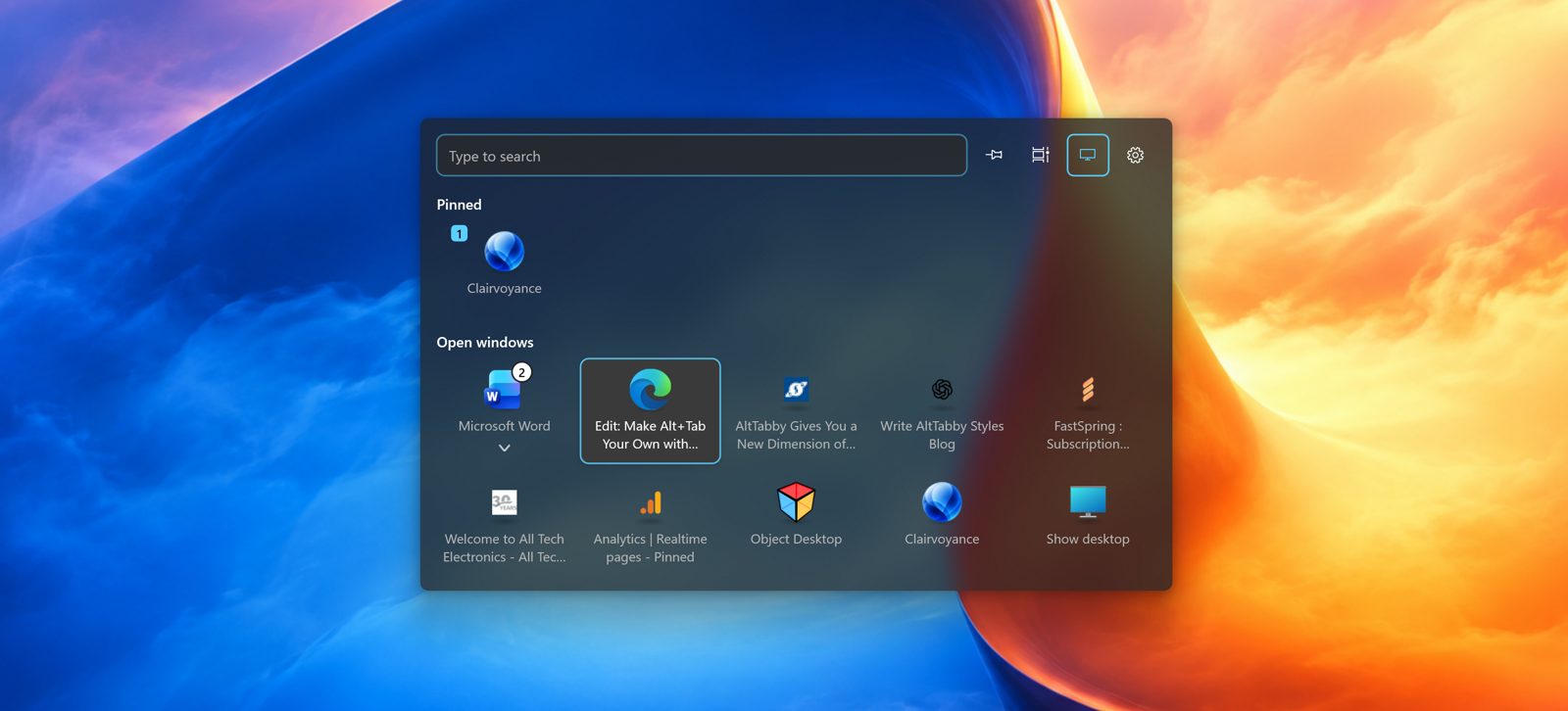
For those who prefer a cleaner interface, Icons View replaces window thumbnails with larger application icons arranged in a grid.
Each icon includes a caption underneath, making it easy to identify your open applications without the additional visual clutter of live previews.
Classic Icons View
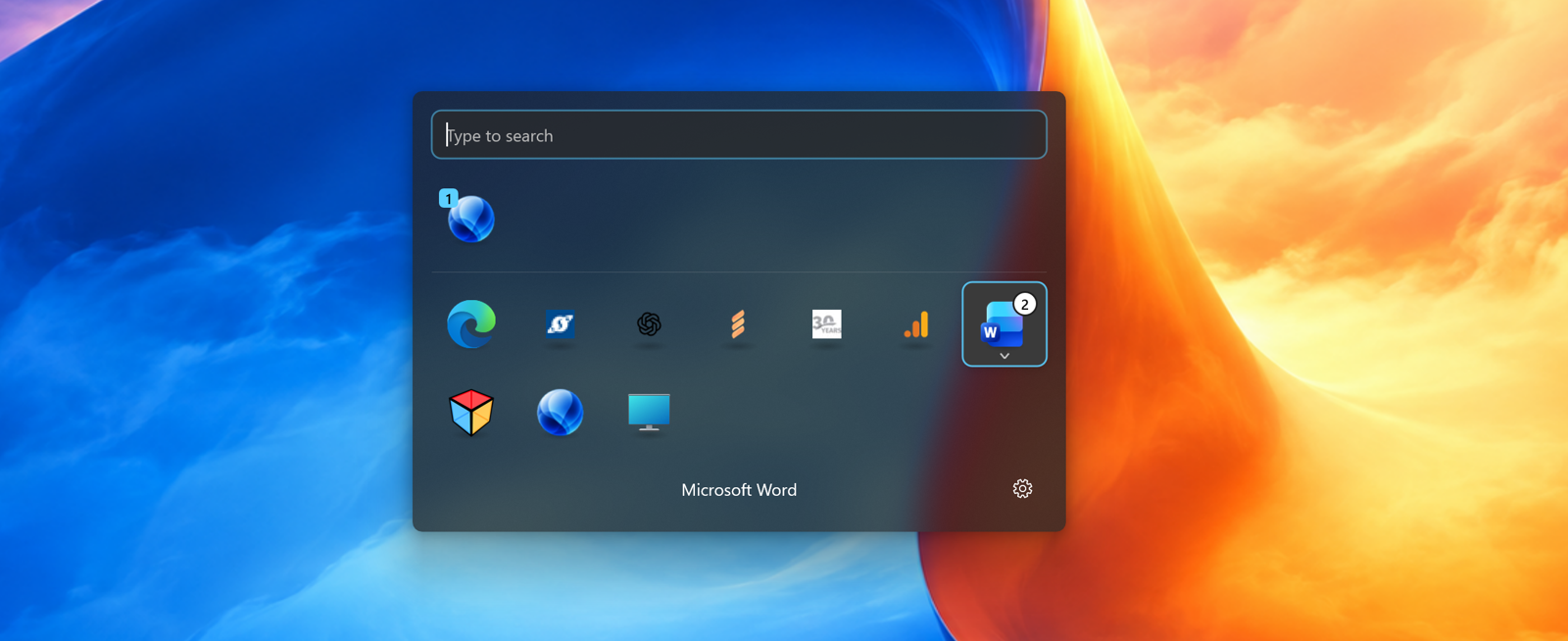
If you have been using Windows for a long time, this one might look familiar.
Classic Icons View uses a horizontal row of application icons with captions, bringing back a more traditional approach to task switching. It's compact, familiar, and designed for users who value speed and simplicity.
Carousel View
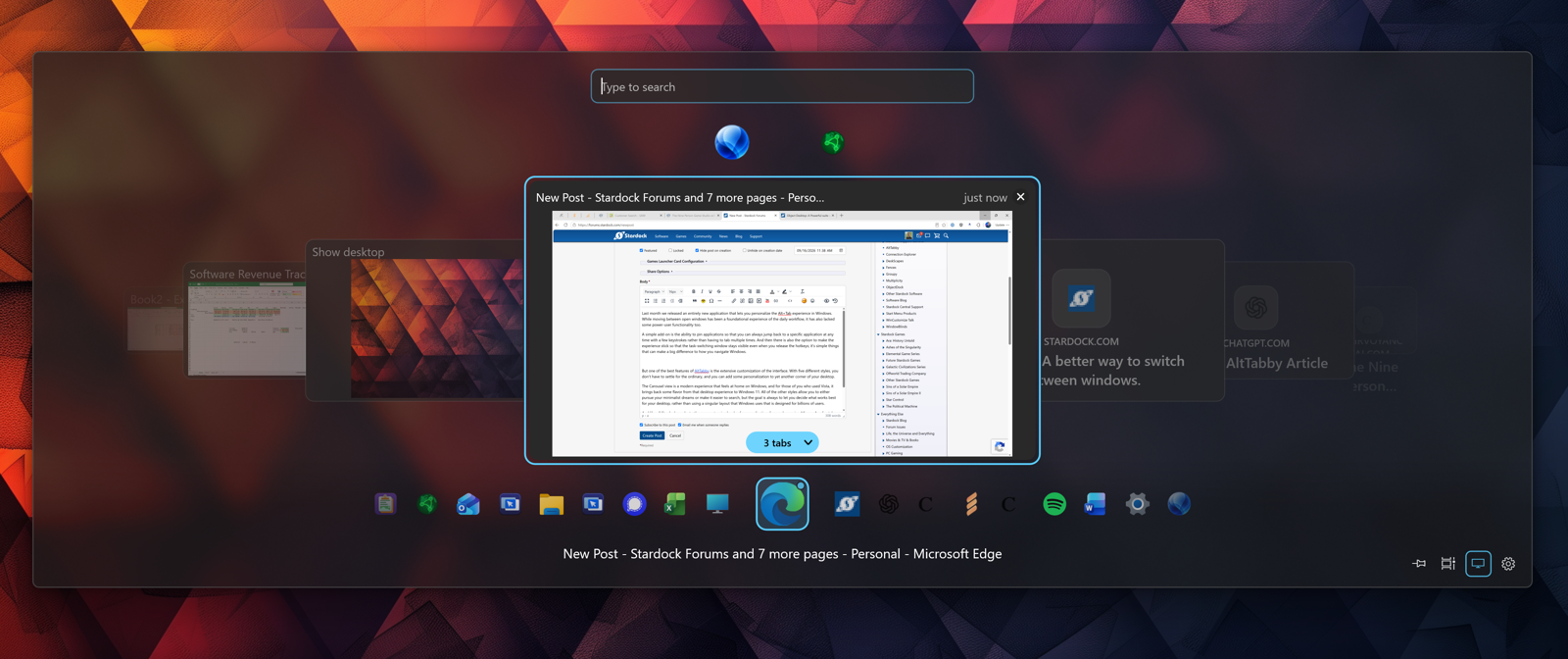
Carousel View offers a different approach to navigating your open windows with large, angled live thumbnails and a row of application icons; this is for those of you who like highly visual experiences.
This style puts more emphasis on the app display, making it easy to see your open applications while giving Alt+Tab a more modern appearance.
More Control Over How Alt+Tab Works
Changing the appearance is only part of what AltTabby can do. We have also added options to control how the interface behaves when you use your keyboard shortcuts.
By default, Alt+Tab is a temporary interface that disappears when you release the keys. With AltTabby, you can choose between three different behaviors:
- Never: The interface closes when you release the shortcut, just like traditional Alt+Tab.
- When keys are held for longer: Keep the interface open when you hold the shortcut for an extended period.
- Always pinned: Keep AltTabby visible even after releasing the shortcut.
These options make it possible to use AltTabby as either a traditional window switcher or a more persistent way to navigate your open applications.
Your Desktop, Your Workflow
Everyone uses Windows differently, and the goal with AltTabby is to make one of the most common interactions with your PC a bit more personal.
Along with the different styles, AltTabby includes additional options for customizing appearance, hotkeys, behavior, and window filtering, giving you more control over how task switching works.
You can learn more about AltTabby on the app page, join the conversation in our forums, and it’s also included in Object Desktop.