Start11 2.71 Release Feedback Thread

With the Start11 2.71 release today, we are creating this thread so that users can report any observed issues.  

Date

05/12/2026

Version

UI: 2.71
File Version: 2.7.1.0

Changes

  1. This fixes the issue with the network icon being the wrong way up on some machines when the taskbar is at the top

  2. Fixes some of the latest Canary builds of Windows 11 issues, such as wrong thumbnails and a problem resizing some vertical taskbars.

  3. This works around an issue with larger desktop icons on mixed dpi setups when the taskbar is at the top of the screen

  4. Fix for clicking on secondary taskbars on a monitor to the left of the primary when in combine mode not popping up the task switcher window when > 1 window for that process is running.

  5. Resolves an issue with disabling S11 taskbar features entirely, where if you had the taskbar set to on top, then it would hang with this set

  6. Added option to control win7 menu showing in dark mode or not.  This is on the same dialog as picking a custom color

  7. Further tweak for taskbar in latest Canary build

  8. Ensured dark mode auto detect mode for start menu colours is Win7/modern theme only.


0 views 21 replies | Pinned
Reply #1 Top

Known issues

While we appreciate all feedback, please remember that we offer no official support for beta \ preview \ developer channel versions of Windows. If you report issues while in any of those early release channels, you should not expect them to be addressed unless it still exists in a retail version of Windows.

  • tbd
Reply #2 Top

I just upgraded to Start11 v2.71 and now my desktop icons are not showing on one of my desktop screens.  I have multiple screens configured on my Windows 11 system.  Screen 1 is my main monitor while screen 2 is my secondary, and it is configured to extend my display to the second monitor.  Icons are visible on screen 1 (main monitor), but after upgrading to v2.71, all the icons that were previously visible on screen 2 are no longer shown on the screen.  If I open the Desktop in File Explorer, all the folders and files on my desktop are shown, so they weren't deleted from my computer.  If I create a new file or folder on screen 1 and drag and drop it to screen 2, it disappears.  I confirmed that the option to 'Show desktop icons' is enabled (checked) when I right-click on the desktop and select 'View.'


How can I restore the visibility of my screen 2 desktop icons?

Reply #3 Top

I had the same issue, had to go back to Start11 2.7.0 to fix the issue.
I've also turned off checking for updates until this is fixed.

Note: It would be nice to have the ability to access older versions  for when this issue happens. I happened to have a copy of Start11 2.7.0 on a backup drive, so I was lucky and could go back.😁

Reply #4 Top

First, Windows 11 pro got upgraded this morning to the latest.

This morning I created a new program and new install. I did my install as normal (nothing really changed). It creates an icon for the main program as usual. It also creates a folder for my other programs (Digital Wrench). When I went to the D's and I saw my icon, but when I clicked on the Digital Wrench Folder, there were places where my shortcuts should have been, but the didn't work and didn't show the icons.

At first, I thought it was me. I switched to the normal windows 11 start menu. And it still didn't show up right. I went into the start menu's folders (in explorer) and saw my Digital Wrench Folder with the shortcuts, and they all had icons and worked.

So, I figured my start11 was out of date. Upgraded it, rebooted, and everything was there. I went ahead and uninstalled and tested everything again. It still didn't work in Start11. I turned off start11 and rebooted, tried the same install, it worked perfectly and showed up correctly in windows11 start menu.

As far as I can tell, if Start11 is running or even if I turn it off temporarily, the install doesn't work right (actually it installs everything correctly but doesn't show up in the start menu correctly). If I turn off start11, reboot, reinstall, everything is there.

My main program Digital Wrench is always there, it's the folder Digital wrench icons in the start menu that is incorrect, even though the shortcuts are all in the start/programs/digital wrench folder.

I think Windows11 update may have messed some stuff up. Now I have to run (after restarting) in the windows11 start menu to test my install.

Thought I'd let you know.

Reply #5 Top
Quoting andreicb, reply 3993020

not an issue with 2.71 specifically, but icon placement in windows 10 style menu is awful.

End of andreicb's quote

Hello,
Sorry to hear you are having issues. I have responded on your own thread, please continue there.

Quoting vmtsoftware, reply 3993030
First, Windows 11 pro got upgraded this morning to the latest.

This morning I created a new program and new install. I did my install as normal (nothing really changed). It creates an icon for the main program as usual. It also creates a folder for my other programs (Digital Wrench). When I went to the D's and I saw my icon, but when I clicked on the Digital Wrench Folder, there were places where my shortcuts should have been, but the didn't work and didn't show the icons.

At first, I thought it was me. I switched to the normal windows 11 start menu. And it still didn't show up right. I went into the start menu's folders (in explorer) and saw my Digital Wrench Folder with the shortcuts, and they all had icons and worked.

So, I figured my start11 was out of date. Upgraded it, rebooted, and everything was there. I went ahead and uninstalled and tested everything again. It still didn't work in Start11. I turned off start11 and rebooted, tried the same install, it worked perfectly and showed up correctly in windows11 start menu.

As far as I can tell, if Start11 is running or even if I turn it off temporarily, the install doesn't work right (actually it installs everything correctly but doesn't show up in the start menu correctly). If I turn off start11, reboot, reinstall, everything is there.

My main program Digital Wrench is always there, it's the folder Digital wrench icons in the start menu that is incorrect, even though the shortcuts are all in the start/programs/digital wrench folder.

I think Windows11 update may have messed some stuff up. Now I have to run (after restarting) in the windows11 start menu to test my install.

Thought I'd let you know.

End of vmtsoftware's quote

Hello,
Sorry to hear you are having issues. Need to know your Windows full version and OS Build number too. Use Winver.exe to get it.

Thank you,
Basj,
Stardock Community  Assistant.


Reply #6 Top
Quoting JHamai, reply 3992991

I just upgraded to Start11 v2.71 and now my desktop icons are not showing on one of my desktop screens.  I have multiple screens configured on my Windows 11 system.  Screen 1 is my main monitor while screen 2 is my secondary, and it is configured to extend my display to the second monitor.  Icons are visible on screen 1 (main monitor), but after upgrading to v2.71, all the icons that were previously visible on screen 2 are no longer shown on the screen.  If I open the Desktop in File Explorer, all the folders and files on my desktop are shown, so they weren't deleted from my computer.  If I create a new file or folder on screen 1 and drag and drop it to screen 2, it disappears.  I confirmed that the option to 'Show desktop icons' is enabled (checked) when I right-click on the desktop and select 'View.'

How can I restore the visibility of my screen 2 desktop icons?

End of JHamai's quote
Quoting Raybomation, reply 3993002

I had the same issue, had to go back to Start11 2.7.0 to fix the issue.

I've also turned off checking for updates until this is fixed.

Note: It would be nice to have the ability to access older versions  for when this issue happens. I happened to have a copy of Start11 2.7.0 on a backup drive, so I was lucky and could go back.😁

End of Raybomation's quote

Hello, Sorry to hear you’re experiencing this issue. From what I understand, it has already been reported and our Support and Development teams are currently investigating.

As a quick test, if you are still on Start11 v2.71, please try disabling Enhanced Taskbar and check if the icons reappear. It would also help if you could share more details about your setup, such as:

  • GPU model

  • Monitor(s) used (resolution, connection type, etc.)

Additional note: If you’d like to contribute further information, please add your details in this thread: https://forums.stardock.com/541565/

Thank you,


Basj,
Stardock Community  Assistant


Reply #7 Top

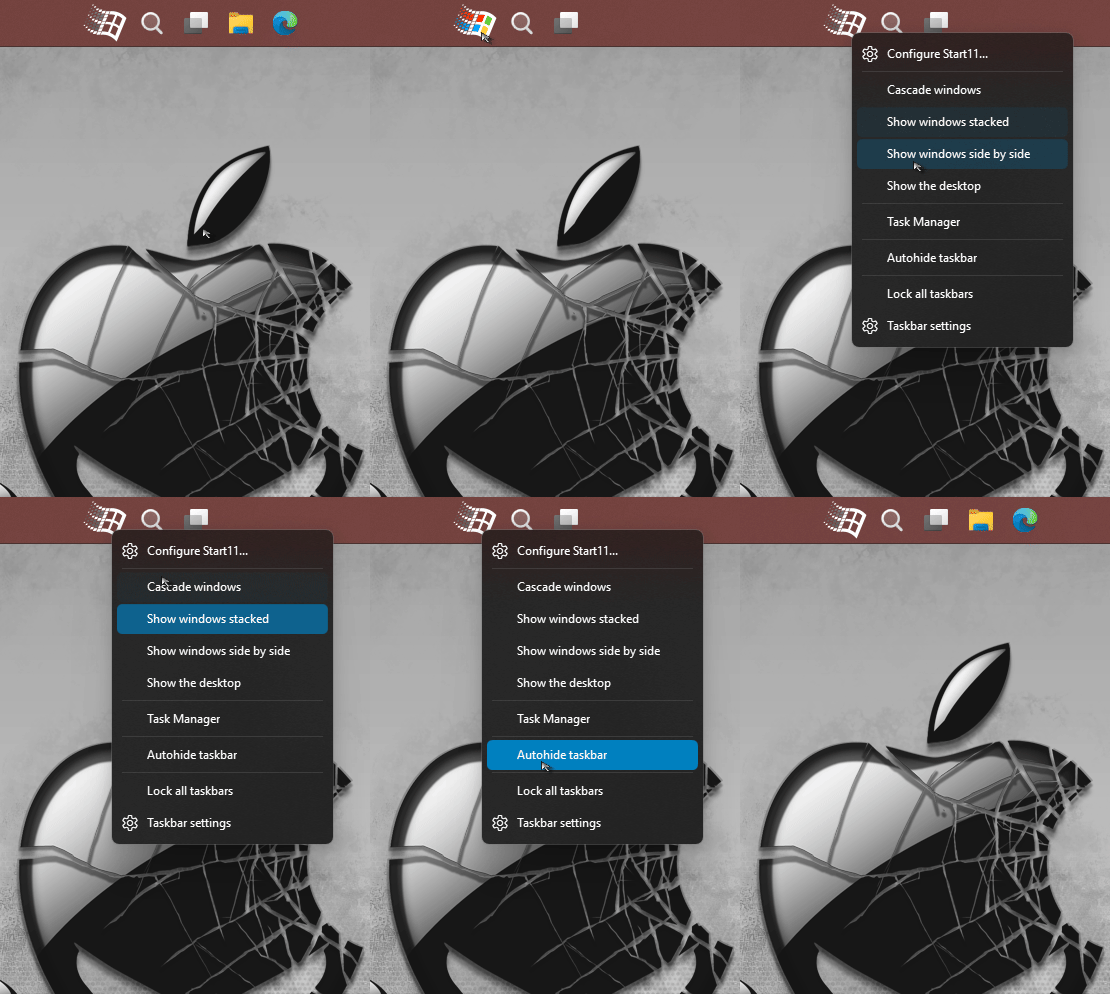
Hæ. I've been using Start11 for a few months now. I like my taskbar on top but unfortunately when the Start11 taskbar is positioned like that, right-clicking the Window Start button results in a misalignment of the cursor and item selection. The cursor appears at 2 items above actual highlighted item. Would greatly appreciate a fix for this.

Additionally, I used to use RocketDock until it started giving me issues on W11; having a Docklet (similar to Start11's Taskbar Pins) displayed as a list or grid. So; I equally love Start11 Taskbar Pins but I'd love to see a Grid display of items in addition to the list.

Reply #8 Top
Quoting heart-of-ice, reply 3993064

Hæ. I've been using Start11 for a few months now. I like my taskbar on top but unfortunately when the Start11 taskbar is positioned like that, right-clicking the Window Start button results in a misalignment of the cursor and item selection. The cursor appears at 2 items above actual highlighted item. Would greatly appreciate a fix for this.

Additionally, I used to use RocketDock until it started giving me issues on W11; having a Docklet (similar to Start11's Taskbar Pins) displayed as a list or grid. So; I equally love Start11 Taskbar Pins but I'd love to see a Grid display of items in addition to the list.

End of heart-of-ice's quote

Hello,
Sorry to hear you are having issues. But, I can't reproduce your issue on my system. Please refer to my short video below. Perhaps something did not get install properly. Please try, uninstall Start11, reboot immediately (important), download latest version available in your account product download page: https://store.stardock.com/myaccount/products. Install it, reboot immediately again. Retest it and report back.

If the issue still appear, we need more information.

  1. Windows 11 full version and OS Build number. Use Winver.exe.
  2. Start11 full version number installed.
  3. Post a video showing your issue might help us understand your issue better.

Thank you.
Basj,
Stardock Community  Assistant.


Reply #9 Top

Same issue for me on the 2nd monitor. Updated to 2.7.1

Disabling enhanced taskbar corrects the issue and the icons in the fences groups reappear.


Seems like a shading issue as the fences window is flickering as if trying to refresh the images.


Do I need to post this result somewhere else as well?

Reply #10 Top
Quoting Hellstrom, reply 3993066

Same issue for me on the 2nd monitor. Updated to 2.7.1

Disabling enhanced taskbar corrects the issue and the icons in the fences groups reappear.

Seems like a shading issue as the fences window is flickering as if trying to refresh the images.

Do I need to post this result somewhere else as well?

End of Hellstrom's quote

Hello,
Sorry to hear you are having issues. If you're referring to issue on missing desktop icons, yes, please add your details in this thread: https://forums.stardock.com/541565/

Details on GPU might also help. 

Thank you,

Basj,
Stardock Community  Assistant

Reply #11 Top
Quoting basj, reply 3993065

Quoting heart-of-ice,

reply 3993064


Hæ. I've been using Start11 for a few months now. I like my taskbar on top but unfortunately when the Start11 taskbar is positioned like that, right-clicking the Window Start button results in a misalignment of the cursor and item selection. The cursor appears at 2 items above actual highlighted item. Would greatly appreciate a fix for this.


Additionally, I used to use RocketDock until it started giving me issues on W11; having a Docklet (similar to Start11's Taskbar Pins) displayed as a list or grid. So; I equally love Start11 Taskbar Pins but I'd love to see a Grid display of items in addition to the list.


Hello,

Sorry to hear you are having issues. But, I can't reproduce your issue on my system. Please refer to my short video below. Perhaps something did not get install properly. Please try, uninstall Start11, reboot immediately (important), download latest version available in your account product download page: https://store.stardock.com/myaccount/products. Install it, reboot immediately again. Retest it and report back.


If the issue still appear, we need more information.


Windows 11 full version and OS Build number. Use Winver.exe.

Start11 full version number installed.

Post a video showing your issue might help us understand your issue better.


Thank you.

Basj,

Stardock Community  Assistant.

End of basj's quote

Fully uninstalled, rebooted, reinstalled, reactivated. Same issue.

1. Windows 11 25H2, OS Build 26200.8457

2. Start11 Version 2.71

3. Video below; expires in 2 days

https://streamable.com/jjuokk

Reply #12 Top
Quoting heart-of-ice, reply 3993094

Fully uninstalled, rebooted, reinstalled, reactivated. Same issue.

1. Windows 11 25H2, OS Build 26200.8457

2. Start11 Version 2.71

3. Video below; expires in 2 days

https://streamable.com/jjuokk

End of heart-of-ice's quote

Perhaps something in your system is conflicting with Start11. Please try Clean boot: Refer here for Steps: https://support.stardock.com/space/SHC/1334935592/Start11+Clean+Boot . Do note that Clean boot need to be done with care. Please try it and report back.

Thank you,

Basj,
Stardock Community  Assistant

Reply #13 Top

It's only the Start11 start button that exhibits this behaviour when the taskbar is positioned on top. No other items (not even the Taskbar Pin) has a cursor highlight misalignment. There's nothing conflicting with anything else on my system so I'm not going to mess with a system that isn't broken by volunteering as tester for Stardock software on my personal home computer. I'll see if I'm eligible for a full refund. Thanks for your replies anyway.

Reply #14 Top

Understood, for refund, please raise support ticket using the link below, use the "Refund" option. Include all information details. Remember to record down the ticket number for future reference if needed. Do not raise multiple ticket, that will make your ticket back to the end of the line. Send once and wait. Ticket will be answer by the order they send in.

https://stardock.atlassian.net/servicedesk/customer/portal/4/group/13  

Thanks
Basj,
Stardock Community  Assistant

Reply #15 Top
Quoting heart-of-ice, reply 3993122

It's only the Start11 start button that exhibits this behaviour when the taskbar is positioned on top. No other items (not even the Taskbar Pin) has a cursor highlight misalignment. There's nothing conflicting with anything else on my system so I'm not going to mess with a system that isn't broken by volunteering as tester for Stardock software on my personal home computer. I'll see if I'm eligible for a full refund. Thanks for your replies anyway.

End of heart-of-ice's quote

I am wondering if you are both using different menus here.  Are you using the OS right click menu and Basj using the Start11 menu (which is optional to enable)

Reply #17 Top

We have a build for testing if you are experiencing issues with icons vanishing on the desktop with autohide - Start11 V2 2.7.20

If you do install this build, please let us know if it resolves the issue as it did so in our internal testing.

Reply #21 Top

Upgrading to the newer release appears to have resolved my issue of icons not displaying on my second monitor.  Thank you for the quick response to this issue.