Stuck Menu Item

Program doesn't exist

I uninstalled a preloaded trial program using Revo Uninstaller (I did this with several bloatware items), the uninstallation completed, but the menu item persists in the Apps list in Start 11. No shortcut exists in System programs or User programs. Any simple way to get rid of this entry?

1,487 views 12 replies
Reply #1 Top

Try restarting Explorer, and if that doesn’t work restart your computer. If neither of those work, report back. 

Reply #2 Top

Those were the first things I tried. I also ran sfc /scannow. The item is still there. 

Reply #3 Top

When you say System programs, are you referring to "C:\ProgramData\Microsoft\Windows\Start Menu\Programs,"

and when you say User programs, are you referring to "C:\Users\user name\AppData\Roaming\Microsoft\Windows\Start Menu\Programs"?

Reply #4 Top

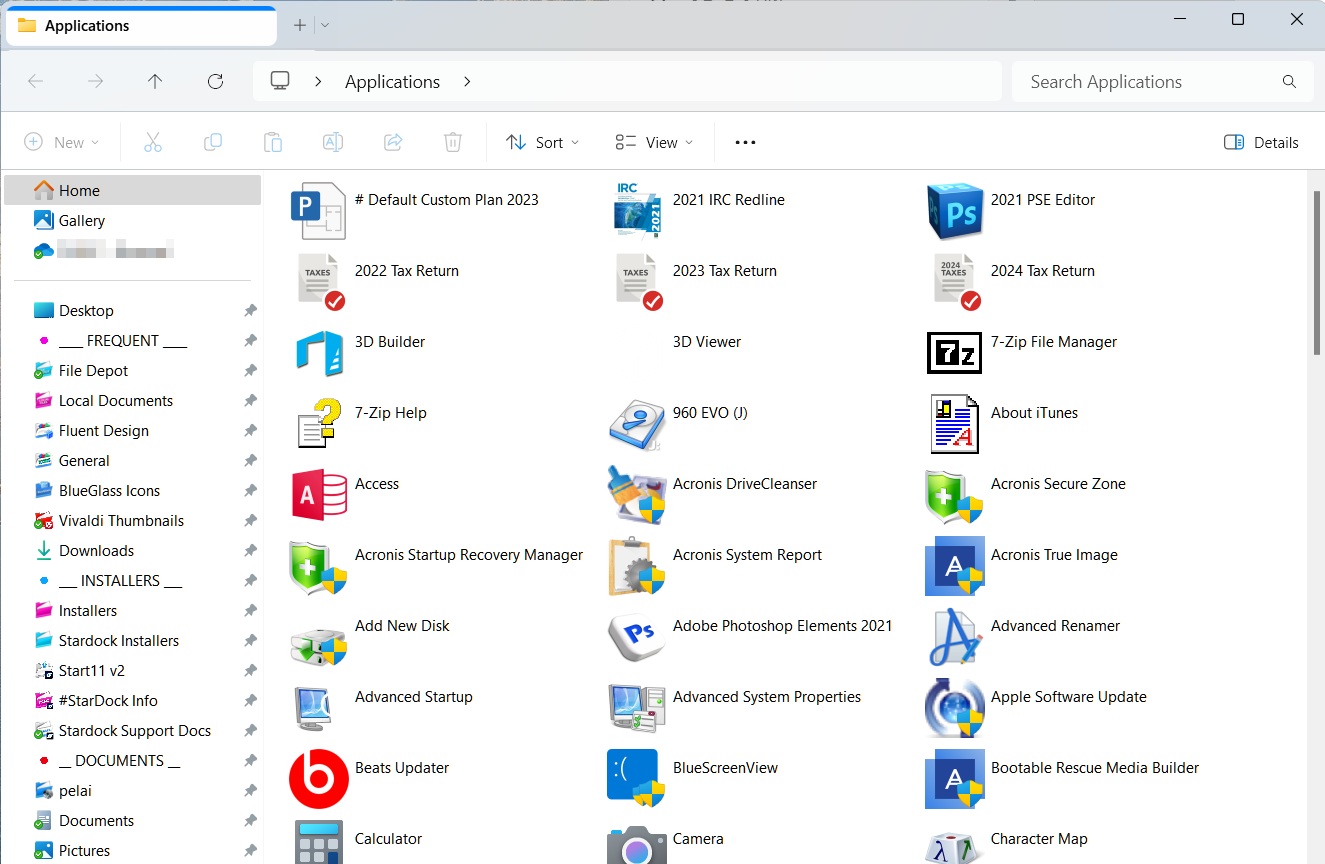
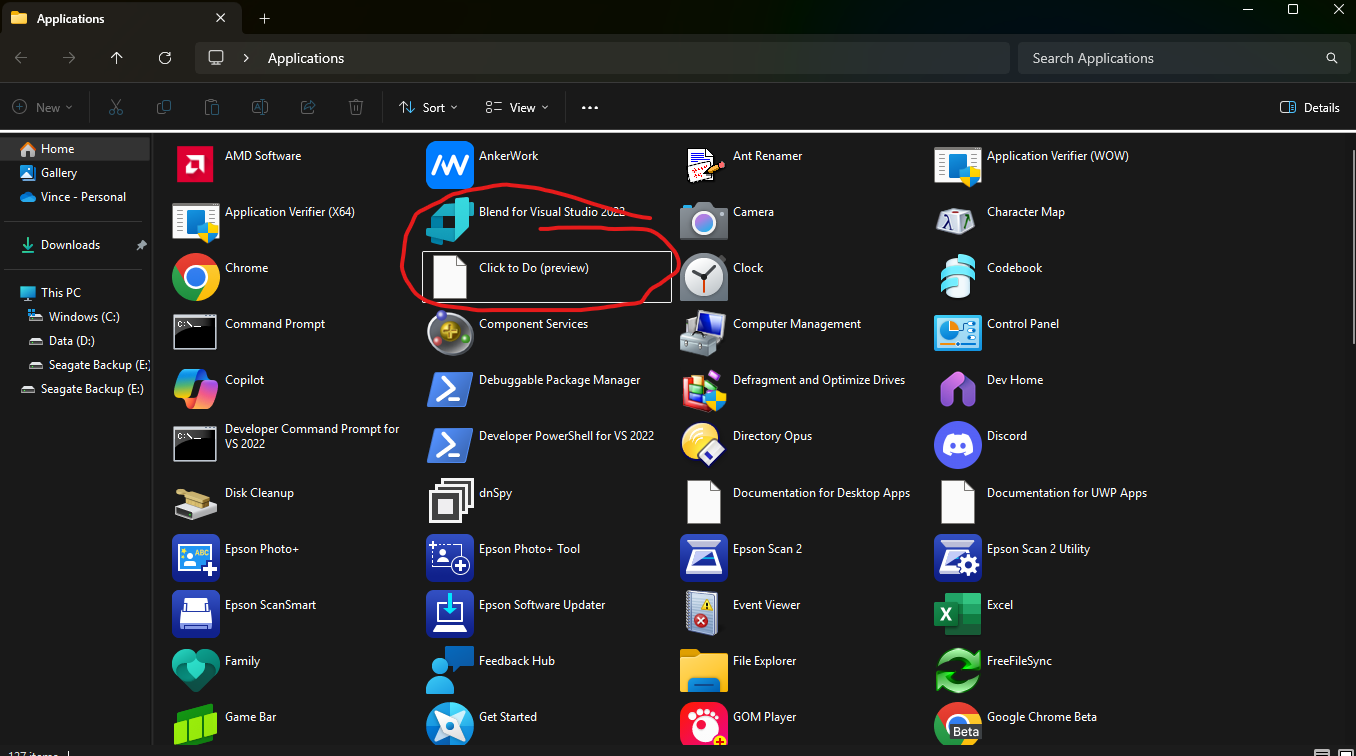
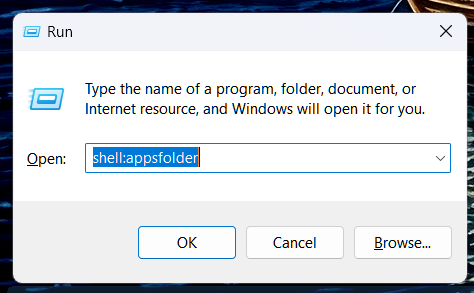
If you press winkey + r and run shell:appsfolder does the app appear in that list?

Reply #5 Top

Nothing happens when I run that command. Do you mean this folder? C:\ProgramData\Microsoft\Windows\Start Menu\Programs

No, the app is not listed in that folder nor in C:\Users\vijer\AppData\Roaming\Microsoft\Windows\Start Menu

Reply #6 Top

Open the Run dialog and type shell:appsfolder

It should open a folder that looks like this:

Reply #7 Top

When I run the command, the run box closes and nothing else happens. I don't get any error messages, just the run launcher closes.


What is the full path? I assume the command opens File Explorer to the correct location. So, if I know the path, I can find it manually.

Reply #8 Top

This worked for me in Power Shell. Start-Process "Explorer.exe" -Args "Shell:AppsFolder"


Yes, the offending item does appear there. 

Reply #9 Top

Okay, great. Does it also appear in the Windows Settings>Apps>Installed Apps list. If so, try to uninstall from there. If not, delete it from the Application folder you managed to open above.

Try these and report back. :grin:  

Reply #10 Top

You should also be able to right click on the app in the all apps list in Start11 and under the more menu there should be a hide option.