Start 11 Programs Menu Icons

How Do I Manually Remove Them?

I don't know if this is a Start 11 issue or a Windows 11 issue, although I'm pretty sure it's a Start 11 issue. I'm running the latest version of both; Windows 11 and Start 11.

What I'm seeing is when I uninstall a program in Windows 11, its corresponding icon is NOT removed from the Start11 programs main menu. 

I've been a loyal ON1 Photo Raw and ALL their apps user (about 6 total photo editing apps) since 2020, and have upgraded everything each time an upgrade becomes available; now 2022. What I have NOT done until today is uninstall the old versions; 2020 and 2021.

When I did that, their corresponding icons were NOT removed from the main Start 11 programs menu, but they WERE removed from the stock Windows 11 programs menu. What's up with that?!

Even if I right click them in the Start 11 programs menu and click uninstall, nothing happens! Nothing's happens when I click them either! 

HOW DO I MANUALLY GET RID OF PROGRAM ICONS FROM THE START11 MAIN MENU? 

5,948 views 8 replies
Reply #1 Top

Hello,
Sorry to hear you are having issues. You are using which Start 11 style? Win 7, Modern, Win 10 or Win 11? And these icons are pinned icons?

Thanks
Basj,
Stardock Community Assistant.

Reply #2 Top

I am not sure I am understanding you or not. I think you are talking about the all "all apps" menu since pinning and unpinning is straight forward.

The "all apps' menu can be modified in it's location folder which is located in, "C:\ProgramData\Microsoft\Windows\Start Menu\Programs" removing shortcuts here should also get rid of the icon in the "all apps" menu

Reply #4 Top

I'm using the Win 10 style. The icons on the right side are fine. Those are easy to arrange, add and/or remove. It's the left side vertical A->Z textural list of apps. I guess it's not just the icons; it's the textural entries with their corresponding icons. Some of the icons are empty too; no graphic, just a blank icon. 

Is there a way to insert a screenshot in these posts? 

Reply #5 Top

If you press winkey + R and in the run box enter shell:AppsFolder and then press enter, does the window that shows up also have those leftover applications?

Reply #6 Top

Yes. Two shortcuts/links to 2021 ON1 programs I uninstalled yesterday that don't have icons associated with them anymore. If I double-click them, nothing happens. No error box or anything.

Oddly enough, one of the 2022 ON1 apps I DIDN'T uninstall also has a blank icon. If I double-click that one, it launches the app. There are at least half a dozen others that are blank too. One of them is Microsoft Edge, which I don't use but it launches too when I double-click the blank icon.

If I right-click on either one of the uninstalled 2021 ON1 icons and click 'Open file location', I'm taken to the folder of shortcuts where the six ON1 Photo Raw and associated apps I did NOT uninstall reside. Those are all fully function, which I know for a fact because I launched and updated all six of the yesterday.

What is the actual path to that 'Applications' directory I'm taken to with the AppsFolder shell command? Where IS the apps folder? 


Reply #7 Top

Windows builds that virtual folder from installed universal apps and from the start menu shortcuts.

If you open the native Windows menu do you also see these broken links under all apps?

Reply #8 Top

That's what I suspected. At any rate, I went through the registry and deleted every instance of ON1 2018, 2019, 2020 and 2021. I'd forgotten I was an early adopter of ON1 back in 2018, which makes 5 years worth of registry entries. It took a while. Crap Cleaner would have been quicker, but I'm more thorough.

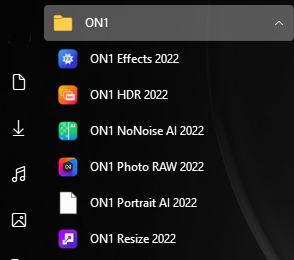
The only issue I still have is that the ON1 Portrait AI 2022 icon is still blank with the Start 11 main menu enabled. If I disable Start 11 and just use the standard Windows 11 start menu, ALL the icons looks fine; just like it's supposed to look. 

So, I figured out how to insert an image file!

Here's how the ON1 icons in the Start 11 main menu look. Note that the ON1 Portrait AI 2022 icon is solid white. It works and the app launches when I click it, but the icon looks (kinda) like a .txt file, which obviously it's NOT;

Start11

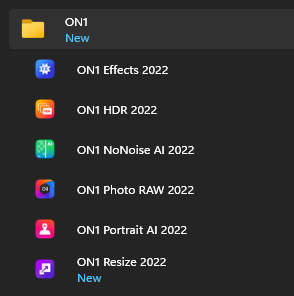
Here's how the ON1 apps appear in the standard Windows 11 main menu. Note that ALL icons look fine;

Win 11

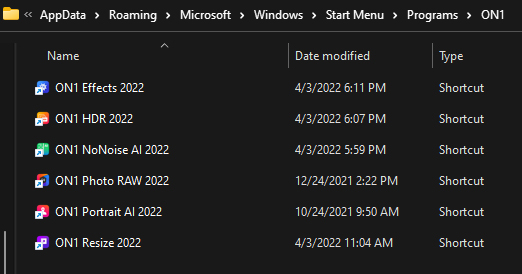
And here's where the shortcuts are actually located that launch the applications; (c:\Users\Me\AppData\Roaming\Microsoft\Windows\Start Menu\Programs\ON1;

Obviously, there's something amiss with the ON1 Portrait AI 2022 icon/link ... whatever Start 11 THINKS it's supposed to be displaying. I have no idea where Start 11 gets it's paths to icons, but either its cache is out of sync with what Windows 11 uses, or ... beats me. Not my code.

Anybody got any ideas? 

Oh ... and THANK YOU for all the help you folks provide! I'm a big fan of ALL the Stardock apps, and because of YOU folks and the help you provide, that'll be the case for a LONG time to come!