Windows 10 1903 KB4515384 update Causing Multiplicity 3 to keep disconnecting

All, not sure if anyone else ran into this problem but yesterday I installed the Windows 10 1903 KB4515384 update which is supposed to fix an issue of the taskbar cortana search bar and search indexer causing the CPU to frequently spike. It fixed it alright but then it caused a bunch of other problems including but not limited to a broken start menu.  Adding to that my experience was that after I installed the update on both my computers at work, the secondary would frequently disconnect even after multiple reboots to the primary and secondary, until finally the secondary would quit connecting altogether.  The solution, uninstall the update on both machines and then block it from re-installing.

Hope this helps someone

13,792 views 17 replies
Reply #1 Top

Hello,

I have forwarded your report to the Stardock support team for their review and recommendations.

Please keep an eye on this thread for any updates.

We really do appreciate your feedback, thanks.

AzDude
Stardock Community Assistant

Reply #2 Top

I've been seeing something similar recently, though I haven't specifically tied it to KB4515384 yet.  (I was affected by the start menu search failure on my primary.)  I'll try rolling it back on my secondary to see if it helps.

My disconnects feel like they might be tied to the screensaver kicking in, though it typically recovers eventually.

Reply #3 Top

Yeah I'd noticed that also. However with that update, the secondary would completely refuse to reconnect.

Reply #4 Top

Quoting techforged, reply 3

Yeah I'd noticed that also. However with that update, the secondary would completely refuse to reconnect.
End of techforged's quote

With what as the error? Were you connecting to the Secondary via IP or hostname?  If by IP, did the Secondary still have the IP the Primary thought it should have?

Sean Drohan
Stardock Support Manager

Reply #5 Top

Update:  I had previously backed out KB4515384 on my primary because of the Start Menu search bug, but it was still installed on my secondary.  Since backing it out on the secondary yesterday, I have had no disconnects.

The only issue I still have occurs when the secondary has been inactive long enough for the monitor to shut off.  In this case, when I drag my mouse to the secondary, there are several seconds of latency where the mouse is non-responsive.  Even if I drag it back toward the primary, nothing happens.  Using a hotkey to jump back to the primary does make the mouse responsive immediately.  If I take no action, everything is fine after a few seconds.  I've experienced this well before KB4515384 was published and am just treating it as a minor annoyance.

Reply #6 Top

I wasn't getting an error. The popup on the primary would just say the secondary disconnected and that's it. However when I go to multiplicity on the secondary it still thinks its connected to the host via ip address.  Now since I've removed that update, I havent had any issues with disconnecting except for whenever i drop off wifi but that's solvable.

Reply #7 Top

My problem appears to have returned this morning, immediately after the new cumulative update KB4517389 was applied to my system, which probably brought back whatever part of KB4515384.  Both my primary and secondary system are now updated with the latest patches.

Here's a detailed description of what's happening to me, and hopefully how to reproduce the problem:

  • On the secondary, set the power settings to turn off the screen after 1 minute of inactivity (I usually use 10).
  • Move the mouse back to the primary and wait one minute.
  • A few seconds after the secondary screen powers off, I get a disconnect notification and then a connect notification soon after that.
  • I move the mouse back toward the secondary, but the monitor remains off.  If I try to pull my mouse back to the primary, it does nothing.
  • After about 10 seconds, I get another disconnect notification and the mouse pointer moves to the center of my primary.
  • At some point after that, I will get a connect notification and then the monitor eventually cuts back on.
  • While trying to mouse back to the secondary, I sometimes get another cycle of disconnect/connect notifications (with the mouse frozen prior to the disconnect notification).  But eventually, I am able to control the secondary again.
Reply #8 Top

What hardware is your secondary computer?

Reply #9 Top

Quoting ncbrowns, reply 7

On the secondary, set the power settings to turn off the screen after 1 minute of inactivity (I usually use 10).
End of ncbrowns's quote

What is 'sleep' set to?

Sean Drohan
Stardock Support Manager

Reply #10 Top

@Neil, reply #8:  Secondary system has a Intel core i7-4770 (4 physical cores) with an NVIDIA GeForce RTX 2080.  Not sure if there are any other details you're interested in.

@Sean, reply #9:  Sleep on the secondary system of concern is set to 3 hours and is unlikely to be relevant.

I actually have two secondary systems, but the other one is powered off/sleeping during this repro.  (It's a secondary test system that I only use when trying to do too many things at once.)  If you think that might be relevant, I could try the experiment with my other secondary removed/disabled on my primary system.

Both systems are running Windows 10 Enterprise 1903 with all the latest updates.

Reply #11 Top

I did an experiment when I removed the extra secondary system from the desktop configuration on the secondary, so that I only had my (two-monitor) primary system plus a single (one-monitor) secondary.   That had no effect.  Also, disabling one of the two monitors on my primary system had no effect.

Reply #12 Top

I'm experiencing the same problem.   Before I updated to Win10 1903 (build 18362.418), multiplicity was working fine on my laptop configured as a secondary computer and running Win10 1809.   After the update, the laptop secondary computer shows up in the seamless window on the primary computer but it is greyed out.  Also the primary computer can't seem to determine the ip address of the secondary computer on the configure screen.  I deleted the computer from both the grid and the available computers and then added it back in.  Multiplicity was able to find it on the network and placed it back into the available computers. I was able to add it to the grid but could not control it.  Again it was greyed out.  The IP address reported isn't even in the same subnet. (eg. 192.168.0.XXX instead of 192.168.1.XXX).  I tried uninstalling and installing on the secondary, unloading and reloading on the secondary and primary computer all to no avail.  I have a shared drive between the laptop secondary computer and the prime computer and it works fine.   

I checked norton firewall settings and it has full privileges for multisrv.exe and multipl2.exe on the secondary computer.   I've even turned off all firewall and antivirus software to no effect.  

I'm running Multiplicity 3.44 KVM pro Build 0090 on both my laptop and primary computer.  I have 2 other secondary computers on the grid and I can control them fine.   These other computers are running version 1903 (build 18362.356) of windows 10 pro as is my primary.    So it could be the differences in the build.  


Computer information for non responsive laptop:

  • LG gram
  • 16 gb memory
  • 512GB SSD
  • Intel I7 processor
  • Intel UHD 620 graphics processor

Any suggestions?

Reply #13 Top

@iluvtoflytoo:  Your issue appears to be completely unrelated to the issue reported by the original poster.

That said, what you describe sounds similar to a problem I had back in 2015.  The reply I got to my support ticket pasted below solved my problem.  I'm not sure if this was a firewall issue or Multiplicity has security logic to disable itself on "Public" networks.  In any event, I hope that this helps.

--

Sorry to hear you are having trouble.

It is likely that the upgrade changed your network connection from 'Private' or 'Home' to 'Public'. You need to change it back.

Changing Windows network type should you need to:

Win10:
https://tinkertry.com/how-to-change-windows-10-network-type-from-public-to-private

Reply #14 Top

Quoting iluv2flytoo, reply 12

The IP address reported isn't even in the same subnet. (eg. 192.168.0.XXX instead of 192.168.1.XXX).
End of iluv2flytoo's quote

That does not make any sense to me....  MP should not find any box that is not on the same subnet.

Have you edited your Windows Host file at all?

If you go to the Secondary, is it on the same subnet as the Primary?  If not, is it connected to a wireless network that is separate from the one the Primary is on?  Following that, if wireless is involved at all, can a wired only test be performed?

Sean Drohan
Stardock Support Manager

Reply #15 Top

1.  My designation of private hasn't changed.  All the computers are on the same workgroup.  

2.  On the secondary, it is on the same subnet as the primary and all other network connections show as "media disconnected" so there is only one IP address available for the secondary.   I can ping the secondary computer successfully from the primary using the IP address and can access it by using the IP address from file manager.  None of the computers are on a wireless network.  None of the ip addresses listed in the "connect via IP" e.g. subnet 0, can be pinged. Have no idea how MP has got those subnet addresses.   All of the other computers configuration report the correct IP addresses.  .   

Reply #16 Top

Quoting iluv2flytoo, reply 15

1.  My designation of private hasn't changed.  All the computers are on the same workgroup.  
End of iluv2flytoo's quote

Private would have to do with what network type Windows thinks its connected to, not that they are member of the same 'WorkGroup'.  If you are certain that each network connection medium, on each, is set to 'Private' then you are good there. 

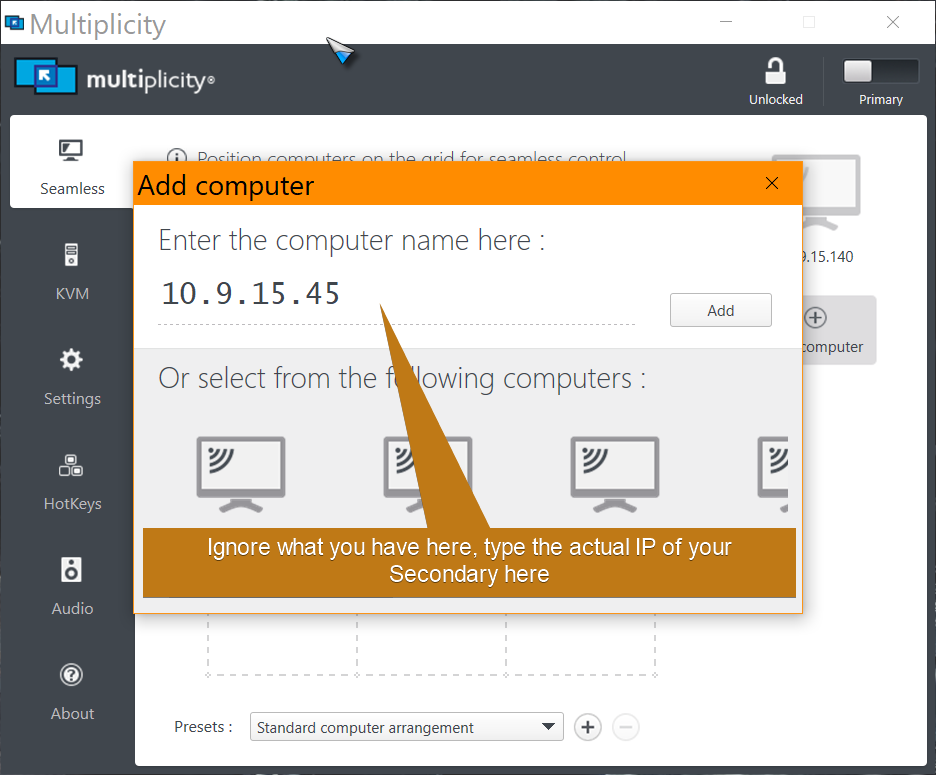
On the Primary, in the connection window for adding a Secondary PC, if you add the Secondary by manually typing in it's stated IP (the one th Secondary says it has), does it work:

Sean Drohan
Stardock Support Manager

Reply #17 Top

That worked.  And then when I went back to the name of the computer it is also now also working.   Not sure what happened but everything is working now.   I left it with the name in case DHCP assigns a new IP address.    Thanks