sdRohan sdRohan

Start11 2.7 Release Feedback Thread

Start11 2.7 Release Feedback Thread

With the Start11 2.7 release today, we are creating this thread so that users can report any observed issues.  

Obtaining the product

Object Desktop members can get the release from within Object Desktop Manager 

Individual purchases (as well as Object Desktop Members) can also be obtained from your account page: https://store.stardock.com/myaccount/products

For guest check-out purchase (no account), from this link: http://www.stardock.com/support/productkeyretrieval

Reporting an issue

Please include the following for anything found:

  • Exact Windows version \ build (winver.exe)

  • Detailed steps to recreate the issue seen

  • Screenshots and videos are very helpful.  Videos can be uploaded to a cloud drive service (GoogleDrive, DropBox, OneDrive, YouTube), with a shared link included in your post.  Images can be copied and pasted directly into a post.

  • If there are specific apps that the app does not work (well) with, please note what apps and their exact versions.  If any app is not common, a link to a trial version would be appreciated.

3,277 views 58 replies
Reply #26 Top

After reading the post(s) above I searched online and found a registry string:

HKEY_CURRENT_USER\SOFTWARE\Stardock\Start8\Start8.ini\Start8 S11_HideTBPopups with a Data Value of 1

This seems to have fixed it for me

Reply #27 Top

Quoting polish-undone-thee, reply 25

no, not a registry entry, i've tried all the old reg bypasses and Start 11 was the only thing i found that worked (until today's update that is..) there was a setting in the taskbar options that hid them.. there is still a setting that says hide animations but it doesn't seem to have any effect.... 
End of polish-undone-thee's quote

Registry key to force disable the OS thumbnails window on the taskbar.
(It can be made to show holding down Ctrl before hovering on the taskbar button).

Key location is HKEY_CURRENT_USER\Software\Stardock\Start8\Start8.ini\Start8

Create a new String and name it   "S11_HideTBPopups"  and set data value to "1"

Reply #28 Top

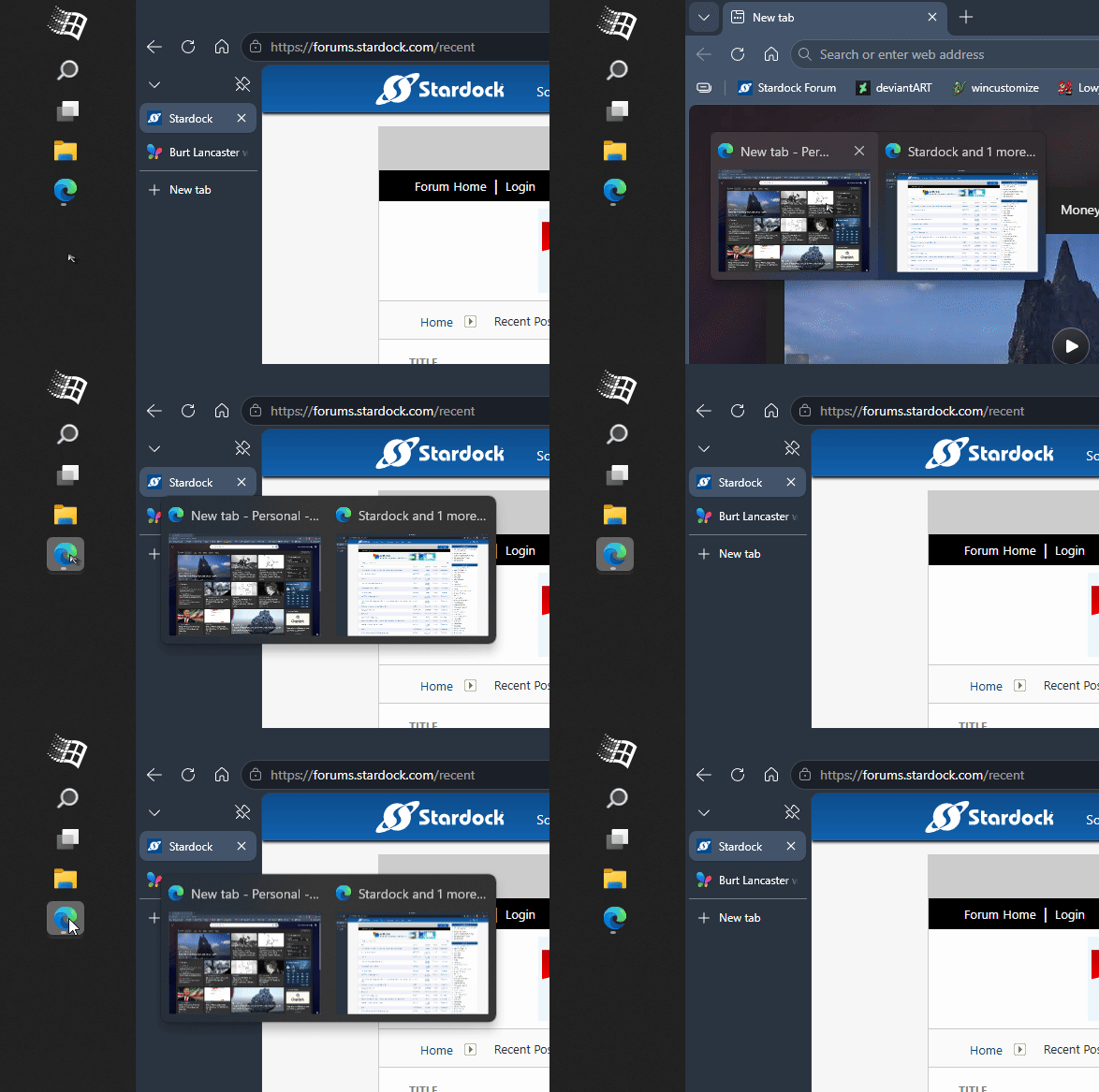
Issue with Vertical Taskbar:

If there is an app with multiple windows, clicking on the Taskbar button for that app will relocate the cursor to the main monitor, 110 pixels to the right of the taskbar, and perform a click:

  • Set the Vertical Taskbar to the left edge of the monitors
  • Open your favorite browser
  • Create a new tab, but in a new window
  • Hovering over the taskbar icon shows a preview of both windows = GOOD
  • Clicking on the taskbar icon places the cursor 110 pixels to the right of the taskbar and performs a click (so whatever app happens to be under the cursor will receive this)

- This doesn't seem to happen with horizontal taskbar.

- This happens on both primary as well as secondary vertical taskbars, but the cursor always goes to the primary monitor. So if you click a multiple-window app icon on a secondary monitor, your cursor will now be relocated to the primary monitor.


Windows Details

Edition Windows 11 Business
Version 25H2
Installed on ‎12/‎17/‎2025
OS build 26200.8246
Experience Windows Feature Experience Pack 1000.26100.297.0


Reply #29 Top

Quoting JFeisty, reply 28

Issue with Vertical Taskbar:

If there is an app with multiple windows, clicking on the Taskbar button for that app will relocate the cursor to the main monitor, 110 pixels to the right of the taskbar, and perform a click:

    • Set the Vertical Taskbar to the left edge of the monitors
    • Open your favorite browser
    • Create a new tab, but in a new window
    • Hovering over the taskbar icon shows a preview of both windows = GOOD
    • Clicking on the taskbar icon places the cursor 110 pixels to the right of the taskbar and performs a click (so whatever app happens to be under the cursor will receive this)

- This doesn't seem to happen with horizontal taskbar.
- This happens on both primary as well as secondary vertical taskbars, but the cursor always goes to the primary monitor. So if you click a multiple-window app icon on a secondary monitor, your cursor will now be relocated to the primary monitor.

Windows Details

Edition Windows 11 Business
Version 25H2
Installed on ‎12/‎17/‎2025
OS build 26200.8246
Experience Windows Feature Experience Pack 1000.26100.297.0
 

End of JFeisty's quote

Hello,
Sorry to hear you are having issues. But, I can not reproduce this issue. Here a small video showing it. Clicking on each taskbar button bring the clicked Windows forward, the cursor still appear there. Unless

Thank you,
Basj,
Stardock Community Assistant.

Reply #30 Top

Quoting basj, reply 29


Quoting JFeisty,

Issue with Vertical Taskbar:

If there is an app with multiple windows, clicking on the Taskbar button for that app will relocate the cursor to the main monitor, 110 pixels to the right of the taskbar, and perform a click:
      • Set the Vertical Taskbar to the left edge of the monitors
      • Open your favorite browser
      • Create a new tab, but in a new window
      • Hovering over the taskbar icon shows a preview of both windows = GOOD
      • Clicking on the taskbar icon places the cursor 110 pixels to the right of the taskbar and performs a click (so whatever app happens to be under the cursor will receive this)

- This doesn't seem to happen with horizontal taskbar.
- This happens on both primary as well as secondary vertical taskbars, but the cursor always goes to the primary monitor. So if you click a multiple-window app icon on a secondary monitor, your cursor will now be relocated to the primary monitor.

Windows Details

Edition Windows 11 Business
Version 25H2
Installed on ‎12/‎17/‎2025
OS build 26200.8246
Experience Windows Feature Experience Pack 1000.26100.297.0


Hello,
Sorry to hear you are having issues. But, I can not reproduce this issue. Here a small video showing it. Clicking on each taskbar button bring the clicked Windows forward, the cursor still appear there. Unless


Thank you,
Basj,
Stardock Community Assistant.

End of basj's quote

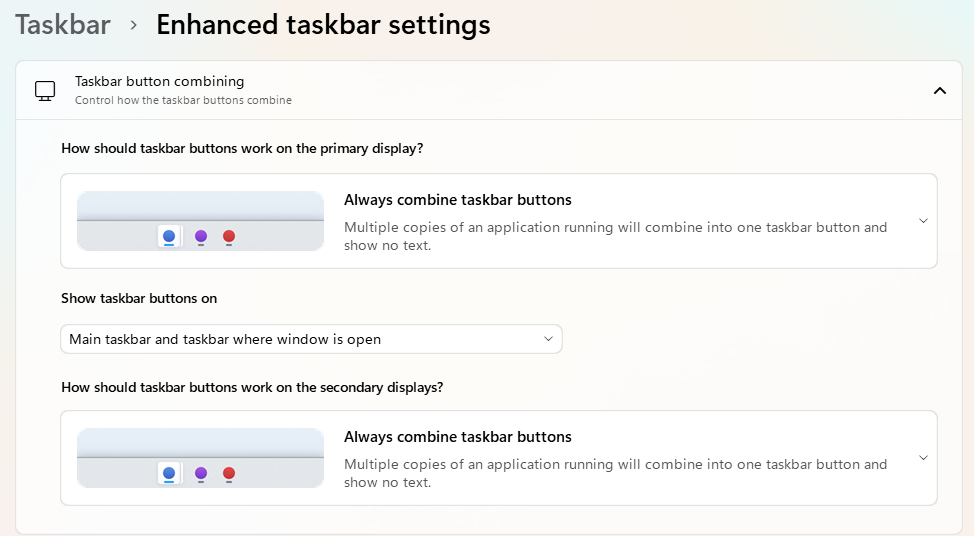
Thank you for the reply. Looks like Taskbar button combining is the key here as I have mine combined:

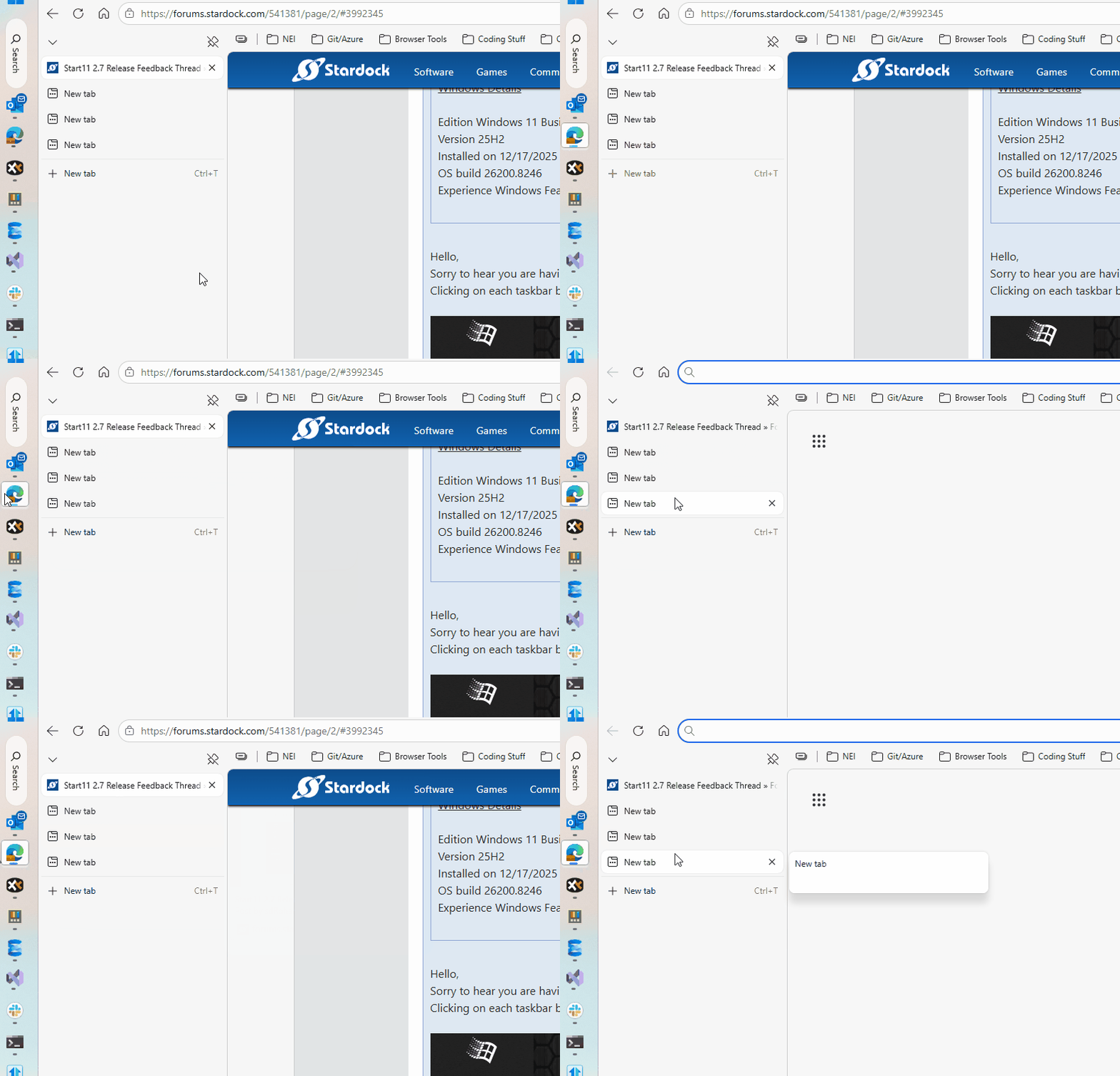
Edit: Here's a screen capture of it. See how the cursor just "jumps" and performs a click? It's selecting a tab that wasn't active at the time:

Reply #31 Top

Hello,

I’m interested in purchasing your product, but during the trial I encountered a bug that affects usability.


Issue Description:

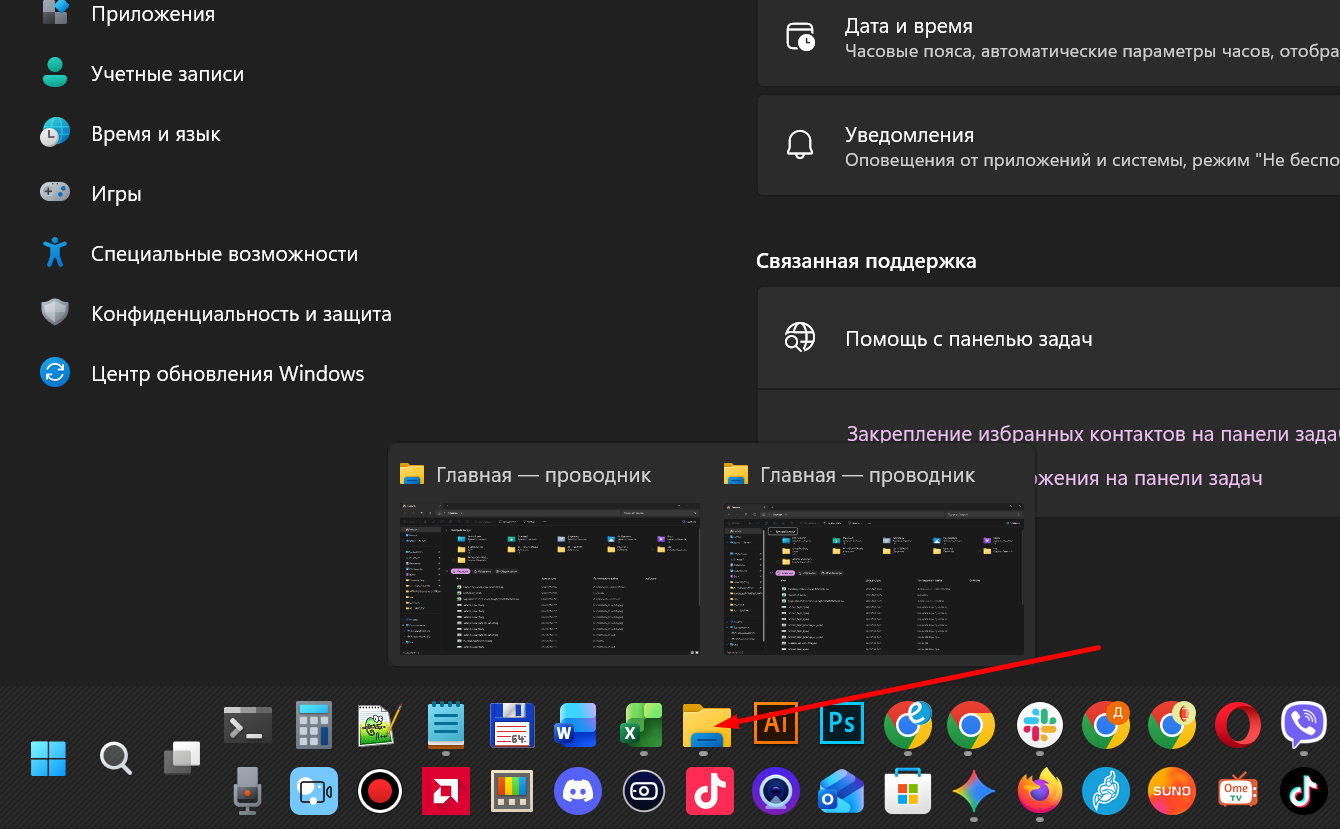
When multiple windows of the same application are open (for example, File Explorer or a web browser), the taskbar behavior becomes incorrect.


Steps to Reproduce:

  1. Open two or more instances of the same application (e.g., File Explorer or a browser).
  2. Click the application icon on the taskbar using the left mouse button.

Actual Result:

  • Instead of behaving like the default Windows taskbar, clicking the taskbar icon triggers a completely different application or shortcut.

Expected Result:

  • The taskbar should behave like the standard Windows taskbar:
    • When hovering over the icon, previews of all open windows should appear.
    • Clicking the icon should not trigger any unrelated actions or applications.
    • The behavior should remain consistent with native Windows taskbar logic (no unexpected launches or shortcuts).

Additional Notes:

  • If I hover over the icon and manually select one of the preview windows, everything works correctly.
  • The issue only occurs when directly clicking the taskbar icon.
  • When I disable your software, the default Windows behavior is restored and everything works as expected.

Questions:

  • Is this a known issue?
  • Are there any workarounds?
  • Is a fix planned in upcoming updates?

Thank you in advance.


Reply #32 Top

Quoting JFeisty, reply 30

Thank you for the reply. Looks like Taskbar button combining is the key here as I have mine combined:
End of JFeisty's quote

I tested with the Always combine taskbar buttons and I still do not see the issue on my system. The cursor don't jump to right. If you see the cursor move in my video it just me getting to the popup previews. It never jump to the right by itself. Perhaps something else is causing it. Perhaps, some edge extension?

Thank you,

Basj,
Stardock Community Assistant

Reply #33 Top

Quoting davidshevchenko, reply 31

Hello,

I’m interested in purchasing your product, but during the trial I encountered a bug that affects usability.
End of davidshevchenko's quote

Hello,
Sorry to hear you are having issues. I have responded in your other post here: https://forums.stardock.com/541466/ 

Thank you
Basj,
Stardock Community Assistant.

Reply #34 Top

Quoting basj, reply 32


Quoting JFeisty,

Thank you for the reply. Looks like Taskbar button combining is the key here as I have mine combined:


I tested with the Always combine taskbar buttons and I still do not see the issue on my system. The cursor don't jump to right. If you see the cursor move in my video it just me getting to the popup previews. It never jump to the right by itself. Perhaps something else is causing it. Perhaps, some edge extension?


Thank you,

Basj,
Stardock Community Assistant

End of basj's quote

Strange. I uninstalled Start11, restarted my computer, then reinstalled Start11. As soon as I turn on the vertical taskbar and taskbar button combining it does this. It's not just with Edge. I used that as an example. It's with EVERY app that has multiple windows (File Explorer, Notepad, Outlook, etc). This is pretty annoying and I'm bummed that you can't reproduce it :(

Reply #36 Top

Quoting polish-undone-thee, reply 35

The registry entry worked for me, thank you! 
End of polish-undone-thee's quote

great! Glad to help. 

Reply #37 Top

Quoting JFeisty, reply 34

Strange. I uninstalled Start11, restarted my computer, then reinstalled Start11. As soon as I turn on the vertical taskbar and taskbar button combining it does this. It's not just with Edge. I used that as an example. It's with EVERY app that has multiple windows (File Explorer, Notepad, Outlook, etc). This is pretty annoying and I'm bummed that you can't reproduce it
End of JFeisty's quote

Try testing it in a Sandbox: Refer here for its step: https://support.stardock.com/space/SHC/1416855562/Testing+Start+in+Sandbox. Try it and report back.

Thank you,

Basj,
Stardock Community Assistant


Reply #38 Top

Hi there, here again (latest 2.7 version):

With vertical TaskBar on the left side of my primary monitor (2 in total) SystemTray icons sometimes are not shown or disappear when right-clicking on them, or the context menu is displayed in wrong positions:

Thanks as usual.

Baio

Reply #39 Top

Quoting Baio73, reply 38

Hi there, here again (latest 2.7 version):

With vertical TaskBar on the left side of my primary monitor (2 in total) SystemTray icons sometimes are not shown or disappear when right-clicking on them, or the context menu is displayed in wrong positions:

Thanks as usual.

Baio

End of Baio73's quote

Hello,
Sorry to hear you are having issues. Please try, uninstall Start11, reboot immediately (important), download latest version available in your account product download page: https://store.stardock.com/myaccount/products. Install it, reboot immediately again. Retest it and report back.

Thank you,
Basj,
Stardock Community Assistant.

Reply #40 Top

Quoting basj, reply 39
Hello,

Sorry to hear you are having issues. Please try, uninstall Start11, reboot immediately (important), download latest version available in your account product download page: https://store.stardock.com/myaccount/products. Install it, reboot immediately again. Retest it and report back.

Thank you,
Basj,
Stardock Community Assistant.

End of basj's quote


Thanks for your replay,  uninstall-reboot-install is what I do everytime... just performed another time to be 100% sure but bug is still there.

Baio

Reply #41 Top

Quoting Baio73, reply 40

Thanks for your replay, uninstall-reboot-install is what I do everytime... just performed another time to be 100% sure but bug is still there.

Baio
End of Baio73's quote

Please try Clean boot, refer here for steps: https://support.stardock.com/space/SHC/1334935592/Start11+Clean+Boot. Do note Clean Boot need to be done with some care. Please try it and report back.

Thank you,

Basj,
Stardock Community Assistant

Reply #42 Top

All,

Start11 2.71 Beta has been released. For details, please see:

https://forums.stardock.com/541486/start11-v271-beta-feedback

As always, thank you for your time, feedback, and support.

Sean Drohan
Product Lifecycle Manager

Reply #43 Top

Quoting basj, reply 41
Please try Clean boot, refer here for steps: https://support.stardock.com/space/SHC/1334935592/Start11+Clean+Boot. Do note Clean Boot need to be done with some care. Please try it and report back.

Thank you,

Basj,
Stardock Community Assistant
End of basj's quote


In my struggle with AMD Adrenalin Panel not opening I made another Windows inplace reinstallation, so now the problem seems to be gone so far. Only thing that lasts is when I right-click on certain app icons in the System Tray, the context menus appear in the wrong position (f.e. Acronis True Image (the menu appears in the right low corner) or Logitech G-Hub (its menu appears under the vertical bar in the left low corner), but I suppose they are an app-related behaviours).

Baio 

Reply #44 Top

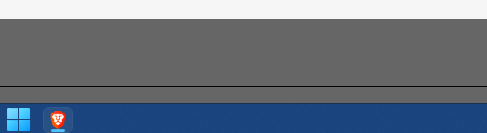
Issue with a line where the old medium size taskbar would be.  I have recently started to see a line where the Medium sized taskbar would be.  I am using the small task bar and autohide inside of Start 11 2.7.  I am on Win 11 25H2 Build 26200.8246.

A restart of Explorer or restart if the computer fixes it, but it eventually comes back.

This is for context where my taskbar comes up to and the line still there.

Also this is only happening on one monitor.  I have multiple monitors.  It has appeared on different monitors and usually on the one that I am currently working on it will appear.

Reply #45 Top

Quoting Kevin55ct, reply 44

Issue with a line where the old medium size taskbar would be. I have recently started to see a line where the Medium sized taskbar would be. I am using the small task bar and autohide inside of Start 11 2.7. I am on Win 11 25H2 Build 26200.8246.

A restart of Explorer or restart if the computer fixes it, but it eventually comes back.

This is for context where my taskbar comes up to and the line still there.

Also this is only happening on one monitor. I have multiple monitors. It has appeared on different monitors and usually on the one that I am currently working on it will appear.
End of Kevin55ct's quote

Hello,
Sorry to hear you are having issues. I can not reproduce it, any specific steps to force it to appear?

Thank you,
Basj,
Stardock Community Assistant.

Reply #46 Top

Good day,

First, thank you for all your hard work and congratulations on this new release.

Since version 2.7, when using the "Modern style" Start menu with Windows dark mode enabled, the search box background is black. In version 2.6 and earlier, it was white. The current dark background is a bit uncomfortable to read and strains my eyes.

Would it be possible to make the search box background color configurable?

Thanks!


Reply #47 Top

Installing 2.7 has messed up the desktop icon display with the taskbar on top. I am running START11 on 3 machines, two 24H2 and one 25H2. The behavior changed with the install of 2.7 on all three. 

I tried to put images in this post but apparently i don't know how. After 2.7 the top row of desktop icons are under the task bar, before 2.7 they displayed as expected. I am using the auto hide taskbar option when a window is under the taskbar. (Enable start11 autohide mode) When the taskbar hides they of course display.

Reply #48 Top

Quoting Z77930, reply 47

Installing 2.7 has messed up the desktop icon display with the taskbar on top. I am running START11 on 3 machines, two 24H2 and one 25H2. The behavior changed with the install of 2.7 on all three. 

I tried to put images in this post but apparently i don't know how. After 2.7 the top row of desktop icons are under the task bar, before 2.7 they displayed as expected. I am using the auto hide taskbar option when a window is under the taskbar. (Enable start11 autohide mode) When the taskbar hides they of course display.
End of Z77930's quote

Hello,
Sorry to hear you are having issues. Please try, uninstall Start11, reboot immediately (important), download latest version available in your account product download page: https://store.stardock.com/myaccount/products. Install it, reboot immediately again. Retest it and report back.

If it still fail, we need more information.

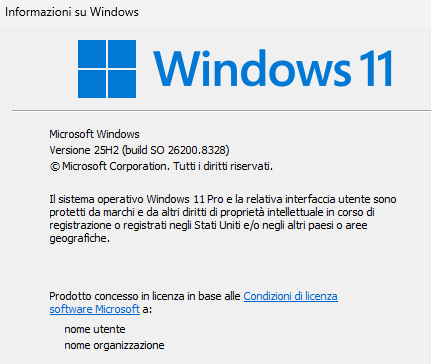
  1. Windows 11 full version and OS Build number. Use Winver.exe. to get these numbers.
  2. Post a video showing us the issue, you could upload a video to any video sharing site and share its link here.

Thank you,
Basj,
Stardock Community Assistant.

Reply #49 Top

Quoting Z77930, reply 47

Installing 2.7 has messed up the desktop icon display with the taskbar on top. I am running START11 on 3 machines, two 24H2 and one 25H2. The behavior changed with the install of 2.7 on all three. 

I tried to put images in this post but apparently i don't know how. After 2.7 the top row of desktop icons are under the task bar, before 2.7 they displayed as expected. I am using the auto hide taskbar option when a window is under the taskbar. (Enable start11 autohide mode) When the taskbar hides they of course display.
End of Z77930's quote

The only autohide when covered feature is probably the root issue here.

Sounds like it is positioning the desktop icons based on being in autohide mode and that needs a tweak.

Reply #50 Top

Neil is correct, turning off autohide on all three PC's fixed the problem. you introduced a new bug in version 7.2.