Hello,
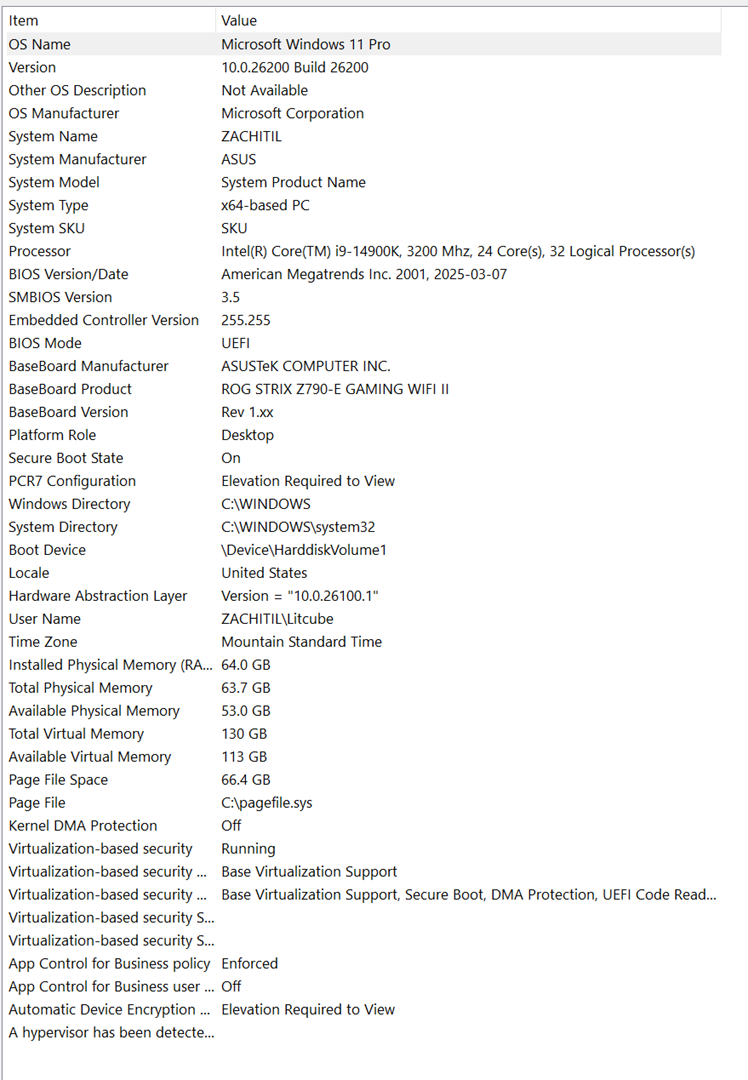
After suffering from the same situation, I followed a few methods to stop this from happening. First I have two PC's running the same configurations of windows, the latest 26H2, my tower does not do this, but my laptop does. Both run Windows 11 Pro, and both have much of the window's update settings modified to NOT automatically download and update the systems and well as the hardware drivers. I have made that my default method of operation so that I can carefully control what Microsoft does when I do my regular bimonthly updating and backup cloning of my systems.
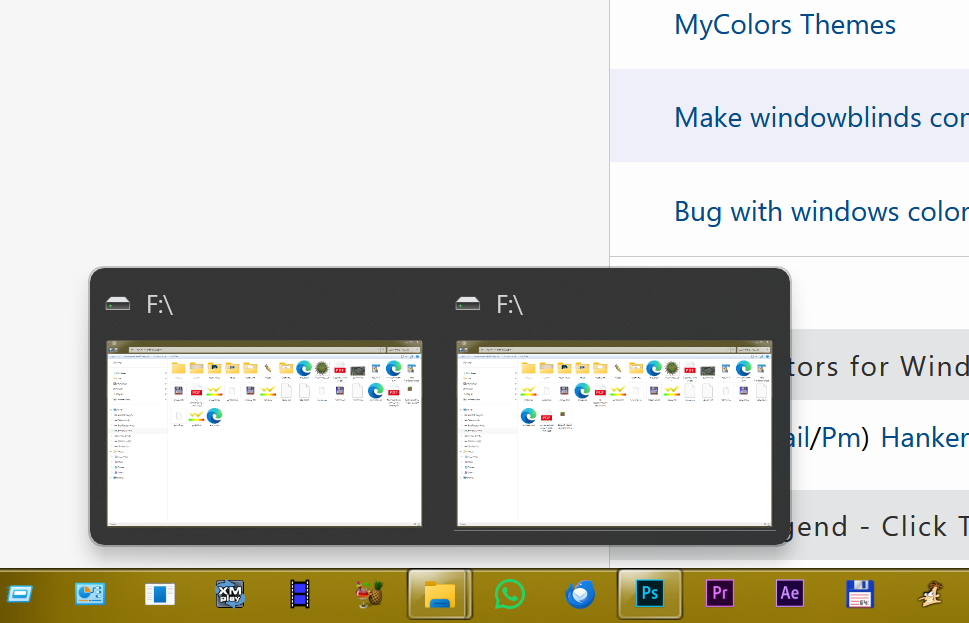
I had updated my OS's October 1, 2026 only to find that my laptop began doing this double running of programs. When you left click on an icon to run it from the taskbar, for some weird reason the icon adjacent usually, but not always, will also run. So if I have my Edge program on the far left, and to the right of it is the File Explorer, and to the right of the File Explorer is Ookla's Speed test, when I click on the File Explorer, usually the speed test opens too. If I click on the Edge icon, usually the File Explorer runs or the taskbar's far right program's icon is run as well, but not always as I said because it seems a random occurrence. I have Stardock's Start11 (v1), Windowblinds 11, CursorFX, IconPackager as well as the installer manager, Object Desktop installed on both my computers. All of them are up to date.
One solution I tried was to check for corrupted system files by using the following procedure, (and hopefully it would fix it):
Press the Windows key + R and type CMD.
Press Ctrl + Shift + Enter to open an administrative Command Prompt.
Type the following command and press Enter:
DISM /Online /Cleanup-Image /ScanHealth
Wait for the scan to complete. From there, type the following command and press Enter:
DISM /Online /Cleanup-Image /RestoreHealth
Reboot the PC when the scan is complete.
Run the SFC tool, (System File Checker) open the Command Prompt as per the previous steps.
Type the following command and press Enter:
sfc /scannow
Close the Command Prompt when the scan is complete. Reboot the PC. This unfortunately did nothing, even though it did find corrupted files.
I decided to do the initial suggestion: uninstall Start11 (I am using version 1, not Start11v2) and I seen in the uninstall procedure to first shut down the program before uninstalling. When I opened the task manager and found the program, I stopped the task, it began running again, this was not expected, so I closed all of this, ceased the uninstall procedure and ran msconfig.exe. From there I chose to boot up in safe mode with network capacity.
That was my fist clue to being on the right track. When the safe mode reboot was done, I checked and could open any of the taskbar programs with a single left click, no double runs of anything! I uninstalled Start11 and rebooted to normal mode again by running msconfig to do so. I tested the taskbar, and yes, they all worked properly, no double runs of programs happened.
In normal mode, I now opened up my Object Desktop manager and reinstalled the legacy Start11 program. Rebooted my laptop and I no longer have any double runs from a single left click on any of my taskbar icons.
To further clarify what I have setup in my Windows settings (Personalize-Taskbar), I never combine taskbar buttons and hide labels, icons or group them together. The only boxes checked are "show flashing on taskbar apps", the taskbar is at the bottom and left aligned, with default size and it is not 'auto hidden' either. In Start11, taskbar button are never combined, Windows 7 style is chosen, taskbar align is at the bottom, and size is large.
I hope that this does not happen again with the next major Microsoft OS update, but at least this procedure seems to have solved the problem. I find that is is odd though that with two PC's running nearly everything the same, that one is affected and the other is not. Thanks for your help and suggestions on how to fix this.

 Stardock Forums