Active Program Indication

In previous versios of Windows that I have used, I had my most-used programs pinned to the Quick Launch Area to the left, and none in the Tas Bar. Thus, the Task Bar was only ever populated by active or running programs which I had started, and converely, it was easy to see which, if any, programs were still active.

Now, in Windows 11, Microsoft has, in its infinite wisdom, taken the Quick Launch Area away for good. So, I am left with pinning programs to the Taks Bar, where an active program is indicated by a hardly visible, easily overlookable underline of variable width (sometimes, more of an underdot).

It would be of great use if the icon of an active program could be indicated by a more obvious means, for example, giving it a different (user-defined) colour background to the Task Bar background colour.

Is such a feature present in Start11, or perhaps planned for a future version? If not, may I suggest that it be considered? I'm sure that it would help a lot of users to identify running programs more easily.

997 views 5 replies
Reply #1 Top

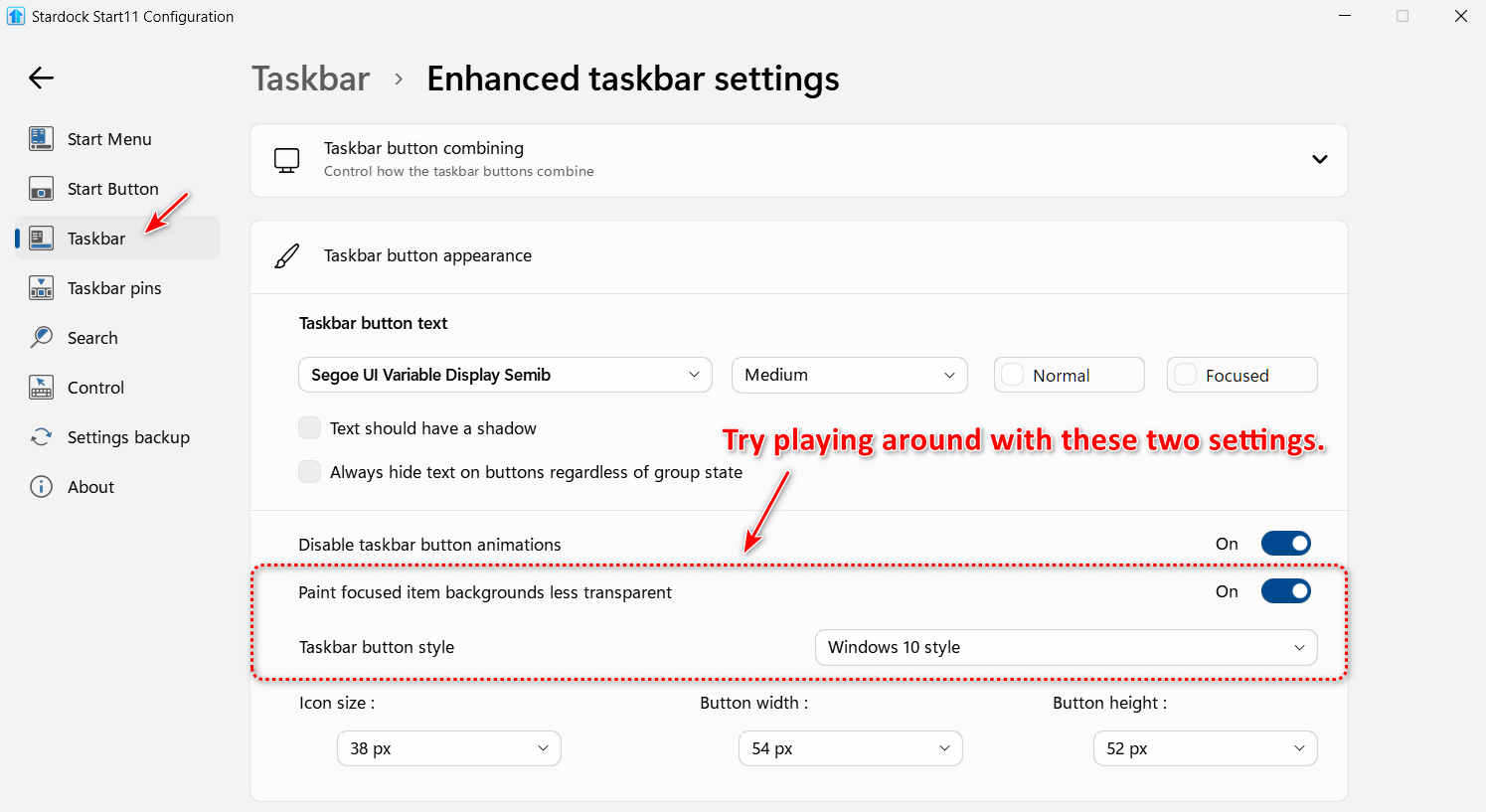
If you are using the Enhanced Taskbar try using these settings.

Reply #2 Top

All I can get that to do is to replace the Windows 11 variable-width almost-invisible active program indicator with a Windows 10 fixed-full-width almost-invisible active program indicator. It's a very thin line, right at the bottom of the screen, and only noticeable if I look very carefully for it.

Before ("Windows 11 style"):

After ("Windows 10 style"):

I was hoping for something a little more obvious, like a highlight or a different icon background colour.

Reply #3 Top

After making this change, you might have to restart Explorer for it to render properly.

This is with Windows 10 style and Paint focused item backgrounds less transparent.

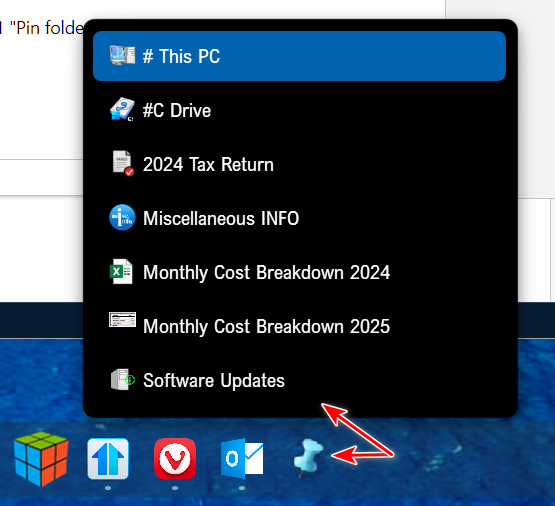
Windows 11 doesn't support Quick Launch Toolbars, but you could try Start11 "Pin folder Menu" as an alternative.

I create a new folder in my User folder (anywhere will do) and place shortcuts for all the items I want in the pinned folder menu in this folder, and change the folder icon to something I like. Now pin this folder to your taskbar using Pin folder menu.

Give it a try and see what you think.

Reply #4 Top

Restarting Explorer has not made the active program indicator any less invisible.

Using a pinned folder to contain frequently-used program icons seems no different from keeping them well organised in the Start menu. It's an extra step to starting each program, whether to open a pinned folder or to open the Start menu.

So I'm back to asking for a better highlighting of active program icons. 

Reply #5 Top

I don't pin any apps to my taskbar and use only the Start Menu to open apps, folders, and files. I do have a mouse with programable buttons, and open the start menu with a mouse click. It's very fast.

Another alternative to the Quick Launch toolbar would be to use Object Dock in the Autohide mode. So, no click, just pull the mouse to the bottom of the screen (or side, or top) and one click. You can pin apps, folders, and files to an Object Dock. With this method, any icon on the taskbar is an open app.

Here's an example.