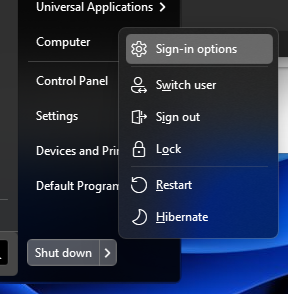
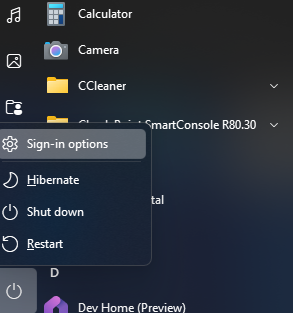
Start 11 v2 sleep button missing, hibernate icon incorrect

OS: Windows 11 23H2
Start 11 v2 v2.0.6

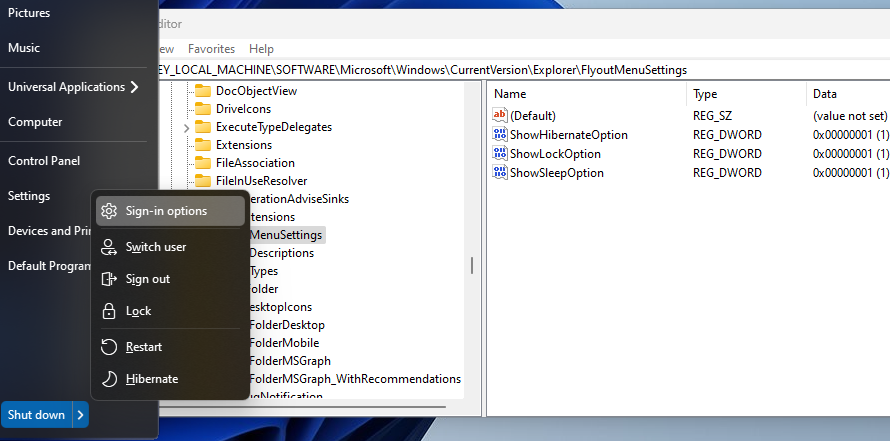
My shut down menu is missing the sleep option + the hibernate icon is also incorrect.
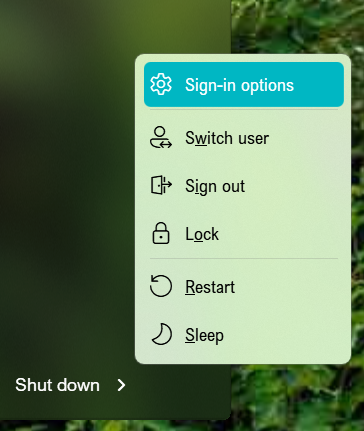
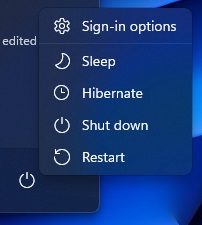
The native windows shut down menu does display all the correct options.

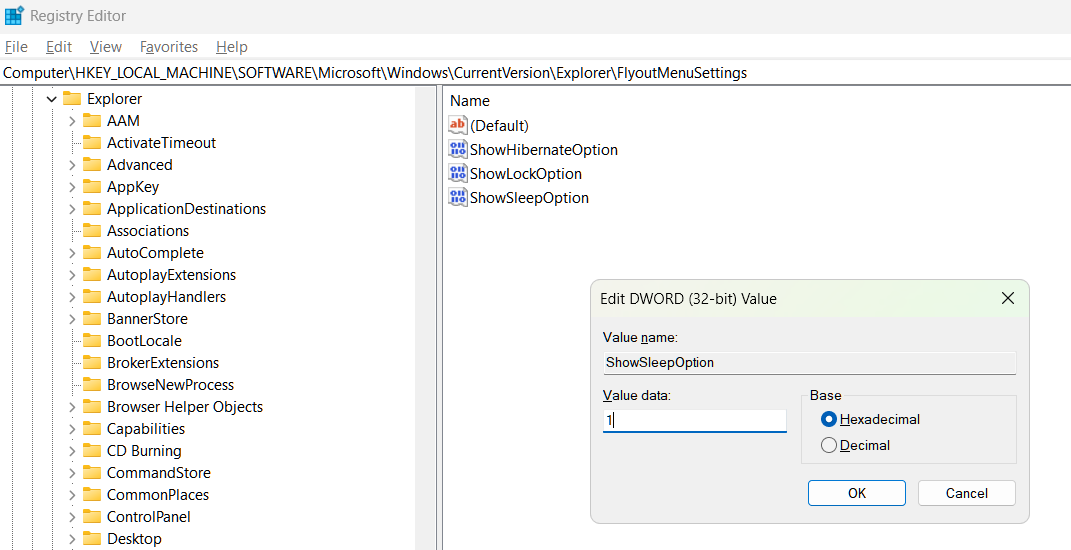
Tried adding below registry keys and rebooted but that also didn't do anything:
https://support.stardock.com/space/SHC/1426620417/Start+is+missing+hibernate%2C+sleep%2C+lock+options

Start11:
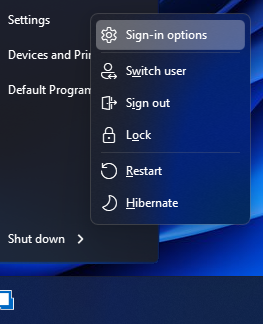

Built in Windows shutdown:
3,340 views 9 replies
Reply #1 Top

I used the Registry Setting and it worked for me. Windows 7 style.

Reply #2 Top

I did notice I didn’t even have that FlyoutMenuSettings folder, was that also the case for you?

I imported the keys from the zip file in regedit (running as admin) and they did create just fine. Afterwards both did a logout/login and even a reboot but the menu never changed unfortunately. 

Reply #3 Top

Yes, the FlyoutMenuSettings key already existed. If you do not have that key, you can create it by right clicking the Explorer Key and selecting New>Key and then name it FlyoutMenuSettings and then right click that new key and add the new DWORD (32-bit) Values you need.

They are listed below:

ShowHibernateOption    with Value = 1 to show and = 0 to hide

ShowLockOption      with Value = 1 to show and = 0 to hide

ShowSleepOption    with Value = 1 to show and = 0 to hide

Back up your Registry before trying this!!!

Reply #4 Top

Yes but I already did all those things, doesn’t help unfortunately. 

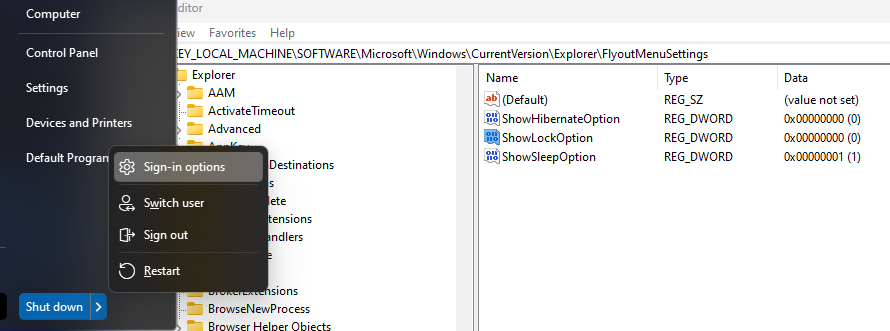
I just assumed that the guide was for an older version of Windows as I didn’t have the reg flyout folder to begin with. And indeed, after adding the folder and keys, it still doesn’t work.

Post reboot screenshot:

Reply #5 Top

Some additional info: I was playing around with the above registry keys. Changing the hibernate and lock registry keys to 0 does hide both hibernate & lock options in Start11. However it is the sleep registry key which seemingly isn't doing anything for Start11. Whether it is set to 0 or 1, I never get the sleep option.

Also note that if I set the sleep option to 0, it does disappear from the native Windows shut down menu so something seems to be going wrong in Start11.

Reply #6 Top

That is strange. What sub-style are you using with the Windows 7 style? Try using a different Start11 menu style, say Windows 10 style, and see if Sleep appears. Changing styles will not change your other style settings. I switch styles all the time when working with people on this forum.

You could also try installing the latest Beta version 2.0.7.3 which you can download from your account downloads page.

https://store.stardock.com/myaccount/products


Reply #7 Top

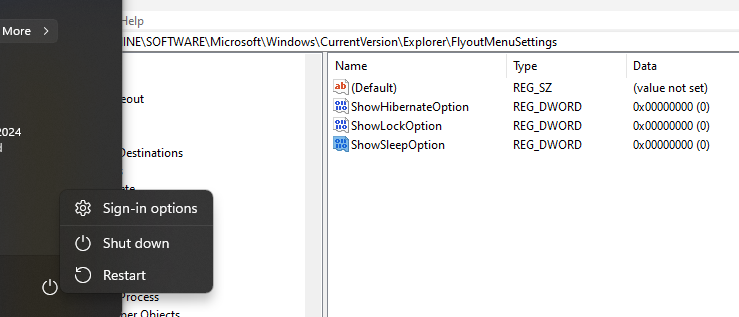
Just installed the 2.0.7 beta but didn't change anything. I'm using the Modern style menu but the problem persists in all other menus as well. Some other styles also seem to be missing the lock option (Windows 10 / 11 / app) despite the reg key being set to 1.

Windows 7 style

Windows 10 style 

Reply #8 Top

I think something (an app or a utility) is causing this issue, or you have a corrupted install of Start11. Also, the fact that the FlyoutMenuSettings key was missing from your Registry and the Windows Start Menu displays them correctly seems to be an indication that the Windows OS is handling Sleep, Hibernate, and Lock from somewhere else. You could also have some corruption in the OS.

Try running "sfc /sannow" from an elevated Command prompt. Don't include the quotes. This will verify that all protected Windows files are intact and in original versions. 

Reply #9 Top

Quoting prime-omega, reply 7

Just installed the 2.0.7 beta but didn't change anything. I'm using the Modern style menu but the problem persists in all other menus as well. Some other styles also seem to be missing the lock option (Windows 10 / 11 / app) despite the reg key being set to 1.

Windows 7 style


Windows 10 style 


End of prime-omega's quote

I think lock shows with logout not the power options.  So click on the user icon top of the small left hand icon list in the Windows 10 style.