
Windows blinds broken.

Grey skin still present after unloading Web Blinds - How to remove Windows Blinds completely?

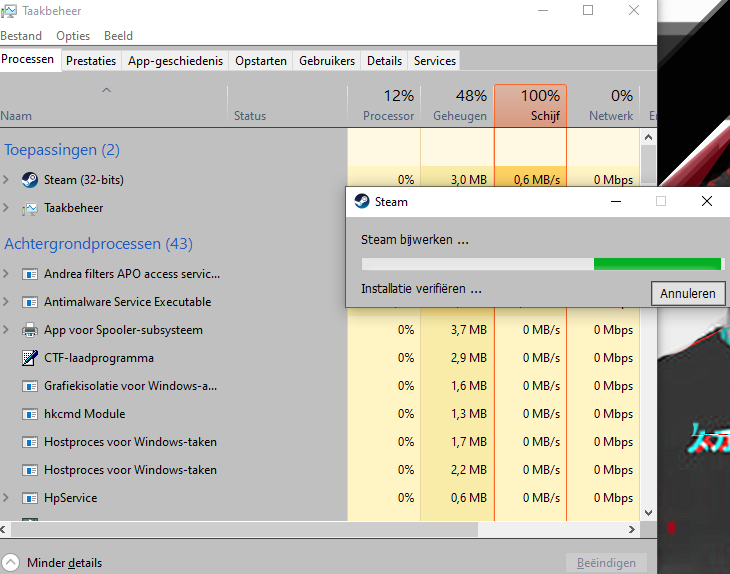
My computer crashed at some point, and now all my programs are broken. Despite the issues, I still want to uninstall Windows Blinds, even though the programs folder is scrambled and everything is gone from there. I have tried using ODNT Zapper and unloading Web Blinds, but even after doing so, the grey skin still persists, as you can see in the screenshot. I'm seeking assistance to completely remove Windows Blinds and fix the appearance of my programs.
 

3,464 views 1 replies
Reply #1 Top

If you're on Windows 10, this may help: 

https://www.tenforums.com/tutorials/76759-restore-default-themes-windows-10-a.html

If you're on W11:

To restore Windows 11 default themes, follow these steps: 1. Open Settings and click on Personalization. 2. Click on the Themes page on the right side. 3. Click on the "Restore Default" button below the list of icons to restore the default icons. 4. To let themes change the desktop icons, ensure the "Allow themes to change desktop icons" checkbox is checked. 5. Click the "OK" button when finished changing the desktop icons. 6. To change the default theme, either click on the "Apply" button in the Microsoft Store or go to Settings > Personalization > Themes. 7. Select the new theme design to apply it. 8. To change a theme's color scheme, click on the "Choose your mode" drop-down menu and select the "Dark" option. 9. Turn on the "Show accent color on Start and taskbar" option to apply any accent color you choose to the Start menu and taskbar. 10. To restore a theme's default color scheme, select "Automatic" on the Accent color drop-down menu.

Hope this helps. Next time, if you decide to uninstall Windowblinds first change the skin to the default theme.