fences not appearing on bootup

I've installed Free Fences on a refurbished Windows 10 Pro computer for a technophobe friend and set up some default fences for her. But the fences do not appear at bootup. To access the fences I must right-click on the desktop to make them appear. This seems trivial, but I'm afraid my phobic friend will be put off by the extra step and prefer to delete Fences rather than spend the time to see their benefits. Can anyone think of a reason for this behavior? I've deleted and reinstalled the program and re-booted several times to no avail. This version of Fences does not appear until I right-click on the desktop--which also produces the expected small menu...that must then be closed.
2,122 views 4 replies
Reply #1 Top

Hello,

Sorry to hear you are having issues.

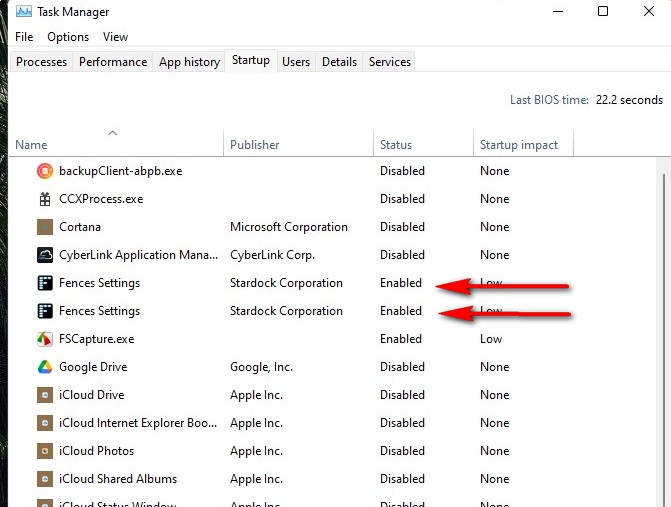
Check in your Task Manager and make sure Fences ( both ) are enabled ( see image ) then REBOOT .

and open the Fences app and make sure Fences is enabled 


AzDude
Stardock Community Assistant

Reply #2 Top

AzDude, thanks for your quick reply. I made a mistake in not making it clear that I installed the original free version of Fences ver.1.01.143. There is no Fences entry in the TaskManager. And there is no entry in the Startup list. However, right-clicking the desktop does bring up the Fences that I've created....but not until then. Left-click does nothing. Let me know if that gives you any more clues.

Thanks again for your help.

Michael AJ

Reply #3 Top

Fences 1.x does not work correctly on Windows 10 (or even 8 I think).  It was designed for Windows 7 where this problem did not exist and the product is obsolete having been replaced by Fences 2, 3 and now 4.

One of the issues is the issue you are reporting.

Later versions of Fences (which are not free) do not have this problem.

Reply #4 Top

Thanks Neil, that's the information I needed. As long as it's not something I can fix I can accept it.

Issue closed.

Michael AJ