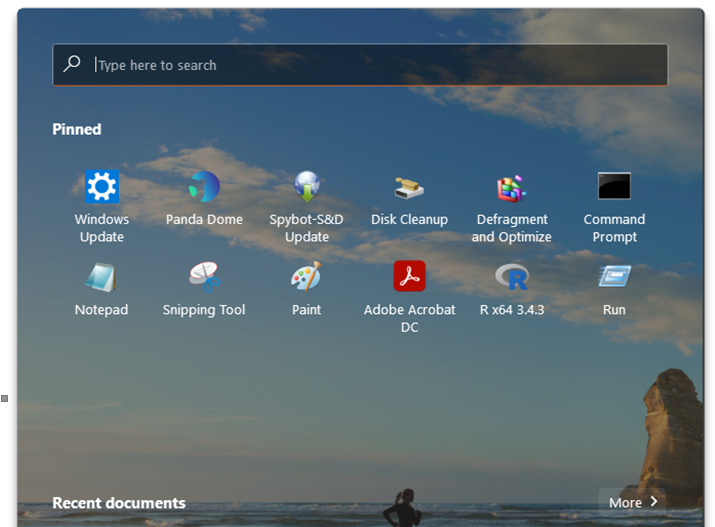
How to display "All apps >" button in Start 11 1.1

Start 11 version 1.1 installed on Windows 10 Pro computer: How do I get Start 11 to display the "All apps >" button on the Start 11 main screen? I can't seem to find a setting anywhere that does so. Thank you.

4,154 views 10 replies
Reply #1 Top

Hello,
Sorry to hear you are having issues. On Start11, what style you're using?

Thanks
Basj,
Stardock Community Assistant.

Reply #2 Top

Windows 11 style, thanks. I have Start 11 installed on a different computer (Windows 10 Home), and the "All apps >" button is displayed under Windows 11 style on that computer.

Reply #3 Top

Hello

Try this. Turn off Start Menu should open showing all programs list

Thank you,

Basj,
Stardock Community Assistant

Reply #4 Top

Basj, thanks, that setting is already off, but there is no "All apps >" button as appears on your screen. 


Reply #5 Top

What version of Start11 you have install in your computer?

Thank you,

Basj,
Stardock Community Assistant

Reply #6 Top

Version 1.1, downloaded just a few days ago. I also have Start 11 Version 1.1 on a different computer with Windows 10 Home, and the "All apps >" button is displayed. The computer in question, also with Start 11 Version 1.1, is running Windows 10 Pro. Thank you.

Reply #7 Top

First, please try purge and reinstall steps as mentioned here: [link]. Just make sure to redownload the latest version from your account. Reboot after the purged. Reinstall, and Reboot again after the installation. Retest it. Report back here.

Thank you,

Basj,
Stardock Community Assistant

Reply #8 Top

Basj, I will give that a try, thank you.

Reply #9 Top

Basj, the purge and reinstall did the trick, the "App apps>" button now displays. Thanks for your help, and my compliments on Start 11.

Rex

Reply #10 Top

Great, glad it work.

Thank you,

Basj,
Stardock Community Assistant