Windows 10 build 1607: cannot apply styles

I've  been having problems applying styles in Windows 10 Build 1607 both with preinstalled styles and downloaded styles.

No problem in installing WindowsBlinds 10 but when trying to applying styles the display greyes out and I get a popup message saying loading interface (UI) but after some time the display returns to the default windows 10 theme.

Having tried to purge WindowsBlinds 10 and reinstall the program as well as installing latest as previous version without any luck.

Having no problem with applying styles  in windows 7 with WindowsBlinds 7 - does not know if the WindowsBlinds 10 is fully compatible with Windows 10 or there are some settings preventing changing themes. 

6,150 views 9 replies
Reply #1 Top

Hello,

Sorry to hear you are having issues. Could you try the cleanboot steps and iron out conflicting app if any. https://forums.stardock.com/486023/windowblinds-support-faq#cleanboot

Try that and report back.

Thank you.

Basj,

Stardock Community Assistant.

Reply #2 Top

I have tried the suggested procedures and disabled the services and startup apps and done a clean boot on second account. Running the WB batch it does not work of course because all the services are disabled included WB service. So I end up with black screen and have to restart and enable the WB Service and run the WB patch. Allthough all the other servies are still disabled I still cannot change style and end up with the default windows theme.

WindowsBlinds 10 as WindowsBlinds 7 should override any theme prevention setting but it is as though there is a setting in Windows 10 that prevents changing the style. I am running  the same startup apps on my second partition with Windows 7 and here I have no problem in changing style with WindowsBlinds 7.

Best Regards


Reply #3 Top

Could it be the version of Win 10 you're using? Latest build of Win 10 is 1803. I know it shouldn't make a difference but...

Reply #4 Top

Please try the following:


-For Win8/10 Users: Open the Start Screen, and type 'cmd'. Right-click on the search result and select 'Run as administrator' from below.


-For 7 Users: click Start, in the start search field type 'cmd'. Right-click on the search result and select 'Run as administrator'.


-Type: sfc /scannow


-Wait for the scan to complete (this can take several minutes)


Some help on how this looks should you need it:

https://support.microsoft.com/en-us/help/929833/use-the-system-file-checker-tool-to-repair-missing-or-corrupted-system


If the SFC finds errors, but cannot fix them, please also run the following command in the same command prompt window:

dism.exe /online /Cleanup-Image /RestoreHealth


Some help on how this looks should you need it:

https://www.windowscentral.com/how-use-dism-command-line-utility-repair-windows-10-image


The above command should assist with replacing any damaged or problematic system files. Please note, however, since it may require restoring certain files, this process can take some time and you will need to be patient until it has completed.


Please let me know whether this resolves your problem or if you have any additional questions.

Thank you,


Basj,

Stardock Community Assistant

Reply #5 Top

System Check found errors and corrected these but I still cannot apply styles. 

As my Windows 10 Build is not the most recent maybe I should try an earlier version of WindowsBlind 10 but where to download this?

p.s.  I have just tried WindowsBlinds 10 on my second computer running Windows 10 and here I have the same issue.

Reply #6 Top

For your info, I am running Window 10 v 1803 and Windowblinds 10.71 without any problem. And I dual-boot to Windows 7 also with Windowblinds 10.71. Both system no problem. I am still have a feeling that something in your system is blocking Windowblinds from loading the theme.

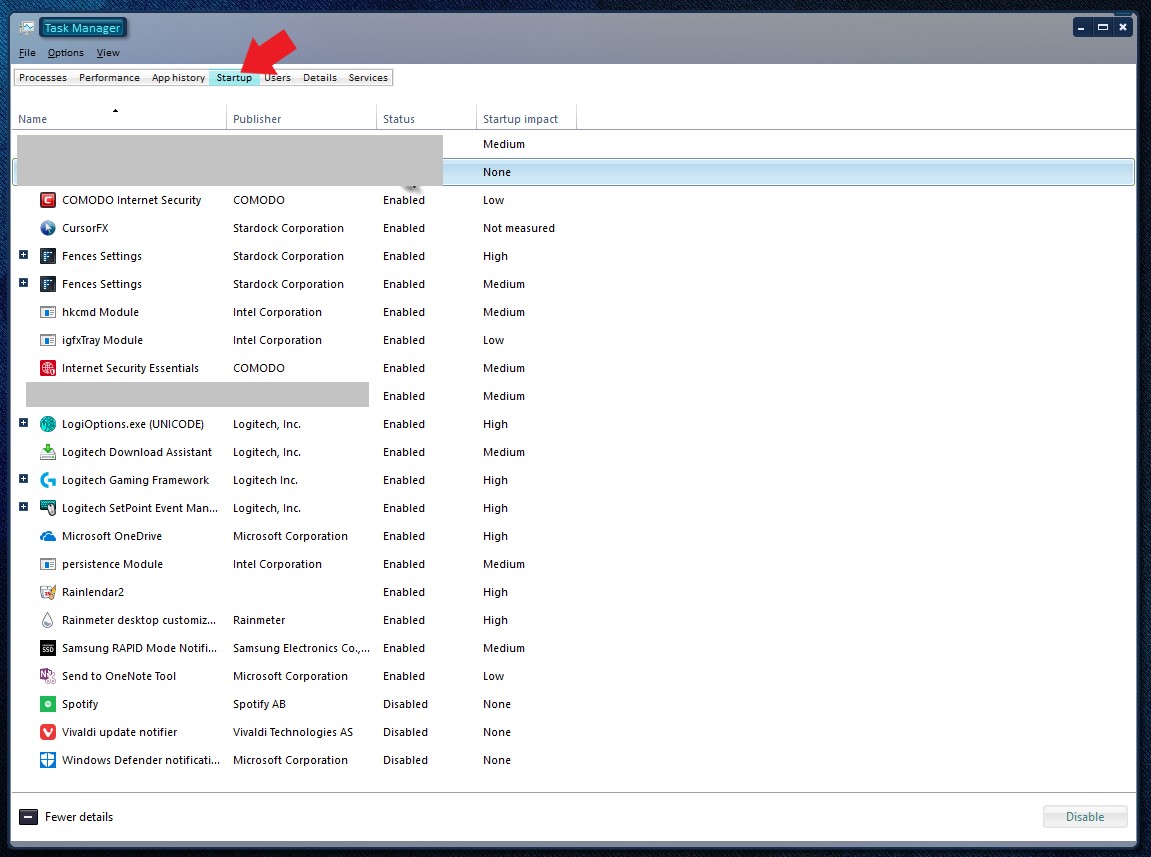
Could you please list down all app that load on startup on your system.

Thank you,

Basj,

Stardock Community Assistant

Reply #7 Top

How to generate a list of all startup programs not only primary in Windows 10. I cannot make a print screen of the many startup programs

Reply #8 Top

the following link should make it: file:///C:/Users/Laohu/Desktop/processinfo%202018_09_14%2016_44.html

Reply #9 Top

hmm..  just use snipping tool and capture your task manager's on the Startup Tab like below.

Thank you,


Basj,

Stardock Community Assistant