Hide/Show ObjectDock with Keyboard?

I purchased ObjectDock a few years ago but I switched to RocketDock because the auto popup when the mouse nears the edge of the screen.  I will need to click something near the edge, the dock pops up, and a program in the dock gets clicked by accident.  Rocketdock can hide the dock when you press Ctrl+Alt+R.  The dock is never present unless I want it to be.  However, Rocketdock has a problem with Windows 7 and sometimes gets stuck in the background, so I have to minimize all windows to access it.  I've tried looking, but I can't find anything in Objectdock's settings.  Is there any way to do this?

5,604 views 5 replies
Reply #1 Top

Also interested in this topic.  Did you ever find a way to hide/unhide Object dock by keystroke or mouse over (similar to windows taskbar)?

Reply #2 Top

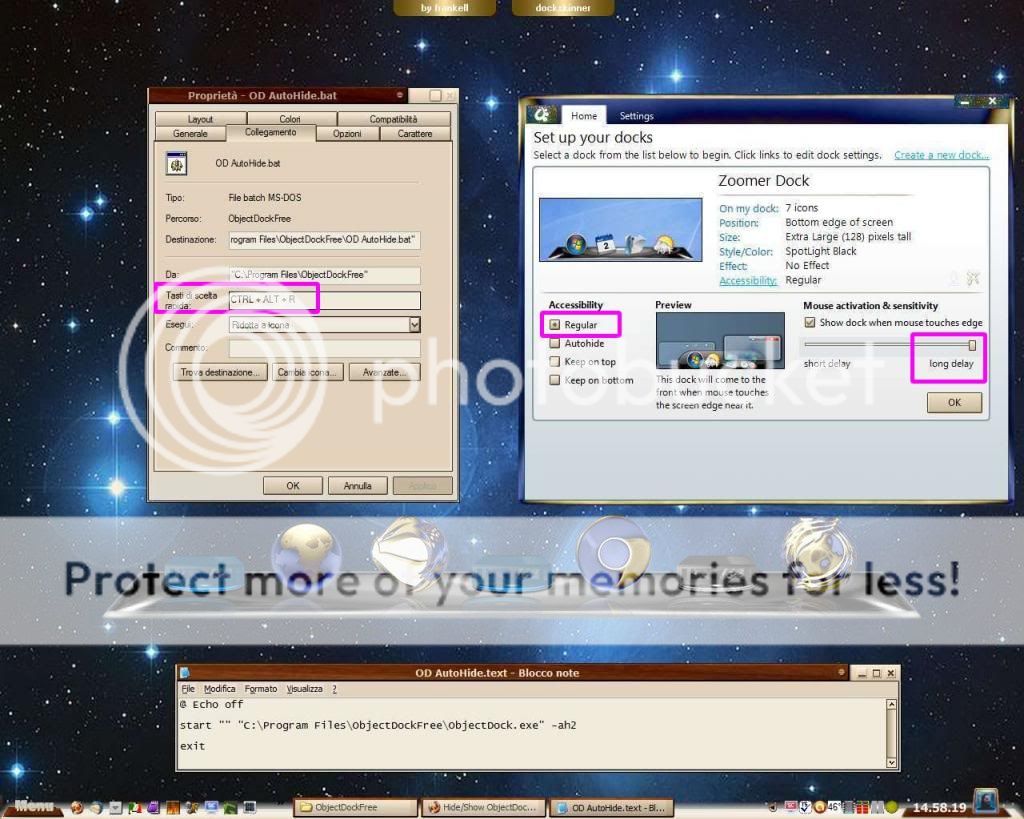
try Settings > Accessibility >  check Autohide and the "long delay" for the Mouse Activity and Sensibility

also instead of the keystroke you can use directly on the dock this button (icon)  toggle AutoHide ;)

Reply #4 Top

I've tried that, and although it is better it's still not quite what I was looking for.  With RD, you press Control+Alt+R and the dock disappears and will not pop up again until you press it again.  I have Control+Alt+R assigned to one of the side buttons on my mouse, so the dock is never present unless I want it to be.  It's surprising that this feature isn't available in OD considering how convenient it is.  It doesn't seem like it would be very difficult to include.

Reply #5 Top

if you really want to use the keystrokes

create a new text file "OD AutoHide.text" with the path to your OD exe adding the arguments -ah2

copy and paste :

....................................................................................................................

@ Echo off

start "" "C:\Program Files\ObjectDockFree\ObjectDock.exe" -ah2

exit

...................................................................................................................

then rename OD AutoHide.text > OD AutoHide.bat

create a shortcut to OD AutoHide.bat open properties and set the Keystrokes (choose the one you prefer but I guess Ctrl+Alt+R)

set the Accessibility to "Regular" so you can go for the LongDelay, then at the first run of the .bat file the Accessibility will become "AutoHide" and every new run will toggle OFF and ON the AutoHide, well just don't rest with the mouse near the edge of the screen for more than 1 second when the dock is hidden ;)