Nooby Question??? Please Help

Hi All,

Hope I posted this in the correct place... I am new to the Stardock thing and really seem to like it so far... I had question regarding a skin that doesn't seem to operate correctly, I have loaded downloaded several skins from wincustomizer website and all seem to have loaded fine. I notice at the top cornrer of this particular skin where the page arrow keys are located (Left Top) that no matter what I do the skin won"t cover the background and it is constantly sort of blue color behind the keys. Can anyone explain how to get the skin to operate correctly somehow? I have removed and re-installed Stardock and this skin and the problem persists. When I run WEI the problem stops but then comes back when it has finished running.

I am also having a problem trying to view files in My Document's and always get WB4 in a widow or a list of files...

I am running Windows 7 home premium edition  and have a WEI of 4.1 on the low end if that will help... 


Thank you in advance,

KC-


72,260 views 35 replies
Reply #1 Top

Can you post a screen shot so we can have a look. What skin are you referring to? I'm assuming its a WindowBlind. Also ...... post the 'About WindowBlinds'. That info will also help. As far as the WEI is concerned ... that number isn't too bad.

Reply #2 Top

Sorry about that, I actually did mean WindowBlind... The skin is the Gunslinger by RedneckDude... I am not to sure how to post the screenshot that you have requested or the about WindowBlind... I am totally new to this...

Reply #3 Top

Your problem is that the skin done by RedneckDude is not a WindowBlinds but more than likely a DX skin.  The following link will show you all skins for Gunslinger.  https://www.wincustomize.com/explore/all/search/Gunslinger   :sun:

Reply #4 Top

Here's what you do. Open the WindowBlinds configuration window, click on the WB shortcut, up top you'll see About WindowBlinds. Click on that and a window will open with all the info about it. Click on Copy to Clipboard. If you have a graphics program like photoshop or similar open it and click on file-new then click yes. A window will open. Go to edit then paste. The image will show up there. Save it with whatever name you choose. Now open your browser and enter this url - http://www.photobucket.com. Register with them and you'll be able to upload any image to the forums. Click upload, then select photo. Navigate to where you saved it. Then click save to album. Once done mouse over the image and click on direct link. It'll say copied. Then come back to this thread and click on the green tree icon. A window will open. Right and paste the link then click okay. You'll see the image appear in the bottom reply window. Click submit reply and you're done.

Reply #5 Top

Philly beat me to it.

Reply #6 Top

Thank you both for the prompt replies!!! I don't have the photoshop program on the computer but would Windows Live Photo Gallery or Paint work the same?

Reply #7 Top

MSPaint will do it.

Reply #8 Top

Could you explain how to copy and paste in MSPaint? I apologize for my ignorance... I'm new to this...

Reply #9 Top

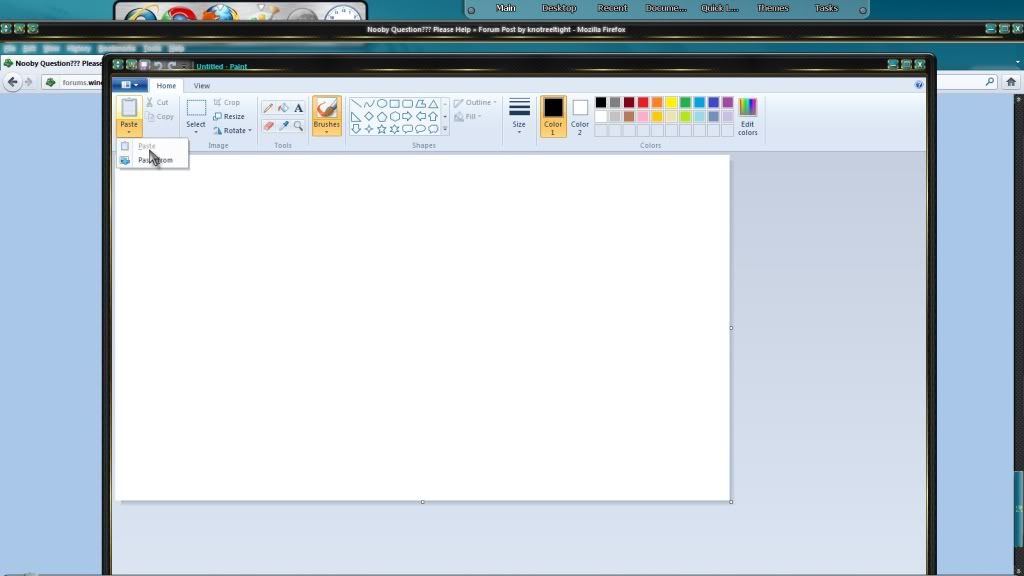
Have your image displayed on screen.  Press the Print Screen key.  Open MS Paint then just paste(Ctrl-V).

Reply #10 Top

What he said. ^^^^^^^

Reply #11 Top

I am having a heak of a time trying to get this figured out.... I am trying to use Chasys Paint IES program to do this now and not having much luck... I'll keep trying...


Thanks for the help!!!

Reply #12 Top

Got to start menu. Click on Paint. If its not on the start menu look in accessories for MSPaint.

Reply #13 Top

Or ....

Reply #14 Top

With paint open.

Reply #15 Top

Uvah, I tried the same action's you show in the views above numerous times last night but it still will not allow me paste it at all. I tried to use the Ctrl-V method explained but there is still nothing... Could it be the settings on my machine or something else?

Reply #16 Top

knotreeltight it would appear that you are missing one step.  In order to Paste into Paint you need to 'capture' the desktop.  You do this by pressing the 'Print Screen' key on the keyboard.  Should be on the top roll of keys on the right hand side.  Once you do that then open Paint and you should be able to Paste.  I hope that helps.  :sun:

Reply #17 Top

Thanks a ton guys for all of the help so far!!!  Ok, Philly0381, I tried the step you mentioned each time but I found out that I was doing it all wrong. I used the wrong key everytime I'd try... Alright, here it is... the problem I have is in the upper left corner. One of my gadgets on the desktop is appearing through it behind the arrow keys. Is there anything I can do to correct the problem???


...

Reply #18 Top

Now it looks like I will have to work on my photo sizing skills as well... Lol...

Reply #19 Top

Quoting knotreeltight, reply 17
the problem I have is in the upper left corner. One of my gadgets on the desktop is appearing through it behind the arrow keys. Is there anything I can do to correct the problem???
End of knotreeltight's quote

is this what you are talking about? (See Images)

First Image Just Opened it.


By disturbedcomputer at 2012-02-20


By disturbedcomputer at 2012-02-20


By disturbedcomputer at 2012-02-20

IF SO. then no unless you know how do graphics 

I would say

1) She didn't make any Graphic for that part

0r

2) Did not name it correctly

or

3) Something else


Reply #20 Top

B[]

Reply #21 Top

Disturbedcomputer,  It only occurs on the Desktop/Homepage screen where the large, blue colored arrow keys are located. These that you pointed out seem to be fine

Reply #22 Top

Quoting knotreeltight, reply 21
It only occurs on the Desktop/Homepage screen
End of knotreeltight's quote

Sorry I don't know what you mean by Desktop/Homepage screen..

Reply #23 Top

how to Take a screen Shot if you still need it..


Reply #24 Top


How to Upload an Image and put it in a forum .. (Here'ish)