Start 11 - Tray Icons Non-Responsive

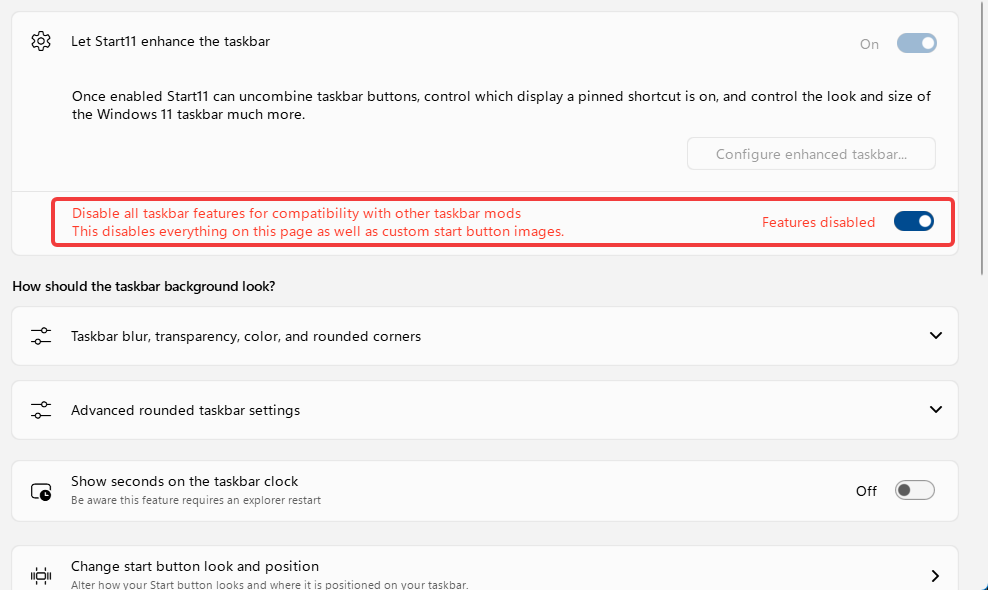
Up until a few days ago, Start 11 v2 was working fine.  However, now, none of my tray icon s will respond to any clicks.  They still show up, but nothing happens when I left-click, right-click, or hover over any of them.  The only way I can make them respond again is by flipping the "Disable Enhanced Taskbar" switch.  This, of course, wrecks my nice taskbar I've set up with Start11.  Everything on the main taskbar responds perfectly fine, it's just the tray I'm having issues with.  I haven't installed anything new, definitely no other taskbar mod apps.  I've uninstalled & reinstalled Start11, and still no resolution.  Any idea how to fix?
1,197 views 25 replies
Reply #1 Top

Hello,

Sorry to hear you are having issues. Need to know few more things.

  1. Windows 11 full version and OS Build number. Please use Winver.exe to get these numbers.
  2. Start11 full version number installed.
  3. Do you have any other 3rd party application that also add or change how your taskbar work. Such as DisplayFusion, StartAllBack, OpenShell etc.

Thank you,

Basj,

Stardock Community  Assistant.

Reply #2 Top

I figured it out.  The latest Windows Insider Beta update broke Start11.  Switched back to Release Preview and all is right with the world (tray works fine) 😎.

Thanks for the help! 

Reply #3 Top

Great, glad to hear that. Just if you could, please share which Windows 11 and OS Build was you on before switched back to released version?

Thank you,

Basj,

Stardock Community  Assistant

Reply #4 Top

It was one of these two:

Windows 11, version 25H2 Insider Preview Quality Update (26220.8575)

Windows 11, version 25H2 Insider Preview Quality Update (26220.8680)

Reply #5 Top

Thank you.

Reply #6 Top

I just updated a box to 26220.8680 and am not encountering any issues with tray icons.  They can be double clicked on and right clicked on just fine.

Reply #7 Top

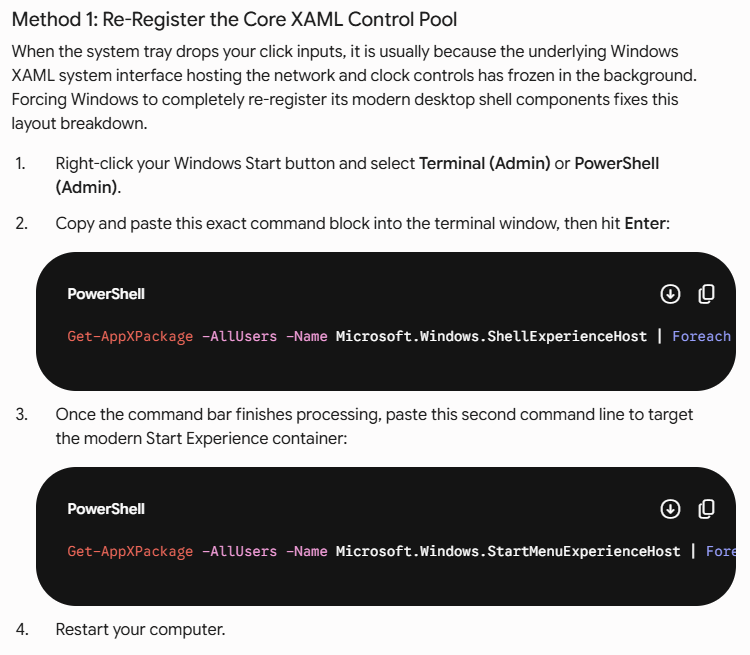
I rolled back my Insider Preview version, thinking it was because it was a beta, so I selected "Release Preview" instead.  That fixed it.  However, another update happened and my tray went unresponsive again.  Not quite sure what type of update is doing this but, after much research, this solution to re-register the XAML Control Pool finally fixed it.  So, note to Stardock programmers - You may want to implement something like this in your code.

Here's the full code:

Command 1:  Get-AppXPackage -AllUsers -Name Microsoft.Windows.ShellExperienceHost | Foreach {Add-AppxPackage -DisableDevelopmentMode -Register "$($_.InstallLocation)\AppXManifest.xml"}

Command 2:  Get-AppXPackage -AllUsers -Name Microsoft.Windows.StartMenuExperienceHost | Foreach {Add-AppxPackage -DisableDevelopmentMode -Register "$($_.InstallLocation)\AppXManifest.xml"}

Reply #8 Top

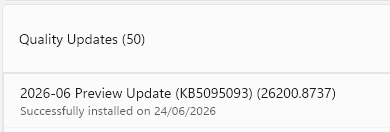
I am also experiencing this issue since updating Windows today (24/06).

I believe 2026-06 Preview Update 26200.8737 has had this effect.


I've also had to disable the Start 11 (v2.72 business edition) enhanced taskbar features.


Reply #9 Top

Hello and thanks for your posts.  We've added these reports to our log on the issue.

Internal reference: ODNT-12467

Best regards,

Adam McGuinness
Stardock Support Specialist

Reply #10 Top

How many monitors do those having issues have and what layout do they have?

Also what scaling factor is in use.

We have updated multiple machines and none of them are showing the issue.

I also assume nobody is using anything which might alter explorer behaviour in any way?

Reply #11 Top

I can confirm the following:

Laptop Display Only : Working

Laptop (as secondary) + External Display (primary) : Not Working

Laptop (as primary) + External Display (secondary) : Working


Reply #12 Top
Quoting davey_lad, reply 3994825

I can confirm the following:


Laptop Display Only : Working


Laptop (as secondary) + External Display (primary) : Not Working


Laptop (as primary) + External Display (secondary) : Working

End of davey_lad's quote

Interesting.  Which display was in which position for the working vs non working?  Is primary left = working, secondary left = not?

Reply #13 Top
Quoting Neil, reply 3994826

Interesting.  Which display was in which position for the working vs non working?  Is primary left = working, secondary left = not?

End of Neil's quote

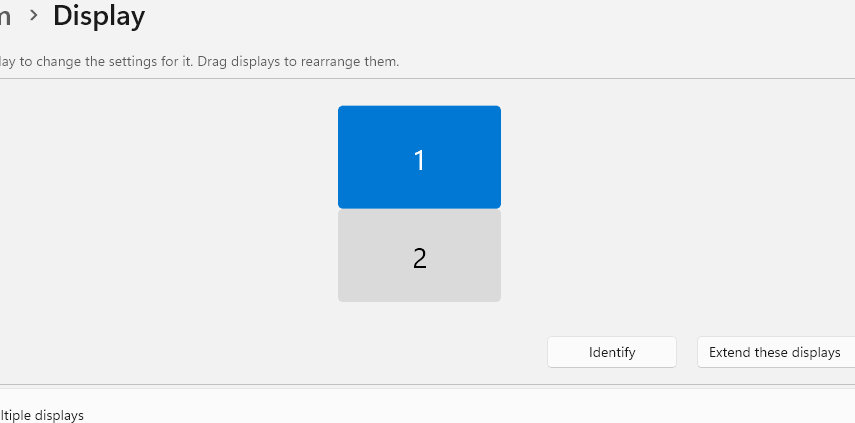
Hmm.. also interesting.  This is my current display positioning that has the problem. where "1" is Laptop and "2" is External.


However, if I reverse this so 2 is on top then it starts working. 
🤯

edit.. i should add here that the bottom monitor is always my primary monitor when extra display is connected

Reply #14 Top

Hello,

We've put together a build you can try, which includes a fix to address this issue.  Details on the beta here:

Please remember to reboot the PC after installing the update.

Thank you for your feedback,

Adam McGuinness
Stardock Support Specialist

Reply #15 Top

I was having the same issues listed in this thread after updating to Windows 11 build 26200.8737.  The Start11 build you linked to fixed it all. Thanks!

Reply #16 Top
Quoting fred70, reply 3994845

I was having the same issues listed in this thread after updating to Windows 11 build 26200.8737.  The Start11 build you linked to fixed it all. Thanks!

End of fred70's quote

Great, glad to hear that.

Thank you,

Basj,

Stardock Community  Assistant

Reply #17 Top
Quoting Abisnabidam, reply 3994836

Hello,

We've put together a build you can try, which includes a fix to address this issue.  You can download and update it with this link:

https://stardock.cachefly.net/software/Start11/v2/Start11_2.7.3.0-j299-Setup.exe 

Please remember to reboot the PC after installing the update.

Thank you for your feedback,

Adam McGuinness

Stardock Support Specialist

End of Abisnabidam's quote

Nice one.. this has fixed the problem.. cheers 

Reply #18 Top

It doesnt work for me, latest preview beta win11 26220.8690. Two monitor - main is on the right, secondary is on the left 

I have two taskbars - vertical left taskbar on right side on my secondary monitor , and  on the main monitor vertical taskbar on the left


Using this version  https://stardock.cachefly.net/software/Start11/v2/Start11_2.7.3.0-j299-Setup.exe   just borks everything  - taskbar won't even open on my main monitor. If i switch to bottom taskbar on main monitor it works again.

I am also using display fusion with which i edit my secondary taskbar otpions


Reply #19 Top
Quoting Hreich1, reply 3994857

I am also using display fusion with which i edit my secondary taskbar otpions

End of Hreich1's quote

Just as a test try disable Display fusion, reboot and see if without it the issue still there or not.

Thank you,

Basj,

Stardock Community  Assistant

Reply #20 Top
Quoting Hreich1, reply 3994857

It doesnt work for me, latest preview beta win11 26220.8690. Two monitor - main is on the right, secondary is on the left 

I have two taskbars - vertical left taskbar on right side on my secondary monitor , and  on the main monitor vertical taskbar on the left


Using this version  https://stardock.cachefly.net/software/Start11/v2/Start11_2.7.3.0-j299-Setup.exe   just borks everything  - taskbar won't even open on my main monitor. If i switch to bottom taskbar on main monitor it works again.

I am also using display fusion with which i edit my secondary taskbar otpions

End of Hreich1's quote

Is this new to this build or were you having trouble before?

Obviously we cannot provide official support for beta versions of Windows especially when Microsoft are making taskbar changes in them and they are not fully baked yet.

Reply #22 Top

Hello again, 

We now have a beta version available with some fixes.  For details and feedback, please see:

Start11 v2.73 Beta Feedback - Stardock Forums

Thank you again for your support.

Best regards,

Adam McGuinness
Stardock Support Specialist

Reply #23 Top
Quoting Hreich1, reply 3994864

Yes it works when display fusion disabled

End of Hreich1's quote

The new update mentioned just above this post should sort your issue too.