Some Windows 11 Taskbar Bugs in Start11 v1.31 (Win 11, Build 22621.819)

Bugs in Start 11 version 1.31 (tested with Windows 11 - Build 22621.819)

1.
Very often after booting into Windows 11 OS or after a system reboot,
Start11 partly shows the horizontal top line border of the taskbar incorrectly with two solid colors.
Restarting Windows Explorer in Windows 11 demonstrates that the line color should be completely black with my settings.

2.
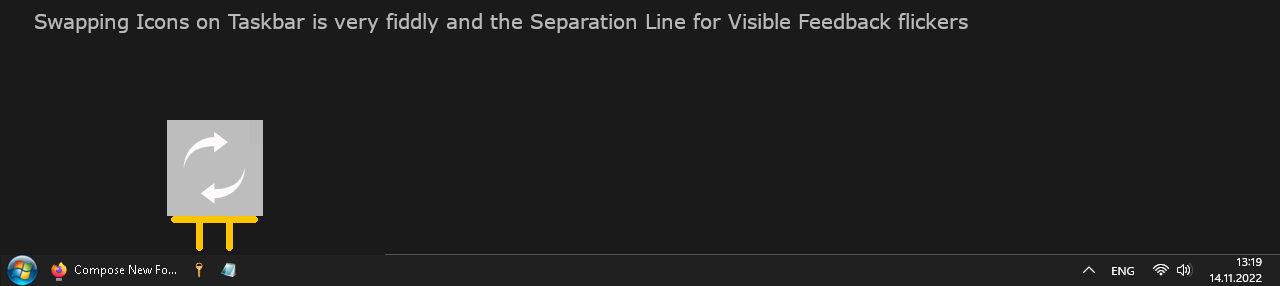
It's very fiddly to swap icons on the taskbar in Windows 11.
When I hold and drag any taskbar icon - the vertical separation line for visual position swap feedback flickers constantly.

8,378 views 8 replies
Reply #2 Top

Do both of you have the search, taskview, teams and widgets icons disabled on the taskbar?

Reply #3 Top

What about issue number 1.  though - is this a possible bug?
The only guarantee to make this thin top border show up correctly is a manual Refresh of Windows Explorer.
It seems this white line border is partly referencing unused space of specific taskbar elements, but this should
be initially invisible after booting/restarting into Windows 11 I guess?


OK, so 2. was no bug then - but enabling Taskbar items is required here. It has been noted.
You are right - it's no longer fiddly to do this after enabling at least one Taskbar item (for example 'Task view').
So we could temporarily enable a Taskbar item to make icon swapping more comfortable here - perfect.
Thanks!

Reply #4 Top

I added Search, was then able to then rearrange icons, removed Search and could rearrange icons after removal. Not sure if that will work after a Windows reboot.

Reply #5 Top

We have a 1.32 beta coming soon (today I think) which should address the need to have one of those enabled.

+1 Loading…
Reply #6 Top

I see - this makes things even more convenient for many people.

The reason why I opened this topic at the first place was issue 1 though. I found no way to repair this.
This isn't automatically working fine after boot/reboot very often and as a workaround we have to restart
Windows Explorer and then Windows 11 is always able to initialize the top border properly with 100% success chance.
We like to see that this design element always intializes properly automatically with the first instance of Windows Explorer.
Could you adjust this behaviour too, please?

Reply #7 Top

Quoting ahharat, reply 6

I see - this makes things even more convenient for many people.

The reason why I opened this topic at the first place was issue 1 though. I found no way to repair this.
This isn't automatically working fine after boot/reboot very often and as a workaround we have to restart
Windows Explorer and then Windows 11 is always able to initialize the top border properly with 100% success chance.
We like to see that this design element always intializes properly automatically with the first instance of Windows Explorer.
Could you adjust this behaviour too, please?

Reduced 87%
Original 960 x 419


End of ahharat's quote

Hi Ahharat,

Are you using any other "taskbar enhancement" type software or WindowBlinds? 

Paul Scroggins
Associate Technical Support Analyst

Reply #8 Top

Hi.

(At the end of this post I attached a .zip archive)

No - I only need Start11. I recently noticed this behaviour with two different clean Windows 11 installations with nothing more installed than Start11.

I always installed Windows 11, then fully updated Windows 11, then installed Start11.

Then I adjust different Windows 11 Personalization settings und Start11 Configuration settings.

I run into this behaviour every day(for a high chance the line at the top of the taskbar additionally shows a bright color which partly replaces what's otherwise completely dark - dark is the desired appearance) - this visual glitch is happening very often to me on every work session when I return from an fullscreen application to the Desktop or when I simply boot or reboot my machine normally.

The taskbar stays in this new vertically splitted dual colored appearance permanently and only a manual refresh(Taskmanager - right click Windows Explorer entry - choose Refresh) would always restore the desired look of a fully black colored line.

The update process with a manual Windows Explorer refresh takes about 2 seconds. During the update process the taskbar visually changes the whole line from the strange looking mixed color appearance into a bright appearance and from there it switches back to the dark appearance.

These screenshots are exactly representing all my personal adjustments in Windows Settings and Start11 Configuration - with these you can eventually replicate the issue:

download the screenshots to begin investigations with my preferred settings .zip