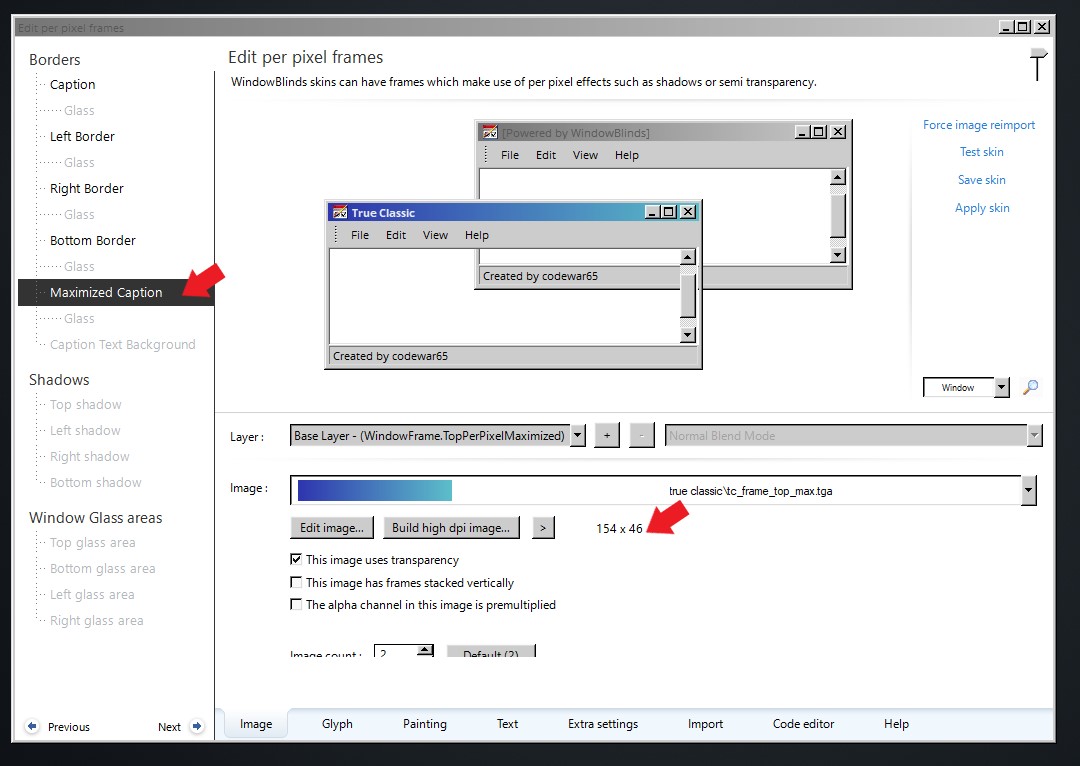
OK, I just experimented and might have figured it out. It seems that Windowblinds is smart enough to extend the sizing area if you just extend the images for the left, right and bottom border.
(In Skinstudio, Edit titlebars and WindowFrames -- Edit per-pixel-frames -- Left border, Right border, Bottom border)
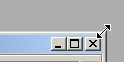
Then remains the issue of the top sizing control (see picture)

To extend this it seems you have to go to
Edit titlebars and WindowFrames -- Edit per-pixel-frames -- Caption, and
a ) edit the image
b ) change the "sizing area size" in the "Extra Settings" tab
But changing the top frame sizing area seemed to cause very many other bad ripple effects throughout the whole skin, and without knowing this stuff it's probably in too many places to fix easily.
Is there some easy setting that compensates for changes in the sizing area size? Or do you have to adjust every text/ button/ etc individually?
I guess I have to keep experimenting.
I am apparently not the only one who is crazy enough to want the old W95 style "classic" interface on windows 10, there is quite a few resources dedicated to this on the internet:
https://phorofor.github.io/The-Windows-Classic-Theme/
http://winclassic.boards.net/
Apparently the route these guys take is to somehow disable the DWM (Desktop Window Manager) and it seems potentially extremely messy, I imagine that tweaking the Windowblinds "True Classic" skin is actually a much better way to go.

 Stardock Forums


 WinCustomize Forums