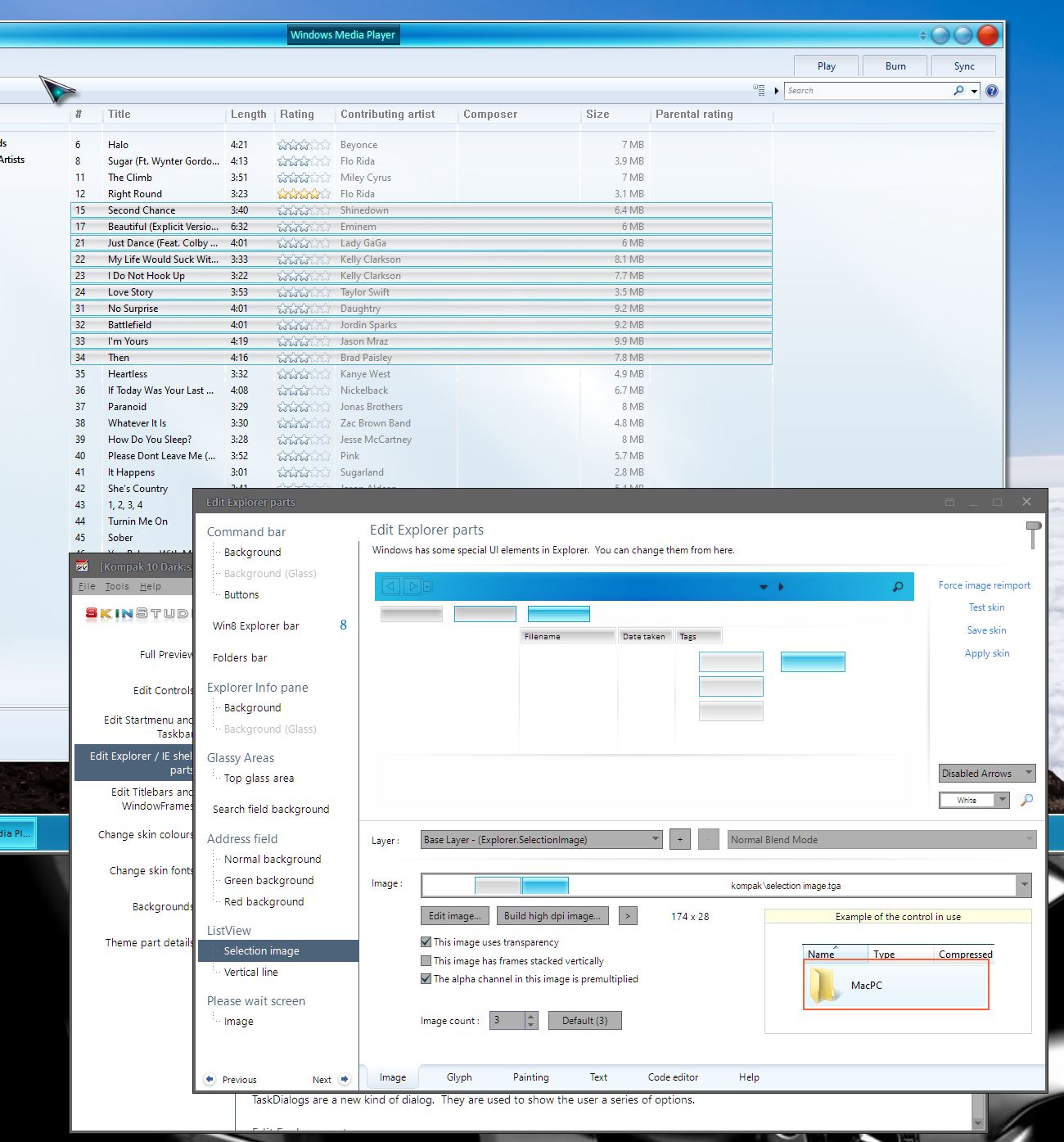
Skinners, need some bit of advice please. Will be posting more inquires as I get stuck.

Hey all,

Have a small problem, but unfortunately not been able to figure it out so thought I ask.  In the below screenie, it is showing Windows Media Player where I have highlighted all the songs.  Unfortunately in the skin I am using at the moment, and will go back to over time (I like changing my desktop look regularly :blush: ) the highlighting don't show, left side.  It does in Windows Explorer when picking the songs though.  It's just that if wanting to delete some songs to add more that's the tricky part.  I added a comparison from another skin to show the difference.

So my question is, where do one change that particular feature in the Skin Studio ?

Thank you for any and all suggestions and advice ! :grin:  

120,276 views 29 replies
Reply #1 Top

Try the selection image.

Thank you,

Basj
Stardock Community Assistant.

+1 Loading…
Reply #2 Top

Thanks Basj, that worked fine, its now yellow neon green instead of invisible !

Much appreciated for the quick reply ! :thumbsup:  

Reply #3 Top

Great,

Glad to help.. :thumbsup:  

Thank you,

Basj
Stardock Community Assistant.

Reply #4 Top

Got another small problem (for me at least !).

I'm looking to try and change some fonts and colours and if I am not mistaken, for colours it is under 'Change Skin Colours' but there is several different colours to be changed so hard to know which one ?  Or should I go through them all and find the ones I want to change ?  Also, there is two option in the drop down menu: 'Show me the skin colour presets' and 'Show me the skin defined system colours'.  I am guessing again it is the skin colour presets that need to be changed, yes ?  And the same can be said about the font's as well from what I can see ?

The text font and colours I'm wanting to change is for Windows Explore (Files and Folders).  Then a different font/colour in web browsers (Menu and Library links). and yet another font/colour for the Start Menu/Programs text ?

Is that possible, or is it different for every skin as to how the creator have decided to do their Window Blinds ?

Thank you again for any and all suggestions and advice ! :grin:  

Reply #5 Top

Which version of Windows are you running?

Reply #6 Top

Quoting DaveRI, reply 5

Which version of Windows are you running?

According to winver I am on Version 1903 (OS Build 18362.535)

Reply #7 Top

Quoting SwedishTom, reply 4

The text font and colours I'm wanting to change is for Windows Explore (Files and Folders).

For Font Win10 uses System font/Icon Font for File Explorer fonts.  I usually have to change the font, apply a different skin, then apply the skin I'm working on again to see the new font.  Pictures Reply5 here:

https://forums.wincustomize.com/489749/page/1/#3719364

Explorer colors for Win10 are under system colors, all the way at the end - Explorer Background, Explorer Folder Bar Background (for the Navigation pane), Explorer Text.

The Explorer Statusbar uses System Color / Buttonface for the color.  The text color is set in Controls/Statusbars/Statusbars/Subsections/[Text]tab, Sunk state.  I believe the font is locked to the System font/Icon Font, but I can't swear to it.

Start Menu/Programs text:

Those are all handled in Startmenu and Taskbar/Startmenu/ (Various sections). A few things I will point you to regarding the expanded All Programs list:

Text Color ; Startmenu and Taskbar / Startmenu / Left hand side / Programs list [Text] tab, 1st "Unused (ignore)" state is Normal,  2nd "Unused (ignore)" state is MouseOver

Text Font: Startmenu and Taskbar / Startmenu / Left hand side / Item mouseover [Text] tab, Normal and Mouseover.

Expanded All Programs general background color is set at Startmenu and Taskbar / Startmenu / All programs /Background / [Extra settings] / All programs list background colour.  If nothing has been set there it uses System Color / Buttonface.

Quoting SwedishTom, reply 4

Then a different font/colour in web browsers (Menu and Library links)

Don't know about that.

One thing that I'll warn you about is that System Color/Buttonface tends to get used and abused (with mismatched text colors) by various applications, so if you end up with dark text on a dark background somewhere in an app, buttonface is a good place to start.

+1 Loading…
Reply #8 Top

Quoting DaveRI, reply 7

The Explorer Statusbar uses System Color / Buttonface for the color. [...] I believe the font is locked to the System font/Icon Font, but I can't swear to it.

And now I'm looking at a skin where the Statusbar font is obviously not the same as the Explorer Window font, so the two aren't necessarily tied together.  Haven't been able to track that down, so I guess Statusbar font is another "I don't know".  Sorry about that.

Reply #9 Top

Thanks Dave !  Appreciate your replay ! :grin:   Sorry for a bit late replay though, as you can see below, ran into some smaller problems, for me at least !

There are some more questions as well.  :blush:   And I do apologize for posting things that most of you already know, but thought I do it this way incase others are looking to do similar changes on some skins.

Quoting DaveRI, reply 7


Explorer colors for Win10 are under system colors, all the way at the end - Explorer Background, Explorer Folder Bar Background (for the Navigation pane), Explorer Text.

Doing this did indeed changed the colour on the text for files and folders, but it did not change the text colour in the right hand side navigation part of the Explorer.  However it did also change the text in the Explorer Information box as well.  The first picture in the spoiler shows this. 

If changing it the above way, is that permanent and not able to change through the Colours Presets, since it was able to change the colour at the Explores Information box from there ? As shown in the second picture in the below spoiler.

So since it did not do the other text I was playing around for quiet some time and found this.  If going to the Skins Modify Style section, then to Colours and click on Change System Colours, scrolling down to the bottom of the box and changing System Colour: Windows Text, that did change both the text in the Explorer Window.  BUT... it also changed ALOT of more text colours.  Pictures in the spoiler.  So still looking for a way to change the colour on the text on both side in the Windows Exlporer, if anyone knows ??

As a side note, changing the System Colour: Window (also circled in the spoilered picture) changed the background in Notepad, Firefox History Window, Object Desktop, the Field in the Properties boxes and Pop Up boxes.  Might have mixed other places.  Just mention it incase someone else wanted to know and if someone might know how just to changed the background in Firefox History Window as well ?

The two below pictures shows some of the text that was changed using the above way.

Quoting DaveRI, reply 7

The Explorer Statusbar uses System Color / Buttonface for the color.  The text color is set in Controls/Statusbars/Statusbars/Subsections/[Text]tab, Sunk state.  I believe the font is locked to the System font/Icon Font, but I can't swear to it.

Yes, can confirm that I was not able to change the text font at the status bar.  That was at the same location, so not sure if there is other places for it.

Quoting DaveRI, reply 7

Start Menu/Programs text:

Those are all handled in Startmenu and Taskbar/Startmenu/ (Various sections). A few things I will point you to regarding the expanded All Programs list:

Text Color ; Startmenu and Taskbar / Startmenu / Left hand side / Programs list [Text] tab, 1st "Unused (ignore)" state is Normal,  2nd "Unused (ignore)" state is MouseOver

Text Font: Startmenu and Taskbar / Startmenu / Left hand side / Item mouseover [Text] tab, Normal and Mouseover.

The above way to change the text colour in the Start Menu was also possible to do through the Change Skin Colours as the author of this particular skin had picked out both those Programs Lists entries there as well.  It be showing in the next post, and with a few more questions, due to I don't want this post to be a mile long for everyone to read ! (I do pray that the spoiler function works !)

Once again, thank you for the help with the above Dave ! :thumbsup:

Edit: Alright, not sure what happened but I did use the spoiler function [ spoiler] [/ spoiler] (without spaces) but seems it is not working ??

Reply #10 Top

Alright, and now to the question(s). :blush:  

How do you make the below boxes for colouring different sets text within the skin ?

This below picture shows 5 different text "locations", although I only been able to find the below two so far.

This one changed a lot of different things, some of the "locations" are self explainable, like Clock Text, but then there are 2 Caption and 3 Menu Item, how do one know which one changes what ?


This one is just me being bit curious, but when one want to Edit Image on a TGA file, it opens my Paint in Full Screen Mode, is it possible to change that somewhere so it just open a normal sized window ??  Not the whole world, but using a 43' screen it is a tad to big ! O:)  


And lastly, what kind of programs are recommended to use when editing graphics ?  With Paint they all get flat for me, and not been able to figure out how to do it in Gimp yet.  So wondering if there is any other programs around that can be used, guessing Photoshop but might be others I'm not aware of.

Thank you once again for all suggestions and advice, they are greatly appreciated ! :grin:  

Reply #11 Top

Hejsan Svejsan Swedish Tom :grin:  

Reply #12 Top

Hello Tom,

You also need to remember that sometimes the skin elements have the font colours to chose from right beside the graphic. 


You want to change the header bars text colour in one of your images, 

simply go to : edit controls, and scroll down the list until you see Header bars, then click on the text tab down

the bottom.


I also see from your screen shots, you are trying to change the text colour of the push buttons, window frame text,

drop down menu text and tab buttons.

All of these can be changed in the graphics section as I mentioned above, just find the right section for each graphic.


push buttons > edit controls, push buttons

drop down menus > edit controls,  edit menu and menu bars

tabs . edit controls, tab controls


Hope this helps.

+1 Loading…
Reply #13 Top

Quoting SwedishTom, reply 9

If changing it the above way, is that permanent and not able to change through the Colours Presets, since it was able to change the colour at the Explores Information box from there ?

If the Win10 Explorer colors are assigned in the System Colors they do take priority over any other settings that would affect those areas.  If you want to make them null/nonexistent again you need to use the code editor to delete the color settings:

Go to a section that has the code editor tab at the bottom.  Many sections do, some don't.  I went to Taskbar Background in the shots below.  Click on the Code editor tab, click on the combo box, scroll up to "Colours" and click it.  Delete the appropriate lines as you would with any text editor.  Pictures:

With those gone, you're back to where you were.  One option for changing just the Info Pane text is:

Explorer and IE/Explorer windows/Explorer info pane/Background/[Extra Settings tab] Text Colour Two.  Note that the first setting in the list, "Enable to use the colour settings below", must be (and usually is) Enabled.

An option to change the navigation pane background color only should be:

Explorer and IE/Explorer windows/Command bar/Folders bar/[Extra Settings tab] Background Colour.  I don't know a way to change the navigation pane text only.

+1 Loading…
Reply #14 Top

Quoting neone6, reply 11

Hejsan Svejsan Swedish Tom :grin:  

Tjena, Tjena, Tim. :thumbsup:  


Quoting Vampothika, reply 12

Hello Tom,

You also need to remember that sometimes the skin elements have the font colours to chose from right beside the graphic. 


You want to change the header bars text colour in one of your images, 

simply go to : edit controls, and scroll down the list until you see Header bars, then click on the text tab down

the bottom.


Not quiet sure if I got the above right, but the only thing I found I changed when going to Controls - Headers - Headers Bars and clicking on the Text tab was this that's highlighted in the picture.

Was that was you were referring to ??


Quoting Vampothika, reply 12


I also see from your screen shots, you are trying to change the text colour of the push buttons, window frame text,

drop down menu text and tab buttons.

All of these can be changed in the graphics section as I mentioned above, just find the right section for each graphic.


push buttons > edit controls, push buttons

drop down menus > edit controls,  edit menu and menu bars

tabs . edit controls, tab controls


Hope this helps.

Actually, from that screen shoot (if I'm not mistaken you thinking of the 2nd one, of the three in my **Alright, and now to the question(s). ** post ??), I was more curious as to how the different 'Attributes' had been selected for each colour choice.  To take that screen shoot in question, the "clock" was selected which change things like Bottom part, Button Image, and so on.  So was wondering how that was done, which you did help with although that might not been your intent.  I had to do a third copy of your excellent Defunct Squad skin to try out your above suggestions and wanted a brighter colour so made a new one in the Edit Colours, so found out that way how all the 'Attributes' were done ! :grin:  


The second post with some questions was just things that I found out when I tried to figure out how to change the colour and fonts in Windows Explorer, after the suggestions that DaveRI gave me didn't quiet work.

Quoting SwedishTom, reply 4

The text font and colours I'm wanting to change is for Windows Explore (Files and Folders). 

Then a different font/colour in web browsers (Menu and Library links).

And yet another font/colour for the Start Menu/Programs text ?

Is that possible, or is it different for every skin as to how the creator have decided to do their Window Blinds ?

When doing it the way he suggested, it ended up like this.  The red shows what I wanted to change but as can be seen, it only changed one half of the Explorer Window to yellow text.  But it also changed the bottom Information Bar to yellow text, which I wanted to keep as Neon Green text, as I changed to previously, which are showing in blue.

So when I started to fiddle around I did find out how to get the text colour for the side navigation and folders/files to change, but it also changed ALOT of other text colours, which was more then I wanted (although it did also change the text colour in the Firefox Library for the folders and links there, but not for the menu text in Firefox itself).  Hence the illustrations above in post #9 and #10.


All in all it was probably me that made it all the more confusing due to been puzzling with it most of the day yesterday and it was getting late when I finally got around to posting it. :blush:  

But I DO appreciate your replay and you DID help me out with your suggestions, Vampothika ! :thumbsup:  


Lastly, and this is out of curiosity once again.  When were Skin Studio last updated ??

Reply #15 Top

Quoting DaveRI, reply 13

If the Win10 Explorer colors are assigned in the System Colors they do take priority over any other settings that would affect those areas.  If you want to make them null/nonexistent again you need to use the code editor to delete the color settings:

Go to a section that has the code editor tab at the bottom.  Many sections do, some don't.  I went to Taskbar Background in the shots below.  Click on the Code editor tab, click on the combo box, scroll up to "Colours" and click it.  Delete the appropriate lines as you would with any text editor.  Pictures:

/snipped out the pictures (since it seems spoiler tags not working)

Wow, thank you Dave ! That's excellent, when I been experimenting and did that by mistake first time around I had to start all over because I couldn't figure out how to revert it all.  Now I know in the future, thanks ! :grin:

Quoting DaveRI, reply 13

With those gone, you're back to where you were.  One option for changing just the Info Pane text is:

Explorer and IE/Explorer windows/Explorer info pane/Background/[Extra Settings tab] Text Colour Two.  Note that the first setting in the list, "Enable to use the colour settings below", must be (and usually is) Enabled.

An option to change the navigation pane background color only should be:

Explorer and IE/Explorer windows/Command bar/Folders bar/[Extra Settings tab] Background Colour.  I don't know a way to change the navigation pane text only.

Thanks for pointing out these ways as well, it seems I have a lot of more tinkering to do since some things can be done in multiple different ways ! 

Once again, thank you to everyone that have come with suggestions and tips, it is greatly appreciated ! 

For others, don't feel shy and add any other tips you feel might benefit any new skin explorers out there (me included) ! Cheers all ! :beer:  


Reply #16 Top

oh very good! If you need more help with skinning, just ask, we are all here to help =)

Reply #17 Top

Alright, now I'm confused.  Was closing down Skin Studio after working on trying to find out which Text Colour and backgrounds changes what, and saved some of the changes as I was going through things.  Then a while later when I opened it to continue, the 5 extra Colour Presets that I had made for the purpose of changing stuff was gone !  And the Edit Colour palette had changed back to how it was a couple days ago ?!  Have no clue how that happened and not sure if it can be fixed, but thought I ask incase anyone know what might have happened ?

It's only the Skin Studio that changed, all my notes I been taken in Notepad is still there (after a restart, thinking that would fix it but didn't).  So yeah, totally confusion in progress over here !  Have made another start copy of the same skin to redo things, but still, curious about the above if it sometimes happen, or was a unknowingly user error on my side.  o_O  

Reply #18 Top

If you're referring to the system colors (Custom color palette), those aren't saved, once you shut down SKS (Skin Studio) 

However, I could be misunderstanding you....:|  


+1 Loading…
Reply #19 Top

Quoting don5318, reply 18

If you're referring to the system colors (Custom color palette), those aren't saved, once you shut down SKS (Skin Studio) 

However, I could be misunderstanding you....:|  

Hey Don !

Yeah, there been a slight misunderstanding there.  Probably because I used the wrong description in my previous post. (I try and remember using pictures next time so my swenglish don't get confusing ! :grin: )

When I first started experimenting at the beginning of this thread, I changed the below selected colour presets that the skin author had made.

I shortly realised that I was doing it wrong and changed the colours back to it's original colours [the red squares] and instead made a couple 'Testing Purpose 1-5', this was done last Friday.  As can be seen, I used some bright colours to easier see the changes, since having no clue what was doing what ! :blush:  

Then as I mentioned above, decided to take a break, saved and later when I opened Skin Studio again, it was back to the first picture, somehow !  Also, since the 'Testing Purpose' colours that I had made was gone, some of the desktop looked like this.

The text colour is there, but in black so basically invisible.

So, being a total n00b at Skin Studio I thought I post and ask if that is something that might occur (some type if software crash or such ?) or if it just was user error in some regards. o_O  

Reply #20 Top

Quoting SwedishTom, reply 19

So, being a total n00b at Skin Studio I thought I post and ask if that is something that might occur (some type if software crash or such ?) or if it just was user error in some regards.

I am able to recreate that by adding and changing colors, closing the color window, then directly exiting SkinStudio using the File/Exit command, I notice that SKS does not prompt you to save change in that scenario.  I suspect that's what you might have done.  If I execute the File/Save Skin, the File/Apply Skin, or the File/Close Skin before exiting SKS does show the "Save changes" prompt with those commands and save the changes.

+1 Loading…
Reply #21 Top

Here's a thing to remember: The section called "show me skin colour presests is essentially a LIST of colors available to use the dropdown menus of the text settings in the different sections of the skin (Start menu, window frames, buttons etc). One usually chooses the colors you want to have in the skin there for later use while setting text colors for the different sections. If you change a color there in the PRESETS, it may change several areas at once because that color has been chosen by the skinner in multiple areas.

This section called "show me the skin defined system colours" is what defines other non skinnable items (some menus and other text settings) That section will take a lot of trial and error to understand what does what.

Finally, I would advise against using a combination of the WB config and Skinstudio to make changes. Use one or the other. Any changes you do in Skinstudio will be "overwritten" by the WB config changes.

+1 Loading…
Reply #22 Top

Hei fra Norge, forresten! B)  

Reply #23 Top

Quoting 2of3, reply 22

Hei fra Norge, forresten! B)  

Hejsan från Sverige ! :beer:  

Quoting DaveRI, reply 20

I am able to recreate that by adding and changing colors, closing the color window, then directly exiting SkinStudio using the File/Exit command, I notice that SKS does not prompt you to save change in that scenario.  I suspect that's what you might have done.  If I execute the File/Save Skin, the File/Apply Skin, or the File/Close Skin before exiting SKS does show the "Save changes" prompt with those commands and save the changes.

Alright, so there is something buggy with it then, that's good to know !  Although, that's not what I did, I clicked on the X to close it.  If I recently checked a modification I done when I do that, it just closes down and it's fine.  Sometimes if having opened another area and just looked, then clicking the X I get prompted if I want to save.  But I now know what made it go pear-shaped for me.

Quoting 2of3, reply 21

Finally, I would advise against using a combination of the WB config and Skinstudio to make changes. Use one or the other. Any changes you do in Skinstudio will be "overwritten" by the WB config changes.

And that was my wrong doing ! :typo: ..  I did go in to the WB config area, was trying a couple colours to see if I could change the text for folders/files and in the Browser drop down menus and Library, since so far not been able to find that part.  Only place I found it is where DaveRI suggested, which is in the 'Skin Defined System Colours' but that colour also changes the folder/file information bar (where date modified, created, size ect are shown) which I'm trying to have in another colour.

Quoting 2of3, reply 21

Here's a thing to remember: The section called "show me skin colour presests is essentially a LIST of colors available to use the dropdown menus of the text settings in the different sections of the skin (Start menu, window frames, buttons etc). One usually chooses the colors you want to have in the skin there for later use while setting text colors for the different sections. If you change a color there in the PRESETS, it may change several areas at once because that color has been chosen by the skinner in multiple areas.

Yeah, the above was what I did at first, then realized I was doing it the wrong way. Now I'm going through everything which says Text or Extra Settings, and changing any colours there to see what it changes in the skin.

Quoting 2of3, reply 21

This section called "show me the skin defined system colours" is what defines other non skinnable items (some menus and other text settings) That section will take a lot of trial and error to understand what does what.

Yeah, I think I have to do some trial and errors there as well.  Problem is from what I understand, changing a colour there overwrites any colour settings in the 'Show me the Skin Colour Presets' which the skin creator have set ?

Edit: Made another text skin and if modifying the text through the WindowsBlind, then the text for Folders/Files and the text in Firefox Library changes (and a bunch of other places which I don't want changes, of course ! :P ) but not the text in Firefox drop down menu's, so still stumped.  Guess it be a lot of Trial and Errors coming up here ! o_O <= That's me in a couple hours !

__________

Thank you all for your help and suggestions, I really appreciated it all, and most of all, your patience with a newbie trying to figure out the labyrinth that is the SkinStudio !

Reply #24 Top

Quoting SwedishTom, reply 23

Alright, so there is something buggy with it then, that's good to know !  Although, that's not what I did, I clicked on the X to close it. 

Not sure if it's a bug or a feature (or perhaps neither).  I never really knew that a straight exit or close would dump changes since the last save, there have been a few times I might have been able to take advantage of that.  Anyway, I guess if you tell it to exit or use the close button, it does exactly what you're telling it to do. ;)  

+1 Loading…
Reply #25 Top

Alright, I'm back again.  Been trying to figure out where to change the following but no luck as of yet.

That first area is a tad dark for me and hence wanting to change it but ack, no luck yet.

-------

Quoting SwedishTom, reply 4

The text font and colours I'm wanting to change is for Windows Explore (Files and Folders).  Then a different font/colour in web browsers (Menu and Library links). and yet another font/colour for the Start Menu/Programs text ?

Of the above I only managed to figure out how to change the font colour for the web browser and library's drop down menus (which also changed the text colour on the 'Display as a Menu' in the Start10 app, such as Recent Items, Universal Applications etc.), but it did not change for the web browser library links. :'(  

As for Windows Explorer, I find where to change those font colours but it also changes the 'Information bar' below them, where you can see Date Modified, Size and so on.  But since it is done through the 'Show me the skin defined system colours' there is not possible to change the Information Bar text colour to anything else.  Also, it don't change the left hand side of the Windows Explorer, Documents, Disks etc, that text colour still remind as it was.

So it seems that the only way to change the above things would be through the WindowsBlind section, Modify Style - Colours - Change System Colours, but doing it that way, it don't look like I can change it through the SkinStudio later.  Is that right or am I missing something ?  :S Which is very much possible !