Reply #1 Top

Hello,

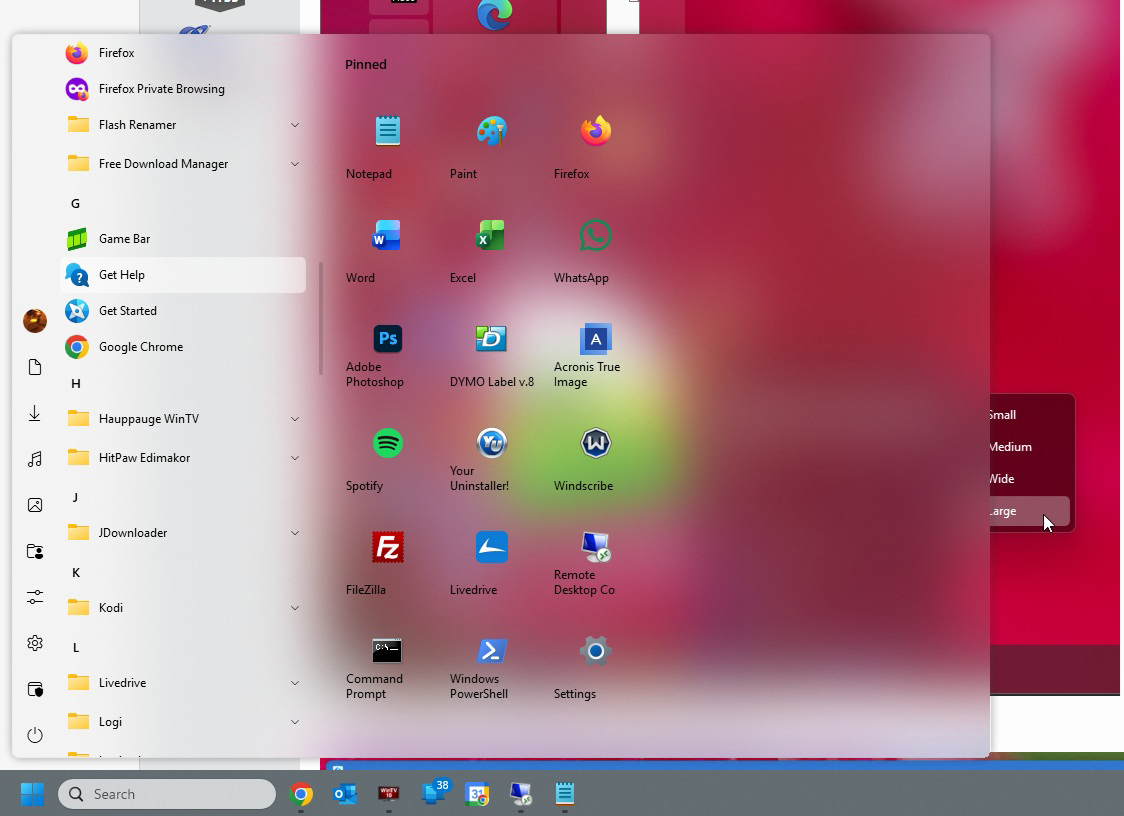
Please Try these setting. Right click on each tiles and set it to which ever size you wish.


Also, you can adjust all of the pinned tiles by using this setting.


Thank you,
Basj,
Stardock Community Assistant.

Reply #2 Top

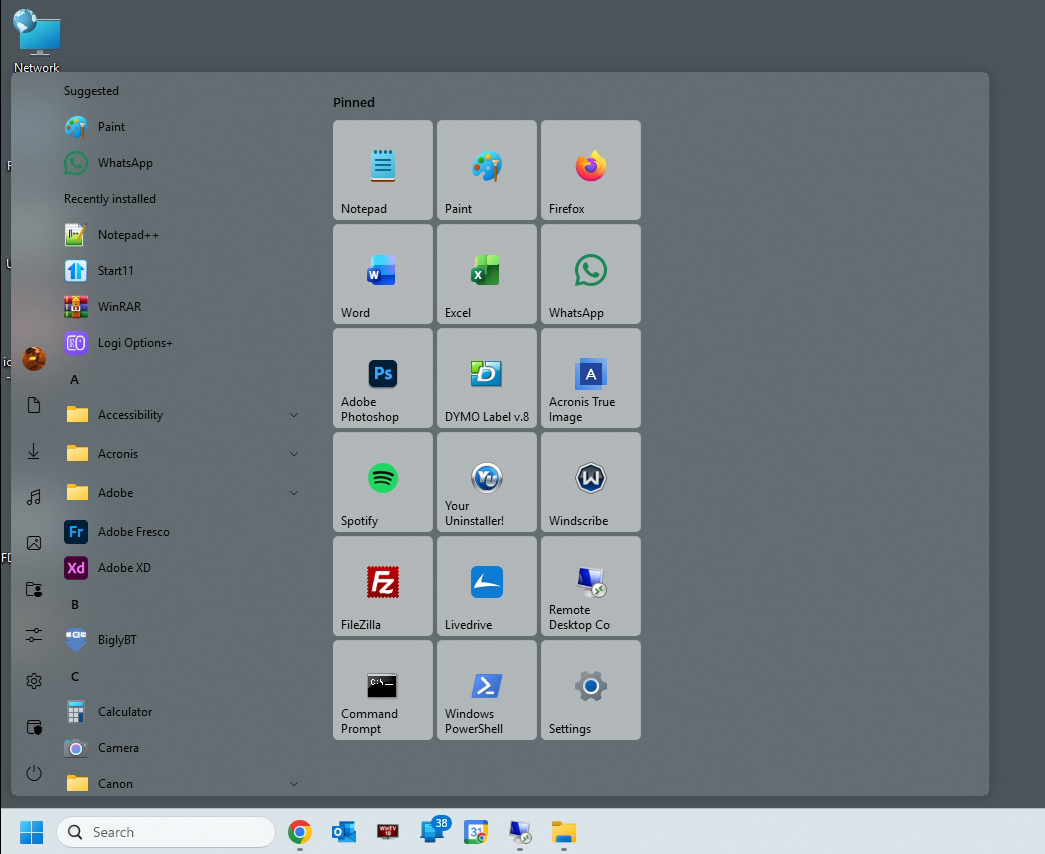
Basj, I was wondering how I make the background of the tiles transparent like in your screenshot?

Mine currently looks like:


Reply #3 Top

A lot of the customizations for Start11 are in the Right-click context menu.

To set a tile transparency, you must first right-click the tile and select a color. You can pick one of the built-in colors, or select "Pick color..."

To select a color, right-click a tile and select Icon > Color > select one of the built-in colors, or select "Pick color..."

Once you have chosen the color, right-click the tile again and select Icon > Color > Transparency > select the transparency percentage you like.
NOTE: In the list of percentages, 90% is the most transparent.

Good luck. :grin:  

Reply #4 Top

Okay I've almost got it exactly how I want it. 
The issue is the width to be just the three columns of tiles. In the group widths setting the lowest setting is '6 small icon wide' which I have checked.

Reply #5 Top

You can resize the Windows 10 style start menu, very much like you resize an Explorer window. Move the cursor over the edge of the menu until it changes to the Resize cursor and drag to make it smaller or larger.